Things to check
The short to-do list the LibrePortal app keeps for each server, how Access shows Checking, what a restart does when your vault is locked, and how the control panel opens already signed in.
On this page
The LibrePortal app watches each server for you and keeps a short list of jobs. This page explains what is on that list, what the small status words mean and what the app does by itself.
Things to check#
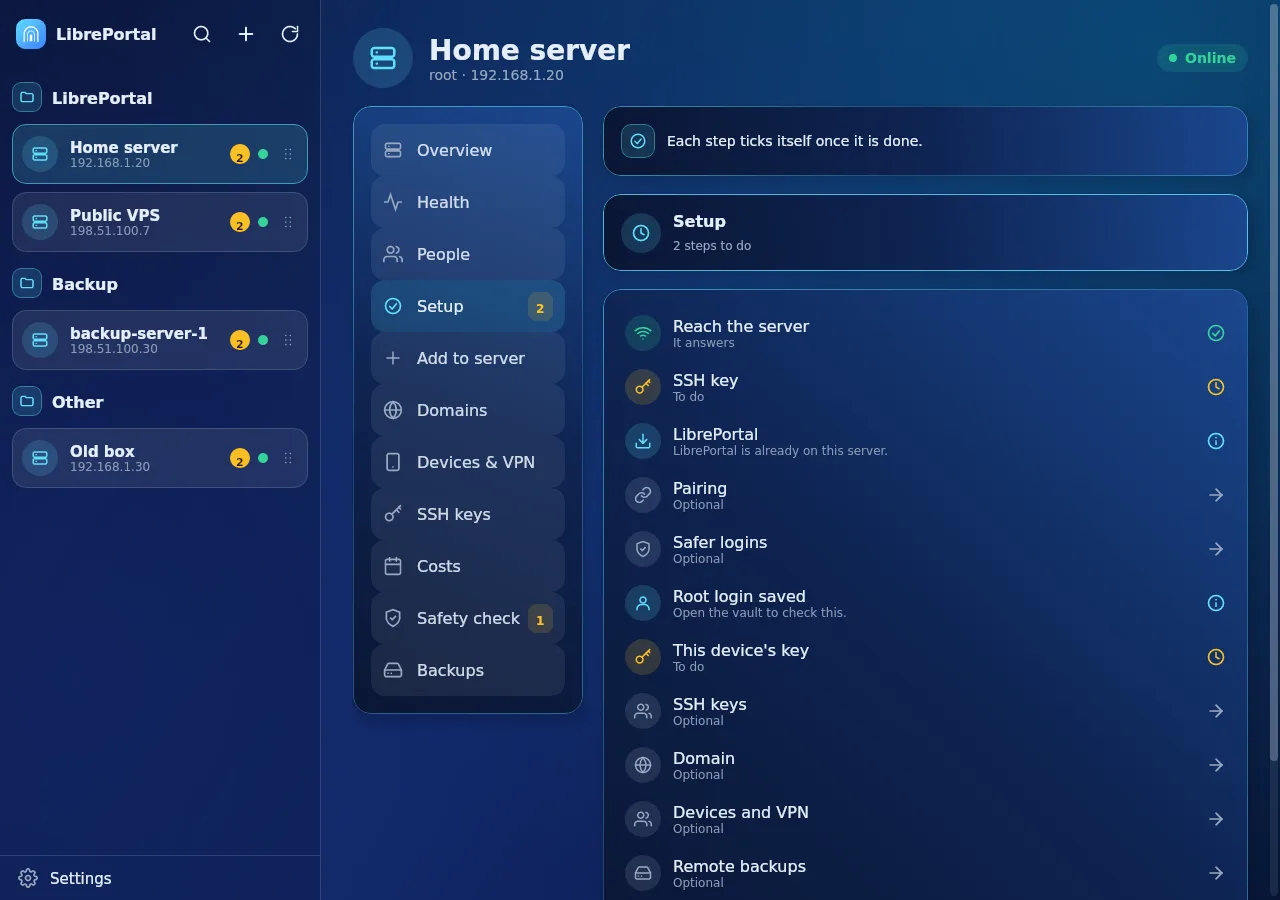
Open a server and choose Setup. Each line is one job the app found: reach the server, SSH key, LibrePortal, pairing, safer logins, your domain, devices and VPN, and remote backups. Each line is marked:
- Done: nothing to do.
- Found: the app found it already set up, for example a key you made yourself. It is left exactly as it is.
- Skipped: you chose not to, for now. It stays as a quiet note, never a warning.
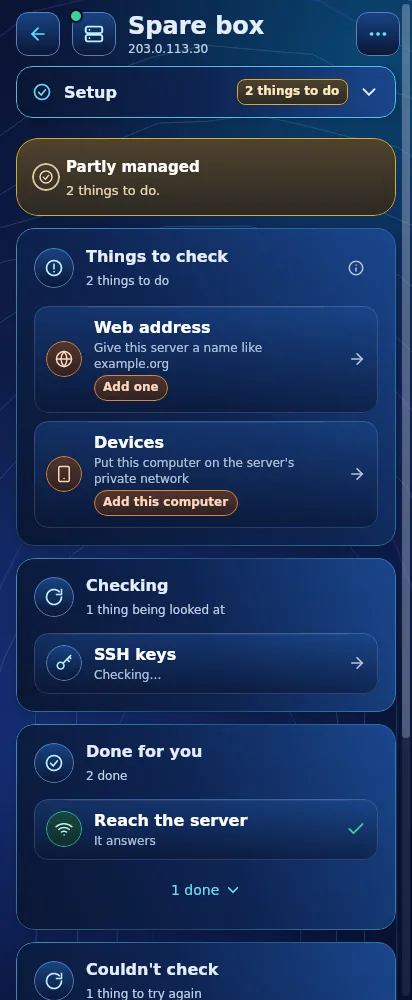
- To do: the app can help. Tap the line and it opens one page that shows the details first. Nothing changes without your yes.
Only the steps that matter count towards the number on the Setup tab. A step that needs something outside the app, for example a company login, opens that page, and the line ticks itself once it is done.
Why your vault is involved
Disk passwords, root passwords and keys live in LibreVault, not in the app. If a job needs one and LibreVault is not set up, the line says so, and the app offers to open LibreVault. It never asks before LibreVault is ready.
Automatic, Check only or Manual#
Most checks have one switch. Automatic does the job for you and tells you. Check only tells you and gives you a button. Manual shows you what to do yourself. It is always checked, whichever you choose. See The LibrePortal app.
"Checking…"#
While the app asks a server a question, for example whether you can still sign in over SSH, the line says Checking…. It turns into Online, Waiting for its disk password, Not answering or a reason, usually within seconds. A server on a private network can look "not answering" for a moment when your VPN is reconnecting. Check the VPN first.
Restarting a server#
Restart first checks that no backup or update is running, then restarts the server and follows it back up. If the disk is encrypted, it needs its disk password.
- If LibreVault is unlocked, the app takes the password from it and carries on.
- If LibreVault is locked, the restart waits and a notification says LibreVault is locked. Nothing is restarted until you unlock it. Then the app carries on by itself.
Opening the control panel signed in#
A server's control panel is its web page, the WebUI. In the app, Open panel shows it in a tab inside the window, already signed in for admins. It uses its own private browser profile, apart from your other browsers. If the built-in browser cannot start, Open in my browser instead is on the same page.
Right-click menus#
On a computer, right-clicking in the app opens a menu that looks like the rest of the app: copy and paste in text, and the usual page actions on a web tab.
Next: People and invites.