Disks and storage
Where LibrePortal keeps your apps' data, how to add a second disk and move a big app onto it, what happens when a disk goes missing, and swap.
On this page
On a new install everything lives on the machine's own disk, in three folders. That's fine until an app like Jellyfin or Nextcloud starts filling it with films and photos. Then you'll want a bigger disk, and LibrePortal lets you add one and put individual apps on it.
The three folders#
LibrePortal keeps its things in three places, chosen when you installed:
| Folder | What's in it | Size |
|---|---|---|
/libreportal-system |
LibrePortal's settings, database and logs | Around 20 MB, and it stays small |
/libreportal-containers |
Your apps' data | This is the one that grows |
/libreportal-backups |
The Local disk backup location | Grows with your apps |
The first two can be moved to another disk later (see moving LibrePortal itself). The backups folder can't; to keep backups on another disk, add a backup location there instead. Most people never need to: it's easier to leave them where they are and put the big apps on a second disk.
What the installer does about disks#
Nothing, unless you tell it. The usual curl … | sudo bash install never stops to ask about disks; it uses the three default folders on the system disk, or wherever you pointed --containers-dir and --backups-dir.
It never formats or mounts anything either. If it sees a second disk that isn't mounted yet, it lists it and tells you to mount it, then either run the installer again or add it afterwards with libreportal storage add.
The disk question gets asked later, in the setup wizard, where it's easier to answer.
The Storage step in the setup wizard#
When you first sign in, the setup wizard has a Storage step. It lists every drive LibrePortal can see, with how much space is free. If there's more than one usable drive, it asks two questions:
- LibrePortal: where LibrePortal's own settings, database and logs live. Pick another drive and they move there at the end of the install.
- New apps: where an app keeps its data unless you place that app somewhere else.
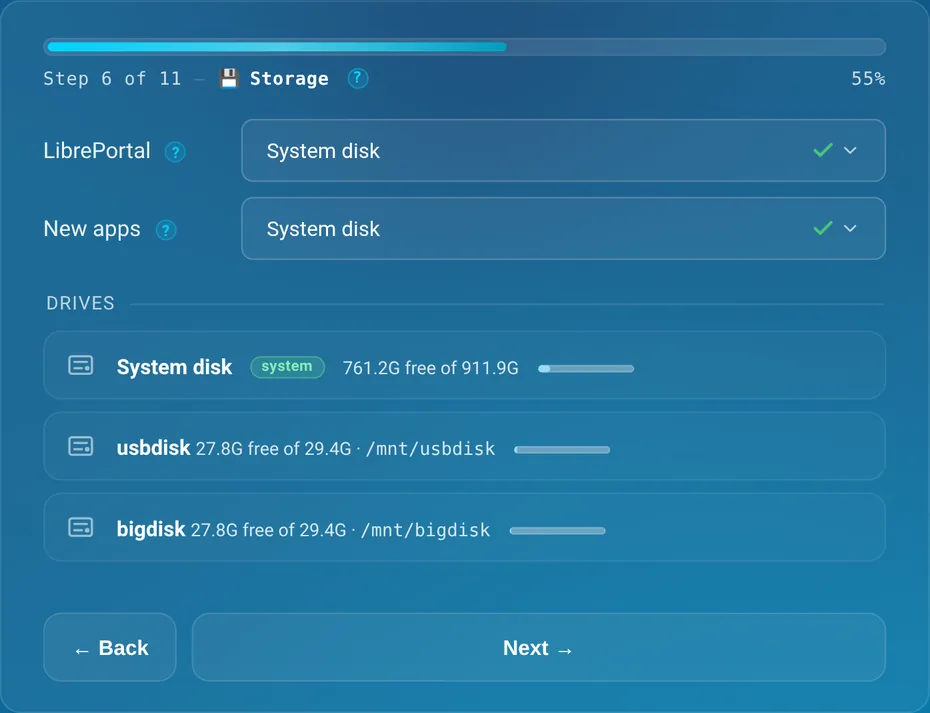
With a single drive, the step just says so: "Only one drive found, so everything goes here." Choose Advanced at the start of the wizard and this step also shows Exact paths for each folder, and the Swap setting.
Adding a disk later#
Say you've plugged a 4 TB USB disk into the server for Jellyfin. There are four steps, all on the server's command line for now; the WebUI doesn't have a page for adding disks yet.
-
Format and mount the disk. LibrePortal doesn't do this for you, on purpose: it's the one step where the wrong choice wipes a disk. Use a Linux filesystem (ext4, xfs or btrfs), and mount it somewhere like
/mnt/bigdisk. -
Make the mount come back after a reboot.
sudo -u libreportal libreportal storage fstab-add /mnt/bigdiskadds one line to/etc/fstab. It's written withnofail, so a missing disk can never stop the server booting, and the old file is backed up first. -
Register it with LibrePortal. Make an empty folder on the disk and add it, giving it a short name:
sudo mkdir /mnt/bigdisk/libreportal-apps
sudo -u libreportal libreportal storage add /mnt/bigdisk/libreportal-apps bigdisk
LibrePortal checks the disk first and says plainly if it isn't suitable.
-
Move the app onto it.
sudo -u libreportal libreportal app move jellyfin bigdisk
Give it a name
Always give the location a name when you add it (bigdisk above). Without one it's called location-1, location-2 and so on, and it's easy to lose track of which is which.
To see what LibrePortal thinks of every disk on the machine before you start, run storage scan. It lists each filesystem with a verdict. storage list shows the locations you've registered, and whether each is mounted:
ID   NAME             PATH                               STATE        APPS  FREE
0    default          /libreportal-containers            ok           8     767 GiB
1    bigdisk          /mnt/bigdisk/libreportal-apps      ok           1     3.4 TiB
What a disk has to be#
LibrePortal refuses a location it can't keep your data safe on:
- FAT, exFAT and NTFS are refused. They can't store file ownership and permissions, which app data needs. Reformat the disk as ext4, xfs or btrfs.
- Read-only disks, and ones mounted so programs can't run from them, are refused.
- Less than 1 GB free is refused; less than 5 GB gets a warning.
- The folder has to be empty (a
lost+foundfolder is fine). LibrePortal takes ownership of the folder, and only ever does that to an empty one, so it can't take over files that were already there. - System folders like
/etc,/var,/homeor/itself aren't allowed. Use a folder on a disk mounted under/mntor/srv.
It also warns, without refusing, when a disk is removable, isn't in /etc/fstab, or is the same disk your backups are on.
Moving an app to another disk#
app move is careful, because it's handling the one copy of your data:
- It checks there's room on the new disk, with 10% to spare.
- It stops the app.
- It takes a safety snapshot to your first enabled backup location.
- It copies the data, then checks the copy has the same number of files and the same total size.
- Only then does it delete the old copy, update the app's settings and start it again.
The move runs as a task, so you can follow it on the Tasks page. Large apps take a while: copying a terabyte of films to a USB disk is limited by the disk, not by LibrePortal.
The Storage Location setting
Every app has a Storage Location setting on the General tab of its Config page. It decides where the app's data goes when it's installed. Changing it on an app that's already installed doesn't move anything; use app move for that. A few apps that are part of the server's plumbing (Traefik, CrowdSec, AdGuard and the like) always stay on the system disk, and their setting is greyed out.
To check: confirm Update Configuration works for an app that has been moved to a second disk (the form sends the storage name again, which may be refused as 'already exists')
You can also choose the disk when you install from the command line: libreportal app install jellyfin --storage=bigdisk.
Where new apps go#
New apps go to the Default App Storage location, on Admin → Config → General. The setup wizard's New apps choice sets it. On the Config page it only offers the system disk for now, so to send new apps to a disk you've added afterwards, set it by the location's name from the command line:
Advanced Do this from the command line
sudo -u libreportal libreportal config update 'CFG_STORAGE_DEFAULT=bigdisk'
New to the command line? How to run LibrePortal commands →
Apps you've already installed stay where they are.
When a disk goes missing#
This is the rule that matters most: an app whose disk isn't mounted won't start.
Why an app refuses to start without its disk
When a USB disk isn't plugged in, its folder is still there on the server, just empty. An app started in that empty folder would look like a brand new install: Jellyfin would forget your library, Nextcloud would think it had no users. Worse, it would quietly start filling your system disk. Refusing to start is the safe answer. Plug the disk back in, and the app picks up where it left off.
storage list shows a missing disk as "drive not mounted — apps here will not start". LibrePortal also refuses to install an app onto a location whose disk isn't there, refuses to move an app off a missing disk, and won't let you remove a location while apps still live on it.
To check: the app start error for a missing drive is a generic compose-file message; document the exact wording users see once there is a specific one
Removing a disk#
Move every app off it first (app move <app> default puts one back on the system disk), then unregister it by its ID (from storage list) or its folder:
Advanced Do this from the command line
sudo -u libreportal libreportal storage apps 1      # which apps are still on location 1
sudo -u libreportal libreportal storage remove /mnt/bigdisk/libreportal-apps
New to the command line? How to run LibrePortal commands →
LibrePortal refuses while any app still lives there. After that the disk is yours to unplug.
Moving LibrePortal itself#
The system and containers folders can be moved to another disk as a whole:
Advanced Do this from the command line
sudo -u libreportal libreportal storage relocate containers /mnt/bigdisk/libreportal-containers --dry-run
New to the command line? How to run LibrePortal commands →
--dry-run prints exactly what would change and touches nothing. Without it, the folder is copied and checked before LibrePortal switches over, and the old copy is kept until you remove it with storage relocate cleanup <old path>, so an interrupted move leaves a working install behind. The destination has to be empty. The wizard's LibrePortal choice uses the same move.
Swap#
Swap is disk space the system uses as spare memory when memory runs short. It's slow, but it stops apps being killed when a few of them get busy at once.
On a machine with 8 GB of memory or less and no swap of its own, LibrePortal makes a swap file at /libreportal-swap/swapfile. With 2 GB of memory or less it's at least twice your memory; otherwise it's 2 GB. It never takes more than a tenth of your free disk space. If the machine already had swap, LibrePortal leaves it alone and adds none.
The Swap setting is on Admin → Config → General, with three choices:
- Automatic: the rule above.
- Custom size: pick 512 MB up to 16 GB. It's capped at half your free disk, always leaving at least 1 GB.
- Off: removes LibrePortal's swap file, if it made one. Swap the machine already had is left alone.
To see what's in use, or to apply a change straight away:
Advanced Do this from the command line
sudo -u libreportal libreportal system swap
sudo -u libreportal libreportal system swap apply
New to the command line? How to run LibrePortal commands →
Seeing where the space went#
Admin → System shows the system disk's usage, and Storage (/admin/system/storage) breaks it down by app, with what Docker's own images take up and a way to reclaim space from old ones. On the Dashboard, click Disk Used to get there.
From the command line#
| Command | What it does |
|---|---|
storage scan |
Every filesystem on the machine, with a verdict on whether it can hold app data. |
storage list |
The locations you've registered, their state and free space. |
storage add <folder> <name> |
Register an empty folder on a disk as a location. |
storage check [id] |
Re-run the checks on one location, or all. |
storage apps [id] |
Which apps live on a location. |
storage remove <id|path> |
Unregister a location, once it's empty of apps. |
storage fstab-add <mountpoint> |
Make a disk mount itself at boot. |
storage disks |
One row per filesystem, and what LibrePortal uses it for. |
storage relocate <system|containers> <path> |
Move one of LibrePortal's own folders to another disk. |
app move <app> <location> |
Move one app's data to another location. |
system swap [apply] |
Show swap, or make it match the Swap setting. |
Run each one as sudo -u libreportal libreportal <command>.

