Tools and add-ons
The Tools tab puts an app's everyday admin jobs behind buttons, like creating users or resetting a password. Here's how they work, what the Tested on chips mean, and what LibrePortal means by add-ons.
Most apps have jobs you'd normally need a terminal for: making an account, resetting someone's password, listing users, re-checking something. LibrePortal puts those on the app's Tools tab, as buttons with a short form.
The Tools tab appears once the app is installed, on apps that have tools. Each app's page in this guide lists its tools under "Tools".
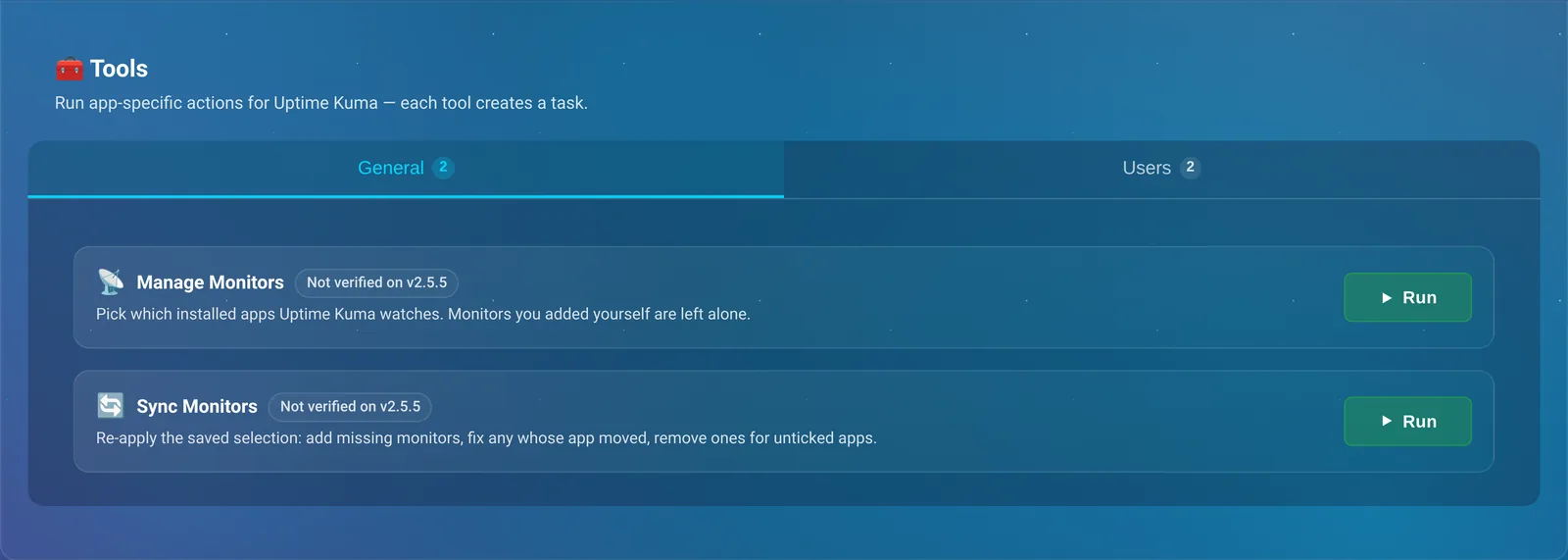
Using a tool#
- Open the app and go to its Tools tab. Tools are grouped, for example General and Users; pick the group along the top.
- Press Run on the tool you want. A tool with nothing to ask runs straight away. Otherwise a form opens.
- Fill in the form and press Run. Or Cancel to change your mind.
- Read the result. You stay on the page. A small message in the corner says the tool is running, then whether it worked, with a View task link to its full output. If it failed, the message says why.
Two kinds of tool behave a little differently. A tool that only reads something, like listing users, shows its answer in a window straight away. And a tool that takes a long time, like a big import, opens the Tasks tab so you can watch its log as it goes.
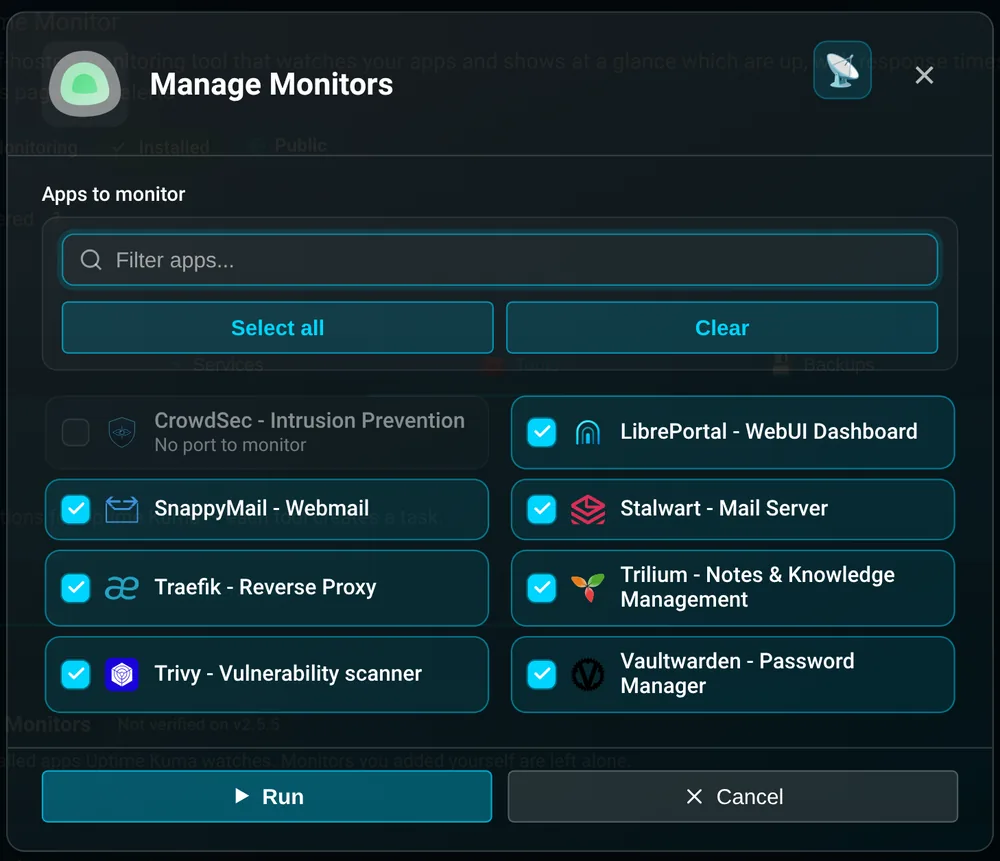
A few things are the same on every tool:
- Blank password boxes mean "make one up for me". A box that says "Leave blank to generate" gets a long random password, and the result shows it to you. Copy it before you close the window.
- Tools that can't be undone are red. Deleting a user, for example, has a red button with a bin on it, and asks you to confirm first.
- Every run is a task. It runs in the background, and it's listed on the app's Tasks tab and the Tasks page with its full output, so you can always look back at what a tool did, and when.
- Passwords never appear in the logs. Anything you type in a password box is handed to the app privately, not written into the task's command or its output.
"Tested on" and "Not verified"#
A tool reaches inside the app to do its job: it runs the app's own commands, or talks to its database. Apps change between versions, and a tool that worked on one might not on the next. So each tool carries a small chip saying how well it's been tested against the version you're running:
| Chip | What it means |
|---|---|
| ✓ Tested on v2.0 | LibrePortal has tested this tool on exactly the version you have. |
| Not verified on v2.5 | It's expected to work on your version, but hasn't been tested on it yet. |
| ⚠ Not tested with this version | Your version is outside what's been tested, or its version couldn't be read. |
Hover over the chip for the details, like which versions have been tested.
When a tool hasn't been tested on your version, pressing Run first asks Run anyway?, and explains: the tool "works with the app's own internals, which can change between versions, so it may not behave as expected or may stop part-way". Press Run anyway if you're happy to try, or Cancel.
It never stops you. It just makes sure you know. For a harmless tool like listing users, run it. For one that changes things, like deleting an account, it's worth taking a Backup now first.
Why say so at all?
Most apps update themselves, so it's normal to be running a version a few weeks newer than the one LibrePortal last tested. Almost always, the tools carry on working. But "almost always" isn't "always", and a tool that fails half-way through deleting an account is worse than one that never started. The chip is the honest answer to "has anyone checked this?".
Only LibrePortal's own tests mark a version as tested. Reports from other people that a tool works are useful, but they don't change the chip.
Add-ons#
"Add-on" can mean three things in LibrePortal, and they're easy to mix up.
Tools are add-ons for an app. They're the extra abilities on an app's Tools tab, described above. They come with LibrePortal, and a new release can add more.
Extras are add-ons inside an app. Some apps have their own store of plugins, like Nextcloud's apps. LibrePortal offers a short, tested list of them as Extras: you pick them while installing, and add or remove them later with the Add or Remove Extras tool (it's in the app's Extras group, and the Change button under the app's header opens it too). Removing one switches it off and keeps what you made with it. Choosing extras explains the rest.
Catalogue apps are add-ons for the App Center. These are extra apps published separately from LibrePortal's own releases, in a signed catalogue. When there are any, they appear in the App Center marked Available, with an Add button instead of Install. Add shows who published the app (an Official app, signed by the LibrePortal team, or a Community app) and what it adds. Press Add to my apps, and from then on it installs like any other app. From the command line, it's libreportal app add <name>.
Every app in this guide ships with LibrePortal itself, so you don't need to add anything to install them.
To check: describe the catalogue once apps are published to it: where they come from, how they're signed, and how to add a community catalogue (libreportal catalog source add)
From the command line#
Tools can be run on the server too:
Advanced Do this from the command line
sudo -u libreportal libreportal app tool list uptimekuma
New to the command line? How to run LibrePortal commands →
That lists an app's tools and their names. To run one, give the app, the tool's name, and its fields as name=value pairs separated by |, in single quotes:
Advanced Do this from the command line
sudo -u libreportal libreportal app tool funkwhale list_users
sudo -u libreportal libreportal app tool funkwhale set_admin 'username=sam|admin=true'
New to the command line? How to run LibrePortal commands →
For tools that take a password, use the WebUI. It hands the password to the tool privately; on the command line it would be visible to anyone on the server who lists running programs.