The LibrePortal VPN
Your server's own VPN, for reaching your private apps from your phone or laptop when you're away from home, without making them public.
On this page
- How it works
- Turning it on
- If your server is at home behind a router
- Adding a phone or laptop
- Opening your apps over the VPN
- Opening apps by name over the VPN
- What a device can open
- Removing a device
- The same device on several servers
- Turning it off
- wg-easy and Headscale are different
- Using RethinkDNS (or another firewall app)
- From the command line
Private apps only answer your trusted places. At home that's easy: your home network is one. But on the train, at work or at a friend's house, your phone is just another stranger on the internet.
The LibrePortal VPN fixes that. It's a small private network between your server and your own devices, built into LibrePortal. Once your phone is on it, it counts as one of your places wherever it is, and your private apps open as if you were at home.
How it works#
It's WireGuard, a modern, well-audited VPN that's built into Linux and has official apps for Android, iPhone, Windows, macOS and Linux. Each LibrePortal server runs its own, so there's no account to sign up for and nothing in the middle.
Your server listens on one UDP port, 51830 (or the next free one). Each device you add gets its own key and its own address on the private network. WireGuard stays silent to anything that doesn't have a key you've added, so to the rest of the internet the port looks closed.
Only traffic for your server goes through the VPN. Everything else on your phone, like web browsing and other apps, carries on over your normal connection, so leaving the VPN switched on all day costs you almost nothing.
Turning it on#
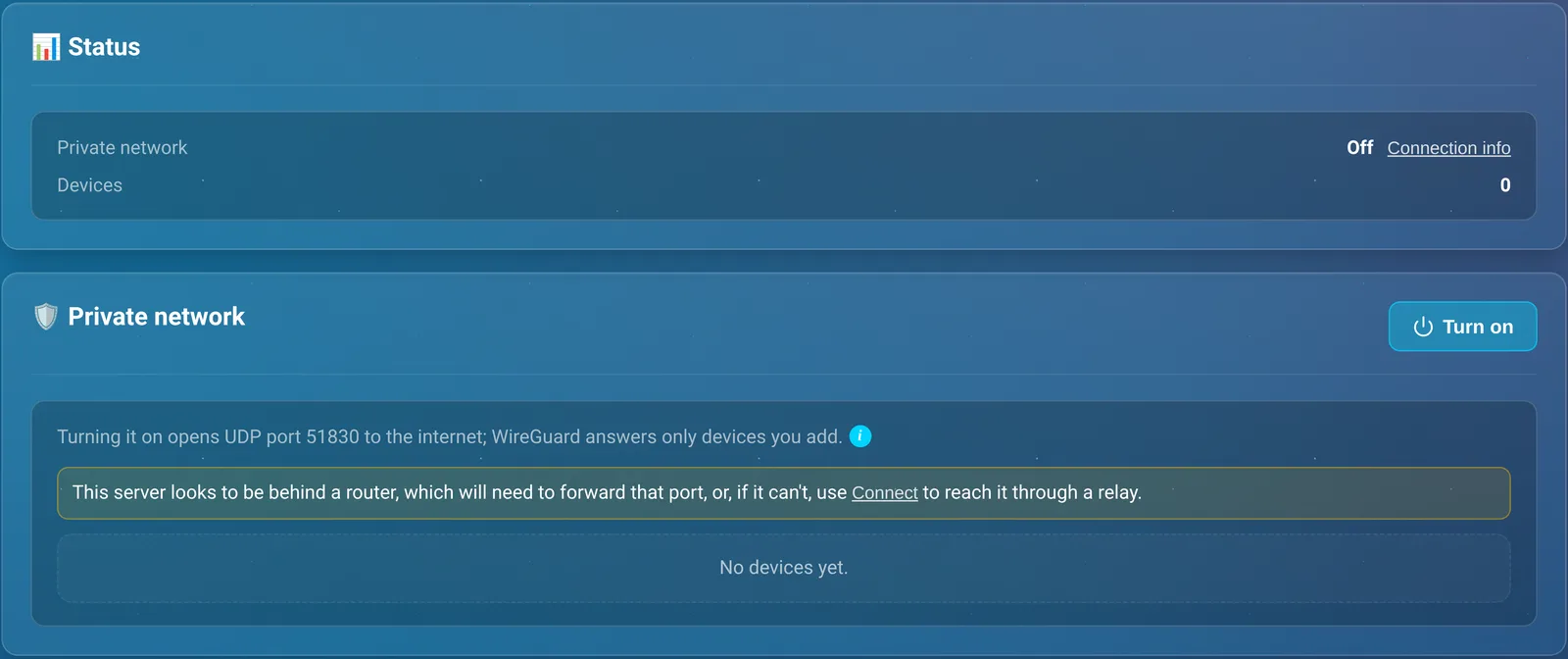
Go to Admin → VPN (under Tools in the Admin sidebar) and press Turn on. LibrePortal installs WireGuard if it needs to, picks an unused range of addresses for the network, and opens the UDP port in the firewall for you.
The firewall has to be on for this, because each device's rights are firewall rules. It is on a normal install; if it isn't, the page offers Turn on the firewall first.
You can also switch the VPN on in the setup wizard's Security step, under Private network (VPN), and add your first device there.
If your server is at home behind a router#
Your devices need to reach the server's UDP port from the outside. A VPS has a public address of its own, so that just works. A server at home sits behind your router, and LibrePortal tells you so on this page.
You then have two choices:
- Forward the port on your router. In your router's settings, forward UDP port 51830 (or whichever port the page shows) to your server's address on your home network. How you do it depends on the router; look for "port forwarding". LibrePortal can't test the forward from inside your network, so try it from your phone on mobile data.
- Use LibrePortal Connect if you can't forward a port, for example because your internet provider doesn't give you your own public address. Your server then connects out to a relay, and your devices reach it through that.
Connection info, next to the status, shows the address your devices will connect to, the port and the network's address range, if you need to check them.
Adding a phone or laptop#
- Install the WireGuard app on the device, from its app store or wireguard.com.
- Press + Add device on the VPN page. Give it a Device name, like
phoneorlaptop, say what kind of device it is (Android, iPhone, Windows, Mac or Linux), and choose what it Can open (see What a device can open). There's also Use this server's names, covered in names over the VPN below. Press Add device. - Give the device its config. On a phone, tap + in the WireGuard app and scan the QR code. On a computer, press Download and import the file into WireGuard. There's also Show the config text if you'd rather copy it.
- Tick I've saved it, then press Done. Turn the tunnel on in the WireGuard app.
The QR code is shown only once
The device's secret key is made in your browser, not on the server, and the server never sees it. Once you close that window, nobody can show you the config again. If you lose it, press Regenerate on the device's row. That makes a fresh key and a new QR code, and the old config stops working.
Why the file names are so short
The WireGuard app on Android refuses a tunnel whose name is longer than 15 characters, and it takes the name from the file. So LibrePortal names the file after your server and the device, shortened to fit, rather than giving you a long name that won't import.
Opening your apps over the VPN#
With the tunnel on, your server has a second address, its address on the private network. It's shown as Devices reach this server at under Connection info, and in the config of a device with the Admin right, as a comment.
Open the WebUI at that address, with its usual port, and everything on it follows: the buttons that open your apps use the address you're browsing at, so they work over the VPN too. Or go straight to an app at http://<VPN address>:<app's port>.
By default the VPN doesn't change how your phone looks up websites at all: it carries your server's traffic and nothing else. You can let it answer your server's own local names too, so bookmarks like https://nextcloud.homeserver.internal open over the VPN as well as at home. That's the next section.
Opening apps by name over the VPN#
If you use local names at home, you can have them work over the VPN too. It's a choice you make per device, with Use this server's names when you add it (or later, under Access on its row), because what's needed depends on the device:
- A laptop or desktop (Linux, Windows or Mac) can look up just your server's names over the tunnel while everything else carries on as normal. On Linux it's set up inside the tunnel, so there's nothing more to do. On Windows and Mac there's one short command the VPN page shows you after you add the device; run it once.
- A phone (Android or iPhone) can't be told "only these names go to this server": it's all or nothing. So turning names on for a phone sends all its lookups to your server while the tunnel is up, and that's only offered while AdGuard Home or Pi-hole is running on the server to answer them (and block ads for your phone into the bargain). Without one, the switch is off and says so, with a button to install AdGuard. If you later remove the ad-blocker, the phone's row flags that its names have stopped working.
Your server only answers its own names to the devices you've switched this on for, and nothing else, so turning it on for one device changes nothing for the others.
The names include your private apps: over the VPN, https://<app>.homeserver.internal for an app set to Private points at the server's VPN address. And a device you added before this was on needs one DNS line added in its WireGuard app so it knows where to ask (no new key or QR code). Both are covered in DNS for your VPN, along with the encrypted upstream and records of your own.
What a device can open#
Every device has rights, chosen under Can open when you add it and changed later with Access on its row:
| Right | What it reaches |
|---|---|
| Admin | The WebUI and SSH, plus every app on the server, including ones you install later. |
| All apps | Every app, including ones you install later. Not the WebUI or SSH. |
| Or only these apps | Just the apps you tick. |
Give Admin to your own phone and laptop, and something narrower to anyone else. A partner's phone that only needs the photo app and the password manager gets exactly those two. The first device you add has Admin ticked for you.
You can also choose device by device from an app's side, on its Network tab under Which of my devices can reach this app.
Removing a device#
Press ✕ on the device's row. LibrePortal asks you to tick that you understand it will lose access, then cuts it off at once. Do this straight away if a phone is lost or stolen.
If your WebUI is set to Only my devices, you can't remove your last Admin device, because that would leave nobody able to open the WebUI.
The same device on several servers#
If you run more than one LibrePortal server, one tunnel on your phone can reach them all. Under Show Advanced Options, each device can have a shared address that other LibrePortal servers can use too (it's ticked by default). Add to another server on the device's row gives you a Device card. On the other server, choose Already added to another server when you add the device, and paste the card.
Turning it off#
Turn off stops the VPN and closes its port; your devices are kept for when you turn it on again. It's hidden while the WebUI is set to Only my devices, because turning it off would lock you out.
wg-easy and Headscale are different#
The App Center also has wg-easy and Headscale. They're VPN apps you might run for other reasons, for example to give the whole family a VPN, or to join machines together. LibrePortal doesn't use them to decide who can reach your apps: devices on them don't count as trusted places. The built-in VPN on this page is the one that does.
Using RethinkDNS (or another firewall app)#
If you run the LibrePortal VPN tunnel inside RethinkDNS and private apps won't load with the VPN on (names resolve, but pages fail with "connection aborted"), keep "Do not route Private IPs" on if you need your home network. Turning it off pulls all private addresses into the tunnel, which also cuts off your LAN. At home, you can reach your apps without the VPN. A coming update moves the VPN to an address range that firewall apps don't treat as local, so it will work with that setting on.
- Make sure the apps you use (your browser, Bitwarden, LibreSync, LibreMoney and the LibrePortal app) are added to the LibrePortal tunnel in Rethink's WireGuard settings, and aren't set to Bypass.
- Other firewall or VPN-wrapper apps have similar "exclude local or LAN addresses" options. Turn those off for the LibrePortal tunnel.
From the command line#
| Command | What it does |
|---|---|
security vpn |
Show whether the VPN is on. |
security vpn on / off |
Turn it on or off. |
security device list |
List your devices. |
security device add <name> generate |
Add a device, making its key on the server and printing its config once. Add rights after generate, for example admin,all, then its kind (android, iphone, windows, mac, linux), with :off after the kind to add it without this server's names. A device added this way always gets a shared address. |
security device rights <name> <rights> |
Change what a device can open: admin,all, all, a list of apps, or none. |
security device names <name> on|off |
Turn this server's names on or off for a device. |
security device remove <name> |
Cut a device off. |
Run each one as sudo -u libreportal libreportal <command>. Adding a device in the WebUI is better where you can, because there the key never leaves your browser.