LibrePortal Connect
Reaching a server that sits behind a router you can't open a port on, through a relay that only ever carries encrypted traffic.
On this page
The LibrePortal VPN lets your phone reach your server from anywhere, as long as the phone can find its way in. On a VPS that's no problem. At home, your router stands in the way, and you normally forward a port on it to let the VPN through.
Sometimes you can't. Your internet provider may share one public address between many customers, a mobile broadband box may not have port forwarding at all, or the router simply isn't yours to change. LibrePortal Connect is for those servers.
How it works#
Connect uses a relay: a small program running on a server that the internet can reach. Your home server connects out to the relay and keeps that connection open. Your phone connects to the relay too, and the relay passes the traffic between them.
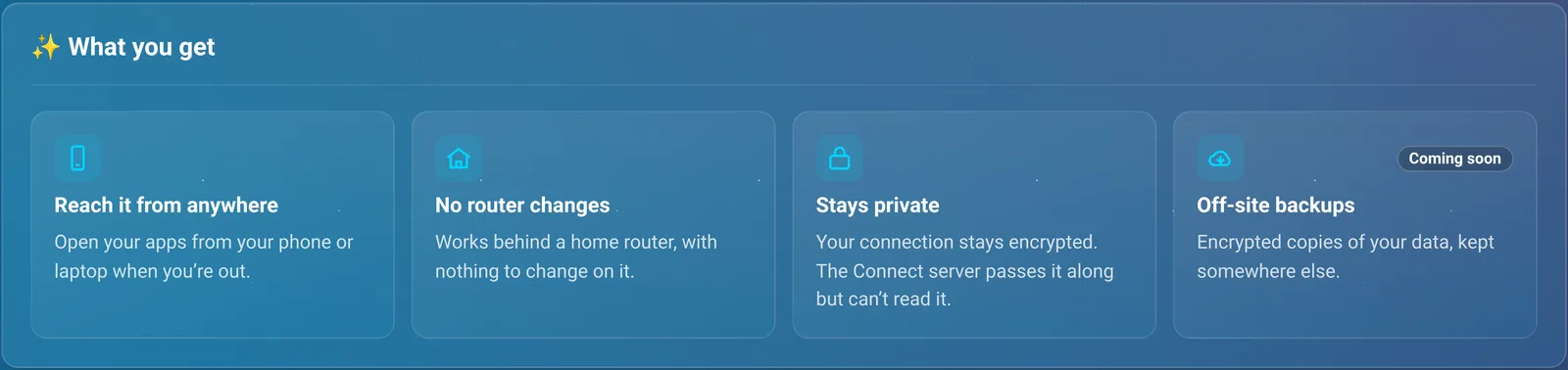
Nothing changes on your router, because your server only ever makes connections out, the same as a web browser does.
What the relay can and can't see#
The relay only ever passes along WireGuard traffic that was encrypted on your phone and is only decrypted on your server, and the other way round. It never holds a key. So whoever runs the relay can see that your server and your devices are talking, when, and how much, but not what's said: not the pages you open, not your passwords, not your files. It never runs any of your apps either.
You still reach your apps exactly as you do over the VPN, with the same device rights. Connect only changes the route your devices take, not what they're allowed to open.
Choosing a relay#
LibrePortal doesn't pick one for you, and nothing connects anywhere until you join one yourself. There are two kinds:
- Your own. Install the LibrePortal Connect app on a LibrePortal server the internet can reach: a cheap VPS is ideal. It's free, and you're the only one who can see even the traffic patterns. A friend who runs one can let your server use theirs, too.
- The LibrePortal project's. Shown on the Connect page as Coming soon: it isn't open yet, so there's nothing to sign up for.
Joining a relay#
Go to Admin → Connect (under Tools in the Admin sidebar). The page walks you through three steps.
- Turn on the private network. Connect carries your VPN, so the VPN has to be on first. Go to VPN takes you there.
- Join a Connect server. Paste the Join code you were given and press Join. The code already carries the Connect server's address, so that's all there is to it; if you were given the address separately, type it into Connect server address. The first time can take a minute, while LibrePortal fetches the small program that keeps the link open.
- Add your phone or laptop. Add devices on the VPN page as usual. Their configs now point at the relay instead of at your home.
The join code comes from whoever runs the relay. A code works once, for one server, so keep it to yourself until you've used it.
Devices you added before joining
A device you added before you joined still has your home address in its config, and won't go through the relay. Press Regenerate on its row on the VPN page, and give it the new config.
Once you're connected, the page says Connected to the relay, with Change and Leave buttons. The Status tiles above show the state, the Connect server, the Delay (how long the relay takes to answer this server, usually well under 100 ms) and when it Last contacted this server. If the link drops, the agent keeps retrying by itself, and it comes back on its own after a reboot or an update.
- Leave stops using the relay, but remembers it, so you can turn it back on later without a new code.
- Forget this server (shown once you've left) drops it altogether. Joining again then needs a new join code.
You can't change the relay from a device that's reaching the server through that relay, because the change would cut off the connection you're using. Do it from home.
Devices at home#
A device set up through Connect works at home as well as away, because it always goes through the relay. If a device never leaves your home network, such as a TV or a desktop, choose At home only when you add it. Its config then points straight at this server on your home network, which is faster, and which still works if the relay is down. It stops working when you take the device away.
Running your own relay#
The short version is below. Run your own Connect relay has the full page.
Install LibrePortal Connect from the App Center on a LibrePortal server with a public address. It needs one port open to the internet, UDP 51900, which the app opens for you. A domain is optional: give the relay a name with its Public Address setting, or leave that empty and servers use its public IP.
Everything else is on the app's Tools tab:
| Tool | What it does |
|---|---|
| Relay Status | Whether the relay is up, how long for, and how many servers and devices are using it now. |
| New Enrolment Code | Makes a join code for one server. Add a note saying whose it is, and how long it stays valid (24 hours unless you say otherwise). The code includes this relay's address. Send it privately; anyone with it can join a server. |
| Unused Codes and Cancel Code | The codes that have been made but not used yet, and a way to make one stop working. |
| List Servers | Every server using the relay: whether it's connected now, and how many devices are using it. |
| Pause Server and Resume Server | Keep a server joined but carry none of its traffic for a while, and carry it again. Its agent shows that the link is paused, and reconnects by itself after you resume. |
| Remove Server | Cuts a server off at once. It needs a new code to come back. |
The Config tab has the limits: Most Servers (100), Devices Per Server (64), and a Speed Limit (Mbit/s) for each server, each way (25; 0 means no limit), so one busy household can't swamp everyone else.
A code is single-use and stops working after a day unless you choose longer. Anyone guessing codes is slowed to five tries a minute from one address, and the relay never writes down who connects: no addresses in its log or its saved state.
The relay's data (the list of joined servers, their public keys) is included in LibrePortal's backups, so a restored relay doesn't make every server join again. It works on a Raspberry Pi as well as an ordinary PC, because the relay is built for both.
One relay, many servers
A relay doesn't need much. It never stores anything but the list of servers that have joined, and only passes along encrypted traffic. One small VPS can serve your own servers and your friends' as well.
If you rebuild or restore a server#
The Connect membership lives with the server's private network, not in its backups. A restored or rebuilt server has new VPN keys anyway, so it joins the relay again with a new join code, and you add its devices again. The relay itself is backed up and restores with all its members.
Off-site backups through Connect#
You'll see Off-site backups on the Connect page, and LibrePortal Connect as a backup destination in the setup wizard, both marked as not available yet. The idea is somewhere to keep an encrypted copy of your backups away from your server without running a second machine. LibrePortal is ready for it, but the service it would send to doesn't exist yet. Until it does, use SFTP or cloud storage for your off-site copy; see Backups and restore.
From the command line#
| Command | What it does |
|---|---|
security connect |
Whether the server is using a relay, and whether it's connected. |
security connect enrol <relay> |
Join a relay. It asks for the join code without showing it on screen. |
security connect off / on |
Stop using the relay, or use it again. |
security connect forget |
Drop the relay altogether. |
Run each one as sudo -u libreportal libreportal <command>. On the relay's own server, this makes a join code from the command line:
Advanced Do this from the command line
sudo -u libreportal libreportal app tool connect new_code "label=Sam|valid_for=3d"
New to the command line? How to run LibrePortal commands →
