App pages and settings
Every app's page has the same tabs. Here's what each one is for, what the settings most apps share actually do and when to change them, and how to change a setting that isn't on the page yet.
On this page
Open any app from the App Center and you'll see the same page layout. Once you know one app's page, you know them all.
The top of the page#
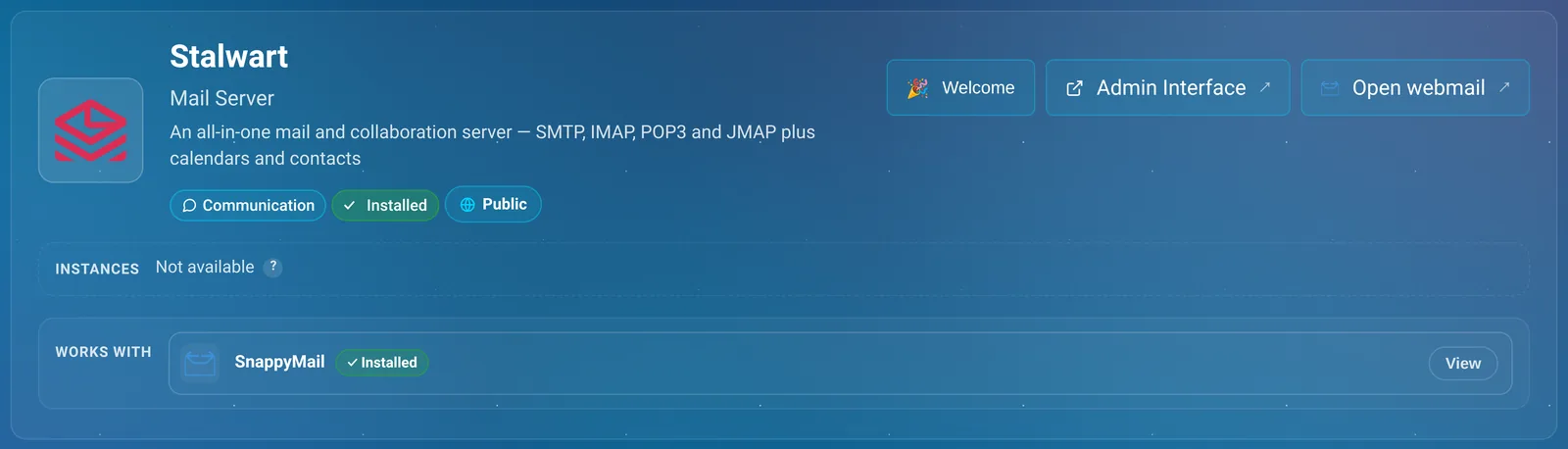
The app's name, what it's for, and badges saying whether it's installed and whether it's Public or Private. On the right are buttons that open the app (an app with several pages, like an admin page and a user page, has one for each) and Welcome, which shows its Login Details again.
Underneath:
- Instances, for running more than one copy of the app, or a short note saying why it can't.
- Works with, the other apps it connects to and whether they're connected. See Apps that work together.
The tabs#
| Tab | What it's for |
|---|---|
| Config | The app's settings, in sections. Network holds its ports and who can reach it. |
| Services | The app's running parts, with Restart and their logs. |
| Tools | One-click jobs for that app, if it has any. See Tools and add-ons. |
| Backups | The app's snapshots, Backup now, and Restore. See Backups and restore. |
| Updates | Its version, updates waiting, known vulnerabilities and Roll back. See Updates. |
| Tasks | Everything LibrePortal has done to this app, with the full output. |
Services, Tools and Backups only appear once the app is installed. Before that, the Config tab is where you choose settings for the install.
The Config tab#
Settings are grouped into sections along the top of the tab. Most apps have General, Network, Features and Advanced; some add their own. Each setting has a ? next to its name that explains it.
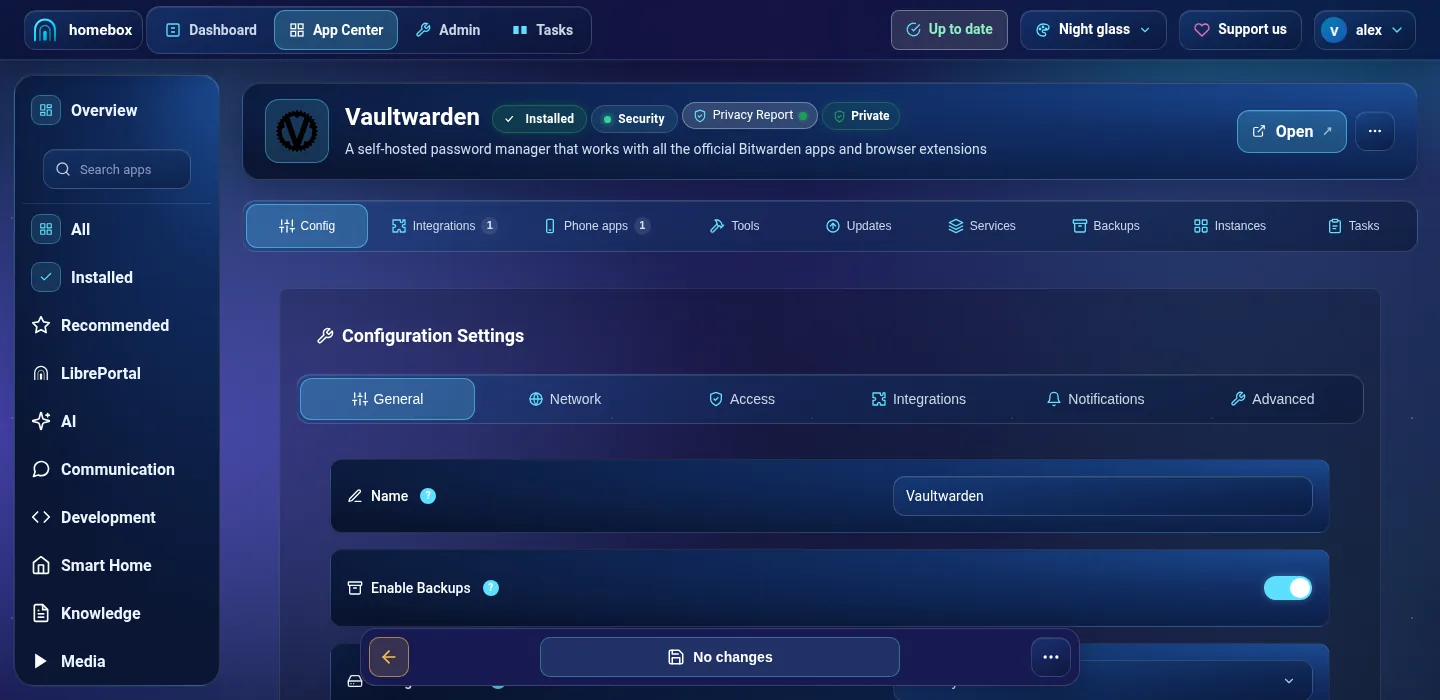
When you've changed something, press Update Configuration at the bottom. LibrePortal reinstalls the app with the new settings: it rewrites the app's setup and restarts it. The app's data, its passwords and its ports stay as they were. It usually takes a few seconds, and you can watch it on the Tasks tab.
If a change needs explaining first, for example one that makes the app public, the same short dialog as an install opens, so you can see what's about to happen before it does.
Unsaved changes
If you change something and try to leave the page without pressing Update Configuration, the WebUI asks what to do: Apply runs the update now, Discard throws the edits away, and Stay keeps you on the page. Nothing is changed on the server until you apply.
Settings most apps share#
Each app's page in this guide lists its own settings. These are the ones most apps have, and what they're for.
General#
Enable Backups. Include the app in the scheduled nightly backups. Most apps have it on from the start. Switch it off only for an app with nothing worth keeping, like a converter that stores nothing; everything else, leave it on. You can still take a Backup now by hand either way.
Storage Location. Which disk the app's data lives on, when it's installed. Primary is the system disk; any disks you've added are listed by name. Changing it on an installed app doesn't move its data; for that, see Disks and storage.
Updates. Automatic (recommended) installs new versions for you between 06:00 and 08:00, after taking a backup. Manual — I'll press Update waits for you. Set an app to Manual if you want to read the release notes first, or if you're relying on it for something important this week. See Updates.
Network#
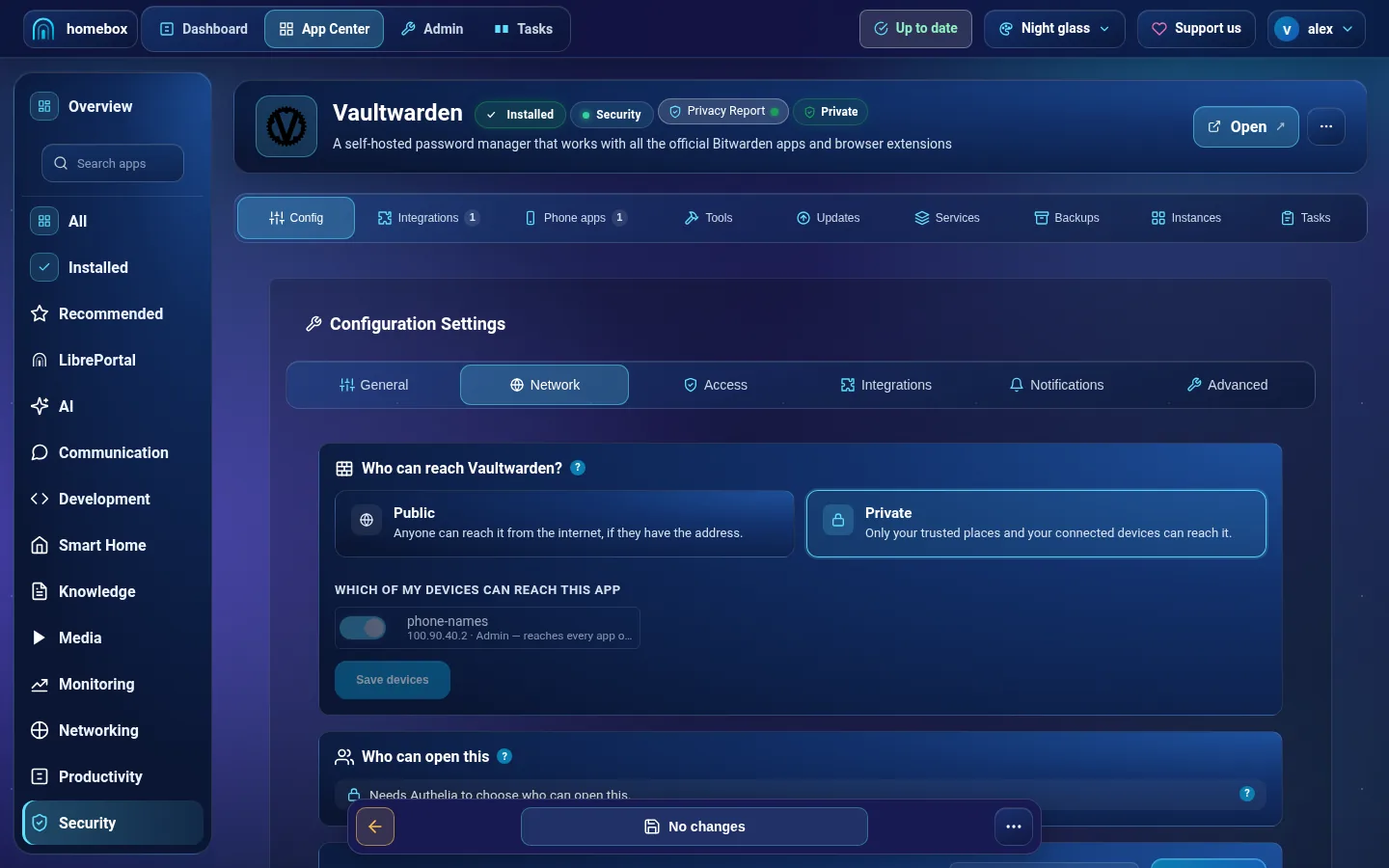
Who can reach …? Public: anyone who has the address can open the app. Private: only your trusted places and your devices on the LibrePortal VPN. It's enforced by the server's firewall, so to everyone else a private app simply isn't there. Choose Private for anything only your household uses. Choose Public for things other people need to reach, like a Mastodon server or a status page. Some apps have to be public to work (a mail server accepts mail from strangers) and say so. Who can reach what explains it in full.
Ports. What the app publishes on the server. Each port has an External port, the one you connect to on the server, usually random, which means LibrePortal picks a free one between 3000 and 9999 and keeps it. The Internal port is the one inside the app and never needs changing. Each port can also be public or private on its own; Show advanced fields shows the rest, like its subdomain on your domain. Two apps can't answer on the same address: if a subdomain is already another app's, LibrePortal refuses, names the app that has it, and suggests a free subdomain instead.
Domain. On a server with more than one domain, which one the app is served on (1 for the first). Leave it alone with a single domain.
Network Mode. For media and download apps only: Through Gluetun (VPN) sends all the app's internet traffic through Gluetun's VPN connection, so the sites it talks to see your VPN provider's address rather than yours. It needs Gluetun installed first.
Features#
Authelia Integration. Put Authelia's sign-in page, with two-factor, in front of the app. Worth it for an app that's public and has weak or no login of its own. Needs Authelia installed.
Enable Whitelist. Only let the addresses on your whitelist (on Admin → Config → Network) reach this app through Traefik. Needs Traefik.
Advanced#
These are behind an Advanced Settings switch, because a wrong value can stop the app working. You'll rarely need them.
Page Security. Whether the app's own port is served over HTTPS. Automatic — follow the HTTPS setting (the default) does whatever you chose for the whole server. Always HTTPS forces it for this app, which a few apps need for their browser features to work. Plain HTTP keeps it off for this app, whatever the server's setting. See Domains and HTTPS.
Backup Strategy. How the app is backed up. Automatic (recommended) picks the right way for the app. Stop → snapshot → start stops the app for the few seconds it takes, the safest for any database. Pause → snapshot → unpause freezes it instead of stopping it. Live — no downtime backs it up while it runs, which is only safe for apps whose databases LibrePortal knows how to copy live. Leave it on Automatic unless a backup has failed and the task log suggests otherwise.
Health Check. Whether Docker keeps checking that the app is answering. Leave it on; LibrePortal's updates use it to decide whether an update worked.
Four more settings sit under it, so you can tune how the check runs for this one app:
- Check every (seconds): how often the check runs. The default is about once a minute, which keeps small servers light. From 10 to 3600.
- Wait up to (seconds): how long one check may take before it counts as failed.
- Failures before unhealthy: how many checks in a row must fail before the app is called unhealthy. From 1 to 20.
- Grace after start (seconds): how long a freshly started app is left alone while it warms up. Slow starters, such as Uptime Kuma, keep a longer grace.
Saving one restarts only this app. A value that could never work, such as a check interval shorter than the time allowed for one check, is refused before it is saved.
Application Version. The version of the app's image. Changing it here is how you'd stay on an older version. For most apps, use the Upgrade button on the Updates tab instead; it moves one version at a time and checks each step.
The rest of the Advanced section (the compose file, the app's internal name) is for people building apps for LibrePortal, and best left alone.
The Services tab#
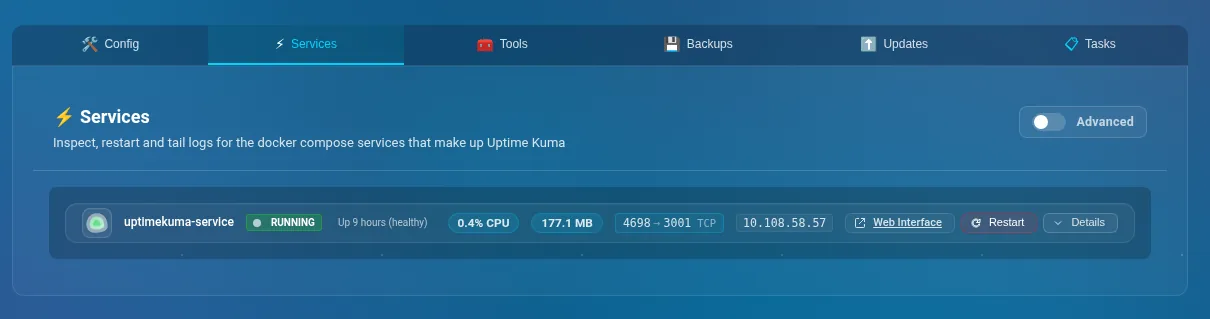
Most apps are made of one or more services: the app itself, and often a database or a cache beside it. Each one gets a row saying whether it's running and healthy, how much processor and memory it's using, and its ports.
Restart restarts just that service. Details shows its health check, networks and folders, and Show logs, the service's own output as it happens. When an app misbehaves, its logs usually say why. The Advanced switch at the top shows more about each container, like its memory limits.
Settings in the config file#
A few apps have settings that exist in their config file but aren't on the Config tab yet. Their pages in this guide list them under "In its config file". Funkwhale's Largest Upload, for example, is CFG_FUNKWHALE_MAX_UPLOAD_SIZE.
To change one, reinstall the app with the new value, from the command line:
Advanced Do this from the command line
sudo -u libreportal libreportal app install funkwhale 'CFG_FUNKWHALE_MAX_UPLOAD_SIZE=1G'
New to the command line? How to run LibrePortal commands →
That's exactly what Update Configuration does in the WebUI: it saves the value, rebuilds the app's setup and restarts it, keeping its data, passwords and ports. Put the setting in single quotes, as above. To change several at once, separate them with |: 'CFG_FUNKWHALE_WEB_WORKERS=3|CFG_FUNKWHALE_MAX_UPLOAD_SIZE=1G'. If a value itself contains a |, write it as %7C; LibrePortal turns it back into | when it saves the value.
Why not just edit the file?
Editing an app's config file by hand, or with libreportal config update, saves the value but doesn't apply it: the app keeps running as before until it's reinstalled. app install with the value does both in one go, and keeps LibrePortal's own copy of the settings in step, so the next update doesn't undo your change.