Add, import and rename servers
How to add a server to the LibrePortal app, bring in the ones already set up on this computer, and give a server a name of your own.
Add a server#
Press Add a server. The app asks one question on each page, with a thin line at the top showing how far along you are. Back takes you one page back. Every step that is optional has Skip for now, and a skipped step stays on the server's Setup list with Do it now.
There are four ways in:
- Buy a server. The app helps you pick and order one at a hosting company, installs it and sets it up. OVH only for now.
- Use a rented server. For a server you already rent. The app can reinstall it, encrypt its disk and install LibrePortal.
- Connect an existing server. A server that already runs LibrePortal connects with a pairing link, or its address and a code. A server without LibrePortal connects by address and SSH, and the app looks at it first without changing anything.
- Join a server. Someone sent you an invite. See People and invites.
Each server has a Setup list. Every step is shown as one of four things:
| Shown as | Means |
|---|---|
| Done | The app did it and checked that it works. |
| Found | It was done another way. The app leaves it alone and tells you quietly. |
| Skipped | You chose not to, for now. |
| To do | Not done yet. |
Only something that is truly broken is shown in red or amber. Found and Skipped never are.
Nothing is asked up front
The app asks for the vault, a hosting login or a key at the step that needs it, and not before. If you bring your own SSH key and never encrypt a disk, you may never be asked for anything else.
Import servers from this computer#
If you already connect to your servers from this computer, the app can find them. Press Import from this computer. It reads the SSH setup on that computer, in the .ssh folder, and lists what it found.
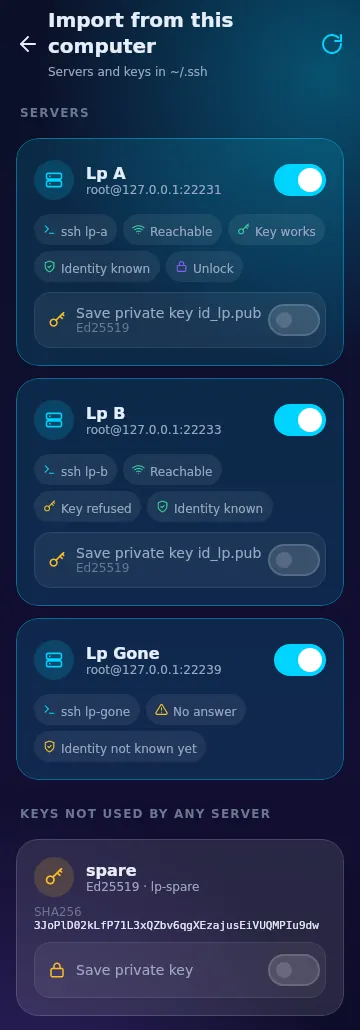
Each server shows a short check: whether it answers, whether the key works, and whether you have trusted it before. One already in your vault says Already added. Keys that no server uses are listed on their own.
- Tick the ones you want and press Import.
- The server's identity goes into the vault, so a new device can trust it without questions.
- A private key is saved to the vault only if you tick it. By default it stays where it is, and this computer keeps using its own file.
- The app never rewrites your
.sshfiles. Names in your SSH setup are left as they are.
This is for the Linux computer app. A phone has nothing to scan, so it skips this.
Rename a server#
A server has one name, shown everywhere. You can type your own, or press the dice for a generated one. Press Rename on the server's page.
Before anything changes, the app shows a list of every place the name appears: the vault entry, the SSH names this computer keeps for it, and, if you leave it ticked, the server's own hostname. Other devices follow the new name the next time they sync with the vault.
The old SSH name keeps working and is marked Old name, still works. The app makes a backup of your .ssh folder first, and there is an undo.
Each server also has a list of its SSH names, where you can copy, add, rename or remove one.
Server logins#
A server's page has a Users list of the login accounts on that machine, with small marks for admin, keys and last login. Open one to reset its password (generated or typed, and shown once), see and remove its SSH keys after a preview, add this device's key, or lock the account. Keys that no longer log in are kept in a history, with Put back.
Nothing locks you out
Anything that could lock you out of a server shows a preview first. The app never removes the last key that can log in.
Next: Health, security and alerts.