Phone notifications for Nextcloud Talk
Get Nextcloud Talk messages and calls on an Android phone without Google, through ntfy on your own server. One switch in LibrePortal, then a few minutes on each phone.
On this page
Nextcloud Talk is chat and video calls on your own server. On Android, the Talk app normally hears about a new message through Google's push service. On a phone without Google, or for anyone who would rather not route their messages through it, it can use ntfy instead: a small notification server that LibrePortal runs for you, next to Nextcloud.
Your server tells ntfy, ntfy tells the ntfy app on your phone, and the ntfy app wakes Talk up. Talk then shows the message, or rings for a call, even when Talk is closed and the screen is off.
What you need
- Nextcloud with Talk turned on.
- A domain on your server, with HTTPS. Phones have to reach ntfy from anywhere, and Nextcloud only sends notifications to an HTTPS address it can check. See Domains and HTTPS.
- An Android phone. iPhones can't do this: Apple only allows its own push service.
Turn it on in LibrePortal#
The switch is called Phone notifications (ntfy). It sits under Talk in Nextcloud's extras.
- Installing Nextcloud? On the Extras step, turn on Talk, then Phone notifications (ntfy). It says Installs ntfy too, and it does: ntfy is installed straight after Nextcloud.
- Nextcloud already installed? Install ntfy from the App Center. If Talk is on, LibrePortal turns the switch on for you as soon as ntfy is in. If it isn't, open Nextcloud's Tools tab, choose Add or Remove Extras, and turn on Talk and Phone notifications (ntfy).
- Read the finished task. It ends with the address your phones need, like
https://ntfy.example.com.
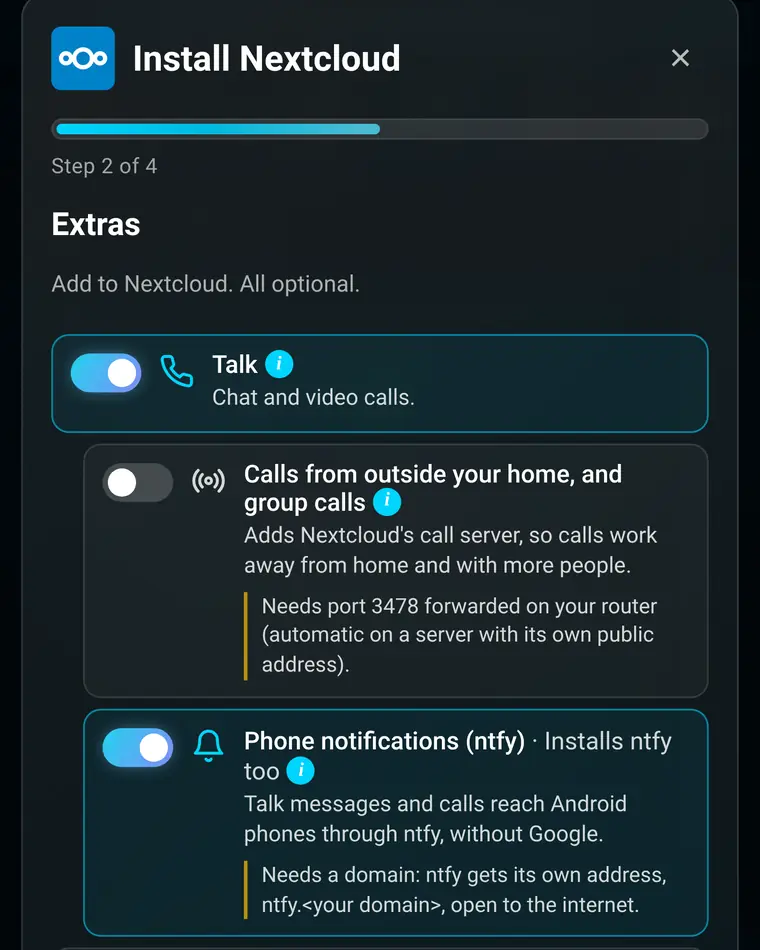
The switch does three things. It puts ntfy on its own address, ntfy. followed by your domain, open to the internet. It locks ntfy down so that nobody can use it without an account, except for phone notifications and LibrePortal's own alerts. And it turns on Nextcloud's Allow web push to be used setting, which lets Nextcloud send to ntfy.
Why is ntfy open to the internet?
Your phone needs to reach ntfy when you're out, on mobile data, not only at home. Opening it is safe because there is almost nothing to get at. Each phone app gets its own topic with a long random name that can't be listed or guessed, and what Nextcloud sends there is encrypted for that one phone, so even ntfy can't read your messages. Every other topic needs an ntfy account. LibrePortal's own alert topics keep working as they did, because they also have long random names.
Turning the switch off stops Nextcloud sending to ntfy. ntfy itself stays as it is, still locked down and still carrying LibrePortal's alerts.
Set up each phone#
Do this on every Android phone that should get Talk messages. It takes a few minutes, and you only do it once.
1. Install ntfy and Talk#
Install both from F-Droid: ntfy and Nextcloud Talk. Nextcloud's page in LibrePortal lists them under Get the apps, with links to F-Droid.
2. Let ntfy run in the background#
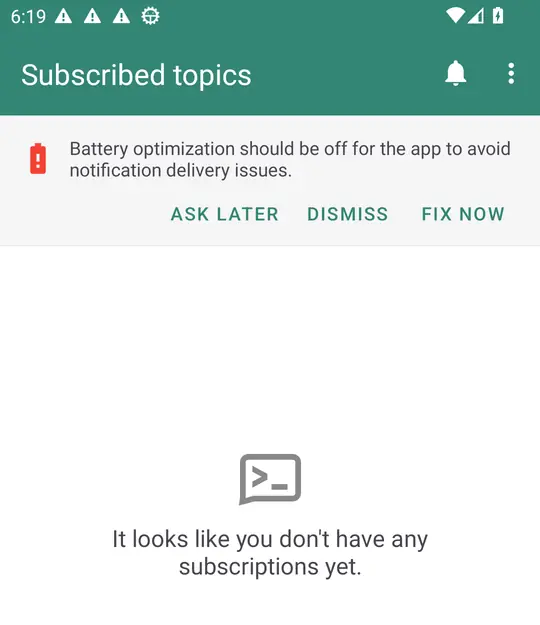
Open ntfy. It shows a red banner about battery optimisation. Press Fix now, then Allow. Without this, Android puts ntfy to sleep and notifications arrive late, or not at all.
3. Point ntfy at your server#
In ntfy, open the menu at the top right, then Settings, then Default server. Type your ntfy address, for example https://ntfy.example.com, and press Save. Use the address the LibrePortal task gave you.
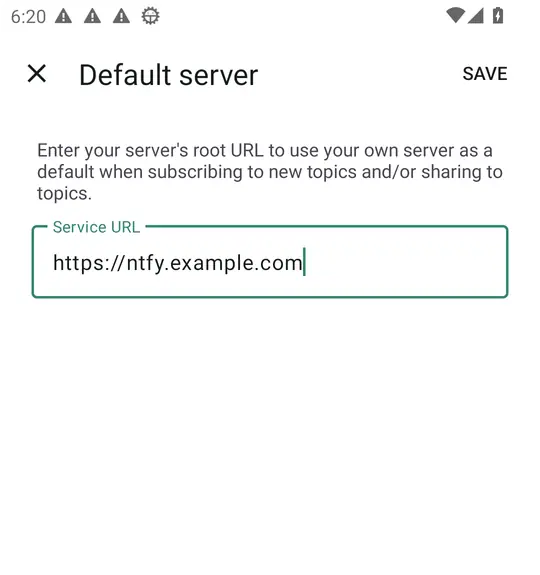
Do this before you sign in to Talk. Talk asks ntfy for an address once, and ntfy hands out one on its default server.
4. Sign in to Talk and turn on UnifiedPush#
Open Talk and sign in to your Nextcloud as usual. Then open your picture at the top, Settings, and look under Notifications. Enable UnifiedPush should be on. Talk usually turns it on by itself when ntfy is installed; if it's off, turn it on.
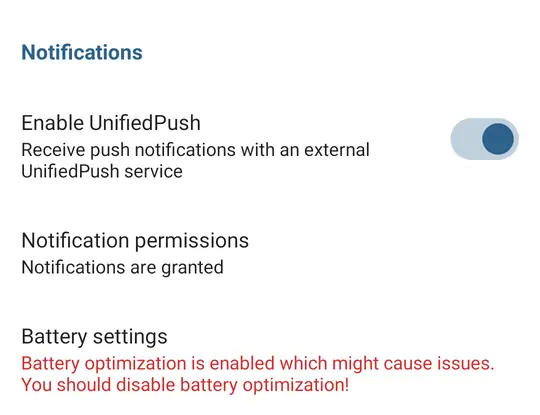
The Enable UnifiedPush switch only appears once ntfy is installed. If you can't see it, install ntfy first and open Talk again.
5. Let Talk run in the background too#
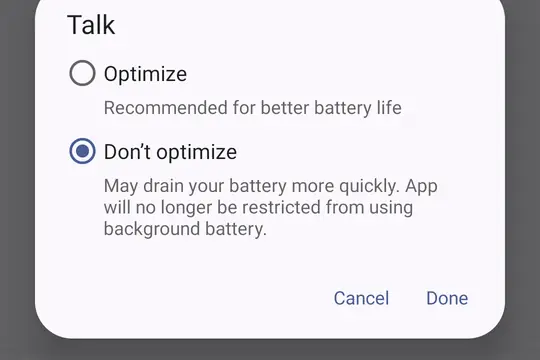
Still in Talk's settings, press Battery settings, then OK. Android opens its battery list. Choose All apps, find Talk, pick Don't optimize and press Done. The menus differ a little between phone makers; some call it Unrestricted.
Check that it works#
Ask someone else on your Nextcloud to help, or sign in on a computer as a second person.
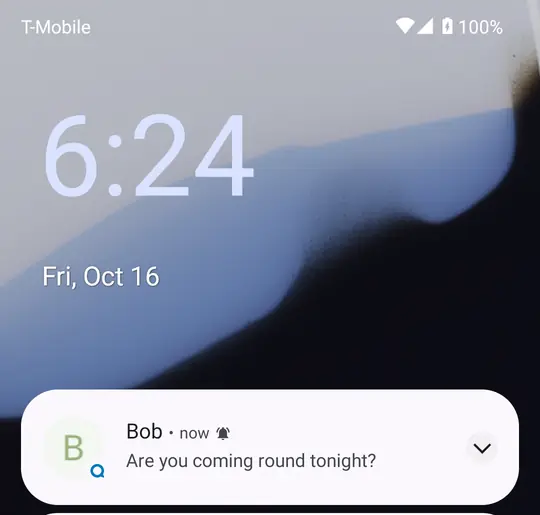
First, a message. Close Talk on the phone and turn the screen off. Send the phone's account a message from the other person. Within a few seconds the phone shows it, with Reply and Mark as read.
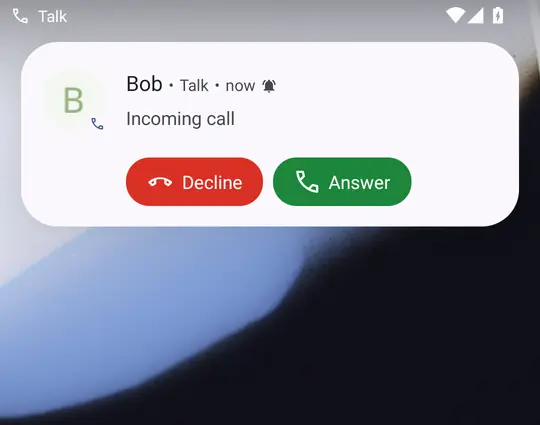
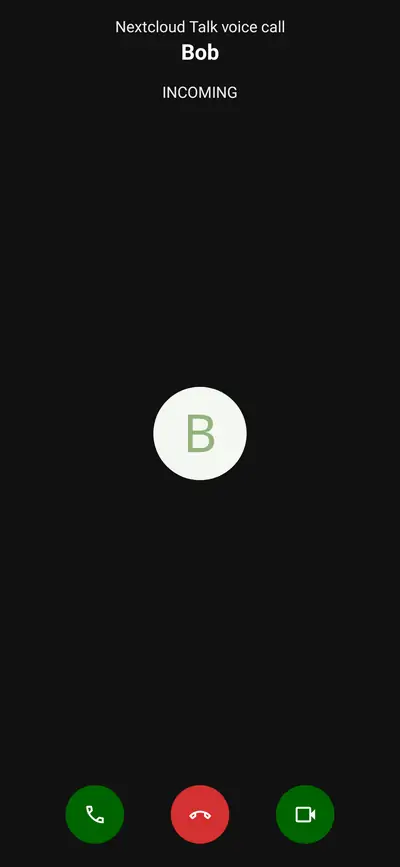
Then, a call. With Talk still closed, call the phone's account from the other person's Talk. If the phone is in use, a call notification drops down with Decline and Answer. If the screen was off, the phone wakes up and shows the full incoming-call screen. It rings for about 30 seconds, then turns into a missed-call notification.
Calls with the screen off
In our tests every call reached the phone, and a call that arrived while the phone was in use rang every time. With the screen off, most calls woke the phone and rang. A few times the incoming-call screen appeared and closed itself after a second, with no missed-call notice. That happens inside the Talk app after the call has arrived, so it isn't something your server can fix. If a call matters, have the caller send a message too.
If notifications don't arrive#
Battery optimisation is back on. Some phones turn it on again after an update, or put apps to sleep on their own. Check that both ntfy and Talk are set to Don't optimize (or Unrestricted). Phones from some makers have extra battery savers in their own settings; allow both apps there too.
ntfy's default server is wrong. Open ntfy, Settings, Default server, and check it is your ntfy address, starting with https://. If you changed it after signing in to Talk, turn Enable UnifiedPush off and on again in Talk's settings so it picks up the new address.
The phone can't reach ntfy. Open your ntfy address in the phone's browser, on mobile data with Wi-Fi off. You should see ntfy's web page. If you don't, the problem is the address: check that ntfy. with your domain points at your server, and that the server is reachable from outside. Domains and HTTPS covers both.
Nextcloud can't reach ntfy. When the switch is turned on, LibrePortal checks that Nextcloud can reach ntfy, and says so in the task if it can't. Run the switch again from Nextcloud's Tools tab, Add or Remove Extras, and read the task's last lines.