Using LibreVault every day
Add logins, cards, notes and SSH keys, search them (on one server or all of them), copy a value, put your servers in order, make a strong password and sign in on websites. Plus the server's own passwords and who can open them.
On this page
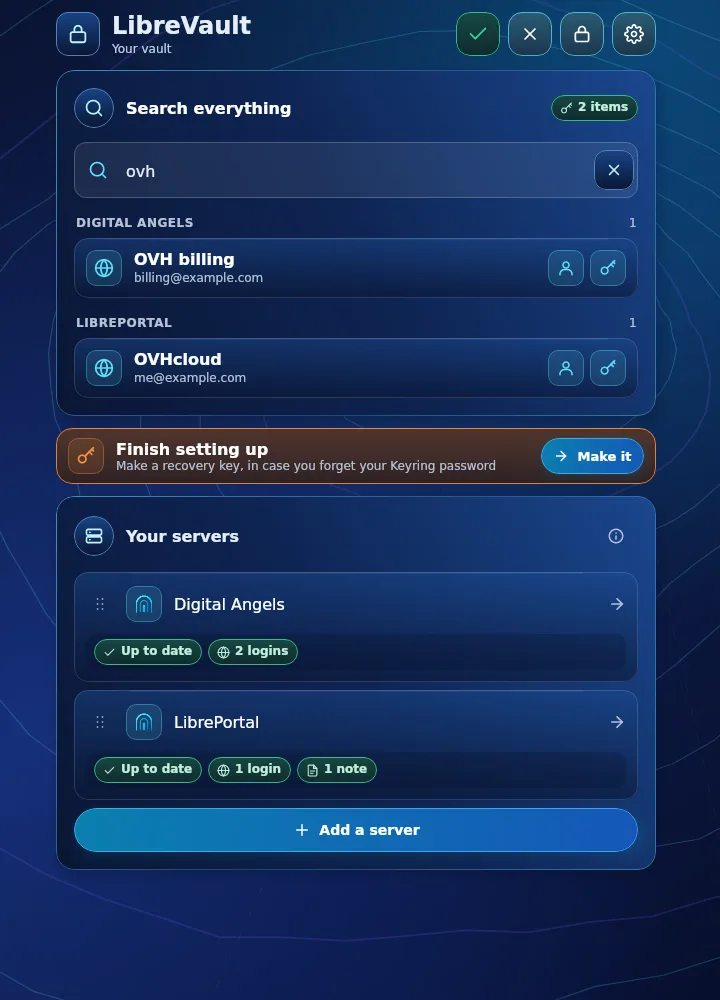
Open LibreVault and unlock it with your Keyring password. The home page shows the answer first: whether everything is up to date. Below it is one card per server.
Your servers' passwords#
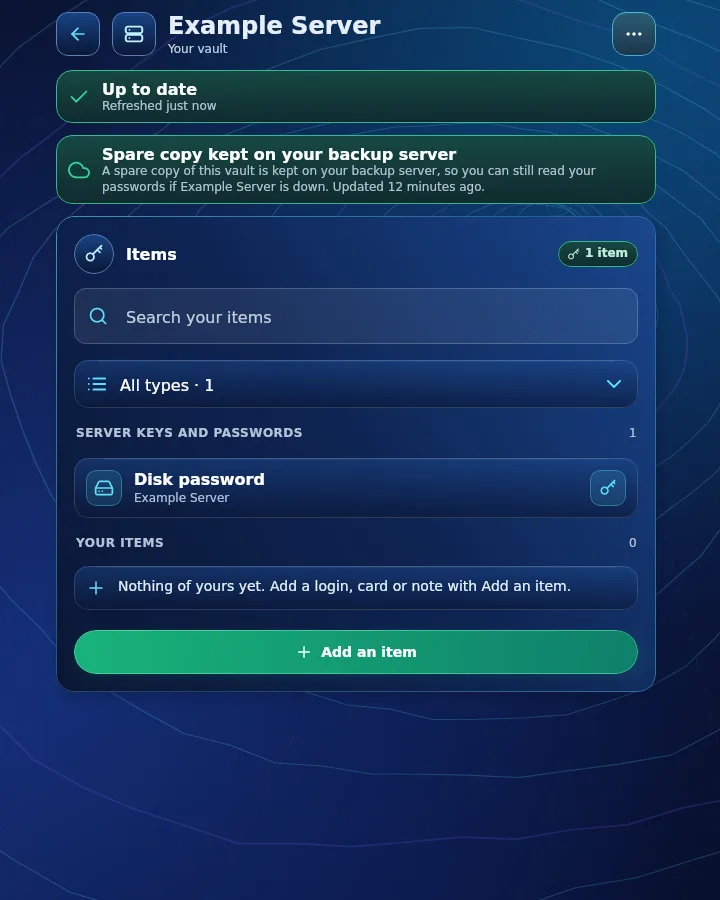
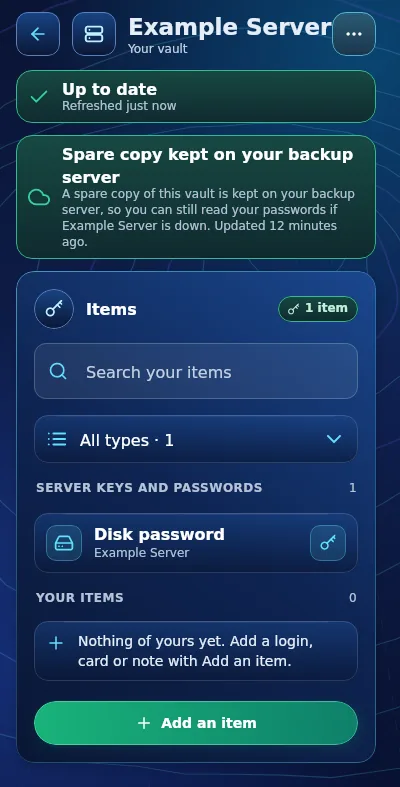
Each server's page has two groups.
- Server keys and passwords holds what LibreVault and LibrePortal need for that server: the disk password, the root password, SSH keys and the keys for the companies that manage it. LibreVault looks after these. You can copy a value if you ever need it by hand.
- Your items holds your own logins, cards, notes and keys for that server's vault.
A count chip on each card says how many items it holds, one chip per type: grey for none, green from one. Press a chip, such as 58 logins, to open that server with only those items; press the card itself to see everything.
Add an item#
Press Add an item and choose a type.
- Login: a name, a username, a password, one or more websites, and an authenticator key if the site uses six-digit codes.
- Secure note: any text you want kept private, such as a wifi code.
- Card: a payment card.
- Identity: your name, address and so on.
- SSH key: a key for logging in to a computer.
Every item can also hold custom fields (a name and a value, for example a security answer; a yes/no field shows Yes or No and is switched with one press) and can be marked as a favourite with the star.
Make a strong password
On a login, open Make a password. Choose random characters or words, set the length and press Use it. A long random password is far stronger than one you can remember, and you never need to remember it because LibreVault does.
Folders#
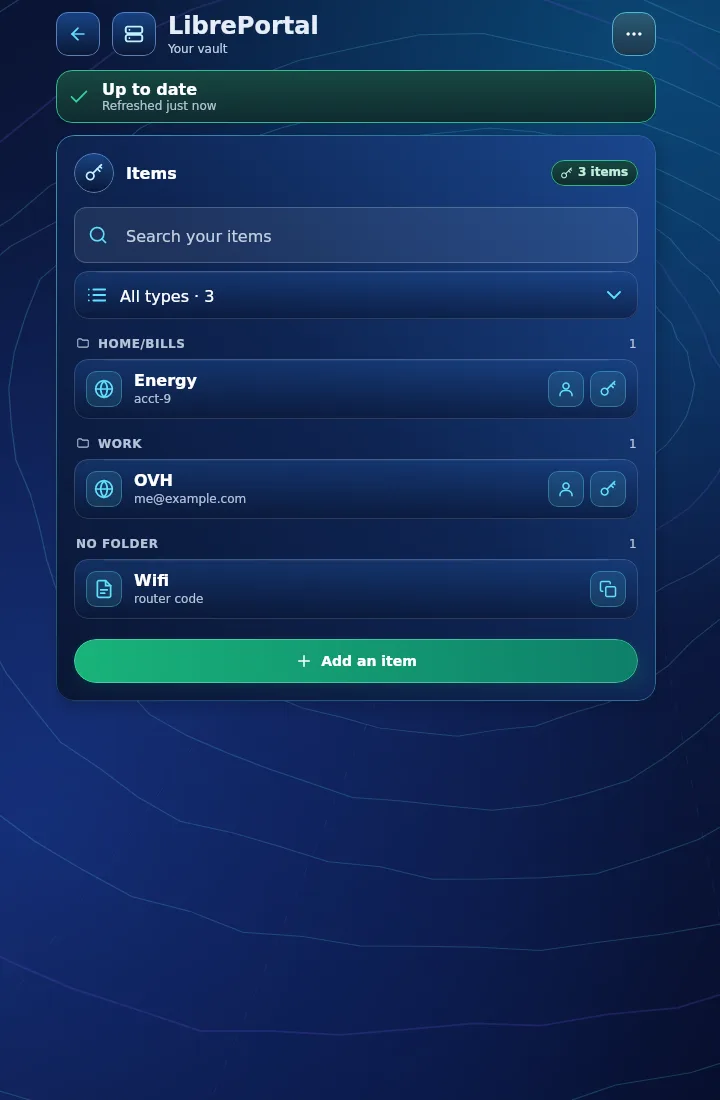
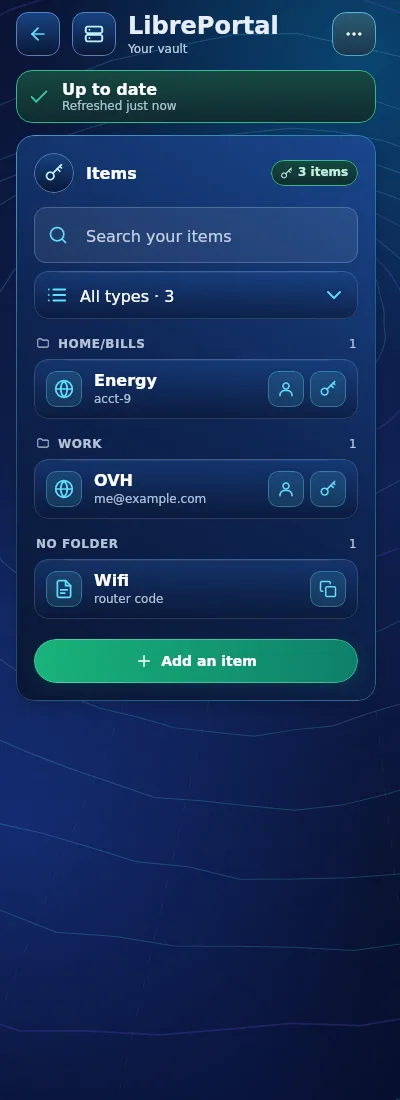
Your own items are listed under their folder, A to Z, with the ones in no folder last. Folders come from your vault, so the folders you had in Bitwarden or Vaultwarden show here too, and an import brings each item in with its folder. An item shows its folder at the top; to move it, press Edit and choose another Folder.
To look at one folder, open the folder menu under the type menu on a server's page and choose it. All folders shows everything again, and No folder shows the items that are in none.
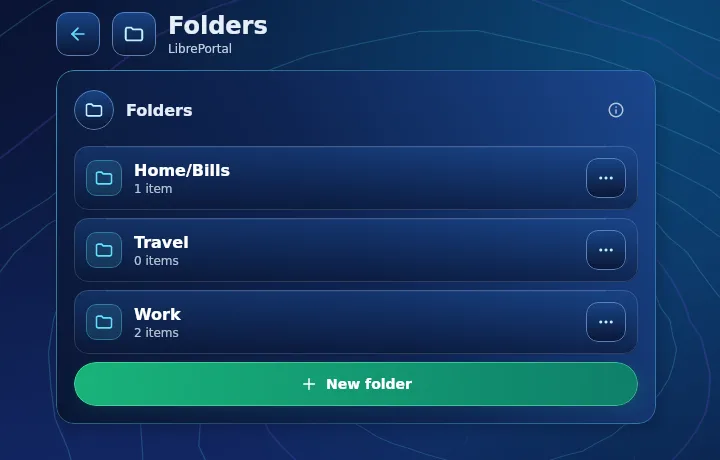
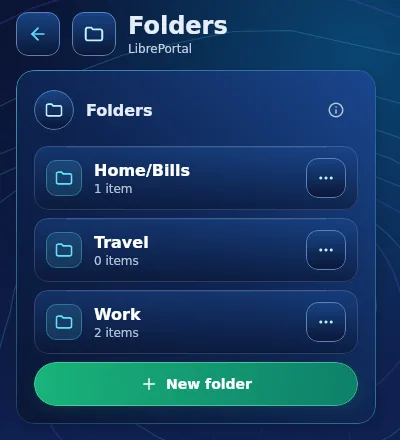
To make, rename or delete folders, choose Manage folders at the bottom of that menu (or Folders in the server's ... menu). Each folder is listed with how many items it holds:
- New folder asks for a name and makes it. A name such as
Work/Serversis kept as one folder with that name. - ... beside a folder offers Rename and Delete. Deleting a folder never deletes its items: they stay, in no folder.
- When you add or change an item, the Folder menu ends with New folder..., which makes the folder and puts the item in it.
Folders are kept on your server, so every device sees the same ones. If the server can't be reached, LibreVault says so and changes nothing; try again when it answers. Backup files and exports for another password manager keep your folders too.
Find and copy#
Type in the Search your items box, or use the filter above it to show one type. Press the copy button beside a value to copy it. Passwords are hidden until you press the eye.
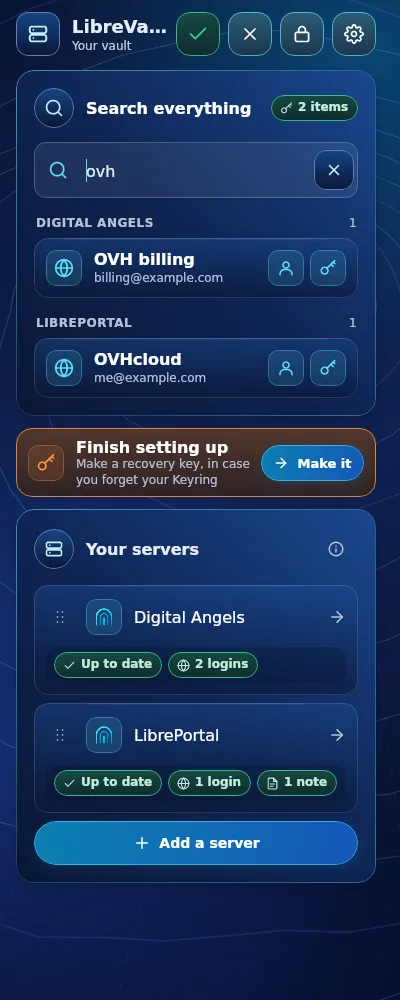
To search every server at once, press the magnifier at the top right of the home page. What matches is listed under each server's name; press an item to open it, or copy straight from the list.
Put your servers in order#
On the home page, each server has a grip (six dots) on its left. Press it and choose Move up or Move down. The order is kept on this device.
Websites sign in by themselves#
Inside the LibrePortal app, a website that you have a login for can be signed in by itself in the app's browser, including the six-digit code, when the login has an authenticator key saved.
On your Android phone, LibreVault can also fill your logins in other apps and websites: see Fill logins in other apps.
Locking#
LibreVault locks itself after a time you choose under Auto-lock (5 minutes to start with), and any time you press the lock button in the header. The LibrePortal app asking for something does not count as use. It is safe to lock: your passwords stay where they are, and you unlock with the Keyring password. Right-click menus on the computer look like the rest of the app and offer copy and paste where they make sense.
Settings#
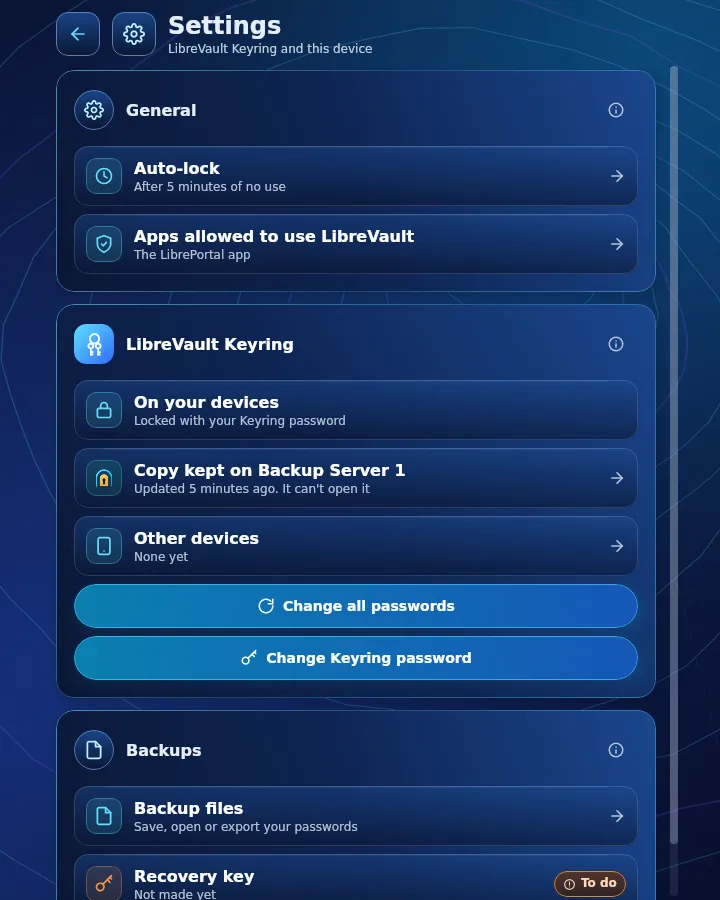
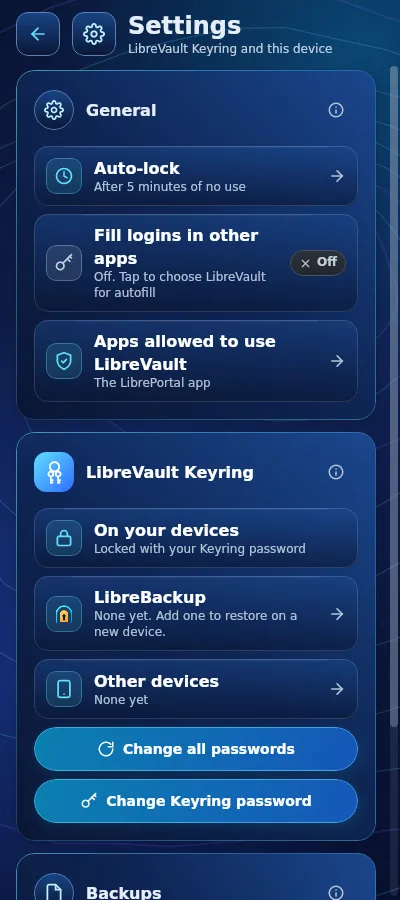
The gear opens Settings, in three cards:
- General: how LibreVault behaves on this device: Auto-lock, Fill logins in other apps (phone only, see Fill logins in other apps) and Apps allowed to use LibreVault.
- LibreVault Keyring: where the Keyring is kept: on your devices, the copy on your LibreBackup, your other devices, and the buttons to change every server's password or your Keyring password.
- Backups: your backup files and the recovery key (To do or Done).