Backups and restore
LibrePortal backs up your apps every night, encrypted, and can put one app back or rebuild a whole server from them. Here's how it works, the one password you must not lose, and how to get your data back.
On this page
- How it works
- The password you must not lose
- Where your backups go
- USB and external disks
- Ransomware-safe locations
- Backups from all your servers in one place
- Installing the Backup Server
- Connecting an install to a Backup Server
- What a Backup Server can reach
- When backups run, and what's in them
- Does the app stop while it's backed up?
- How long snapshots are kept
- Backing up by hand
- Getting an app back
- Moving to a new server
- Backups before every update
- Exports aren't backups
- When a backup fails
- From the command line
A server you run yourself is only as good as its last backup. Disks die, updates go wrong, and sooner or later someone deletes the wrong folder. LibrePortal takes care of backups for you, but it's worth ten minutes to understand what it's doing, because the day you need a backup is the wrong day to find out how they work.
How it works#
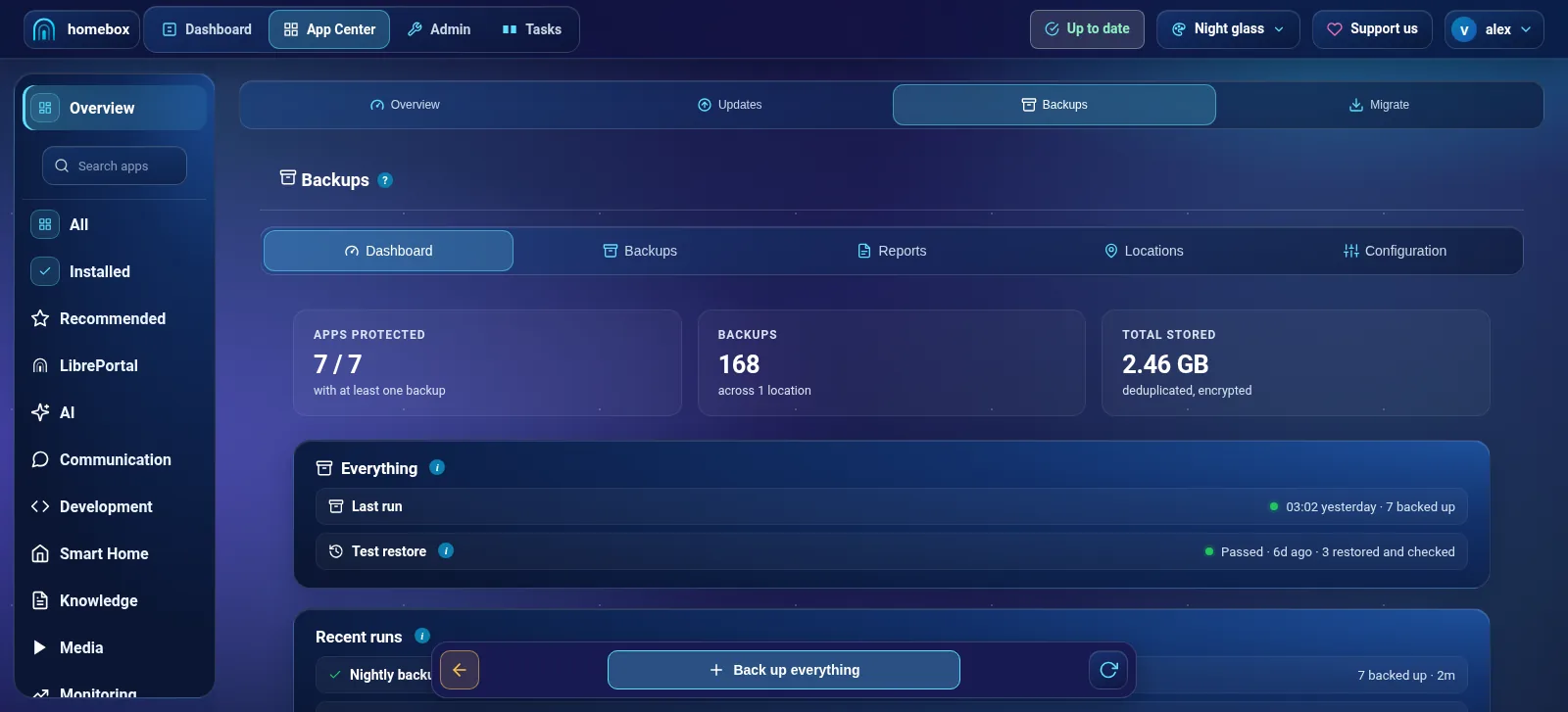
Every night, LibrePortal takes a snapshot of each app: a copy of all its files and its database at that moment. It also takes one of its own settings, shown as Configs. The snapshots go to one or more backup locations, which can be a folder, a USB disk, another server or cloud storage.
Underneath, LibrePortal uses restic, a well-established backup program. That gives you three things without any setup:
- Everything is encrypted before it leaves the server, so a backup on a USB stick or in the cloud is useless to anyone without the password.
- Only changes are stored. A file that hasn't changed since last night isn't stored again, so thirty nightly snapshots take up far less than thirty copies.
- Every snapshot is checked. After each backup, LibrePortal restores the new snapshot into a scratch folder to prove it can actually be read back.
You'll find it all under Admin → Backups, and each app's own snapshots are on its Backups tab.
The password you must not lose#
Each backup location has its own repository password, which LibrePortal generates when the location is set up. It's what encrypts the snapshots, and it's the only thing that can decrypt them.
Without the password, the backup is gone
There's no reset and no back door. If the server dies and you don't have the password for your backups, nobody can open them, including you.
So save a copy somewhere other than the server, today:
- Go to Admin → Backups, and open the Configuration tab.
- Press Export ▾ and choose Repository Passwords.
- Your browser downloads a small text file with every location's password. Put the passwords in your password manager, or print the file, and delete the download.
Do it again whenever you add a location. The Configs snapshot also carries every location's password, so when you rebuild a server you only need to remember the one for the location you restore from; the rest come back with it.
Where your backups go#
A new install has one location, Local disk, which is the /libreportal-backups folder on the server (or wherever you pointed --backups-dir when you installed). That protects you from a bad update or a deleted file. It does not protect you from the server's disk failing, or the house burning down, because the backups are on the same machine.
So add a second location that isn't on the server. On the Locations tab, press Add location and pick a type:
| Type | Good for |
|---|---|
| Local / mounted path | A USB disk or a second internal disk. |
| SFTP | Another machine you can reach over SSH: a friend's server, a NAS, a small VPS. |
| REST | A restic REST server. |
| LibrePortal Backup Server | A second machine running the Backup Server. See below. |
| S3, Backblaze B2, Google Cloud Storage, Azure | Cloud storage you pay for by the gigabyte. |
| rclone | Almost anything else rclone can reach. |
New locations start switched off, so you can fill in the details before anything is written. Turn Enabled on when you're ready. From then on, every backup goes to every enabled location.
A good setup for most people
Keep the local disk location, and add one that's somewhere else: a USB disk you keep in another room, or cheap cloud storage. Two copies, one of them away from the server, covers almost everything that can go wrong.
USB and external disks#
Use a disk formatted for Linux (ext4, xfs or btrfs). FAT, exFAT and NTFS can't keep the file ownership the backups need, and LibrePortal warns if you try.
If the disk is sometimes unplugged, switch on the location's Require Mounted Drive setting. LibrePortal then refuses to back up when the disk isn't there. It isn't in the Locations editor, so set it from a terminal, with the location's number in place of <n> (backup location list shows the numbers):
Advanced Do this from the command line
sudo -u libreportal libreportal config update 'CFG_BACKUP_LOC_<n>_REQUIRE_MOUNT=true'
New to the command line? How to run LibrePortal commands →
Why that setting matters
When a USB disk isn't plugged in, its folder is still there, just empty, and it sits on the server's own disk. Without the check, a backup would happily write into that empty folder and quietly fill up your system disk, and you'd think you had a USB backup when you didn't.
Ransomware-safe locations#
A location can be made Append-only (it's under the location's advanced settings). LibrePortal can then add new snapshots but never delete old ones, so even someone who got into your server couldn't wipe your history. Old snapshots aren't tidied away on those locations; you do that yourself on the storage side.
Backups from all your servers in one place#
The Backup Server is a small program for a second machine, such as a cheap VPS, whose only job is to keep an encrypted, off-site copy of your backups that your installs can't change or delete. The full guide is The Backup Server; this is the short version.
If you run more than one LibrePortal, you can have them all send their backups to one place. That box runs the Backup Server app, which receives the backups, keeps each server's in its own protected space, and can copy them on to somewhere off-site. It's useful when one machine has a big disk, or sits in a different building, and you'd rather manage one place than several.
- On the receiving box, install the Backup Server. The easiest way is its one-line installer (see below); it can also be installed as an app from the App Center. The guide walks through the setup.
- On each install you want to back up, open Admin → Backups → Locations and press Connect to a Backup Server. It shows an address and a one-time code.
- On the Backup Server, go to Sources → Add a source → LibrePortal, paste the address and the code, and confirm the fingerprint it shows. That install's nightly backups now go to the Backup Server as well as to its other locations.
Installing the Backup Server#
On the machine that will receive the backups, run:
curl -fsSL https://get.libreportal.org/librebackup | bash
That installs the Backup Server and a librebackup command for managing it from a terminal. It updates itself every day at 12:30; you can change that, or update by hand, in Settings → Updates.
Connecting an install to a Backup Server#
The easiest way to link an install is with a one-time code. On the install, open Admin → Backups → Locations and press Connect to a Backup Server. It shows an address and a code. Then, on the Backup Server, go to Sources → Add a source → LibrePortal, paste the address and code, and confirm the fingerprint matches. The install is paired and the location is set up for you. The code works once.
What a Backup Server can reach#
A Backup Server is only ever allowed to read your backups. The account it uses is locked down to that one job: its keys are restricted, root owns the key files, the account has no extra groups, and the server's SSH rules allow nothing else. Each key only works from the address it connects from, and a Backup Server on your admin VPN is refused. It can't be tricked into reading outside the backed-up folder through links, and the WebUI's login secrets and logs are left out of everything it pulls.
When you pair two installs so one can pull apps from the other, the owner decides which apps. A paired install can pull only the apps you've allowed, and by default that's none.
Advanced Do this from the command line
sudo -u libreportal libreportal peer allow <peer> <app>
sudo -u libreportal libreportal peer disallow <peer> <app>     # or --all
sudo -u libreportal libreportal peer allowed [peer]
New to the command line? How to run LibrePortal commands →
Peers that were already pulling before 0.9.11 keep working.
Still encrypted, and still yours to unlock
Backups are encrypted on the sending server before they leave it, with that location's repository password. The Backup Server only stores them, so keep each install's password as described above: it's the only way to read them back.
When backups run, and what's in them#
By default backups are Automatic: every night at 05:00, LibrePortal backs up every app that has Enable Backups switched on, plus the Configs snapshot. The dashboard shows when the next one is due. You can change the time on the Configuration tab (App Backup Schedule), or choose Manual, in which case nothing is backed up until you do it yourself.
Most apps have backups switched on when you install them; a few don't. Each app's page in this guide says which under "At a glance", and you can change it on the app's Config tab.
Configs is LibrePortal's own settings: your domains, your WebUI login, your backup locations and their passwords, everything you chose in the setup wizard. The dashboard says it plainly: back up Configs first, because it's needed to restore the rest. The WebUI itself isn't backed up as an app, because everything it needs is in Configs.
Does the app stop while it's backed up?#
Only when it has to. Apps whose databases LibrePortal knows how to copy safely while they run are backed up live, with no downtime. The rest are stopped, snapshotted and started again, so they're briefly unavailable in the middle of the night. That's the Automatic backup strategy, and it's the right choice for nearly everyone. You can override it per app with Backup Strategy on the app's Config tab.
How long snapshots are kept#
On the Configuration tab, Backup style decides how far back you can go:
| Style | Keeps |
|---|---|
| Self-hosting (the default) | the last 30 days, one snapshot a day |
| Personal | 30 days, plus one a month for 6 months |
| Enterprise | 30 days, 12 months, and one a year for 5 years |
| Custom… | whatever you set |
Old snapshots are cleared out after each backup, to the plan the style sets. Three things are always kept, whatever the numbers say: the newest complete snapshot, the last one proved good by a read-back, and the snapshot an update or version step saved to roll back to, while it's still recent. That last one is Keep Rollback Points (days) on the Configuration tab, 30 days to start with, so you can always undo an update that only turned out wrong a week later.
A snapshot that failed its check counts for nothing, and if the newest snapshot is incomplete, or the last read-back failed, nothing is cleared out at all that night: a bad backup can never push a good one out. Every snapshot removed is noted in the backup log, saying which, when it was taken and from where.
The first week only tells you what it would remove
If your server has been running for a while, there may be a lot of old snapshots to clear the first time. So the first time LibrePortal finds something to remove, it removes nothing for a week. Each backup lists, in its task and in the backup log, exactly which snapshots it would remove and the date it will start, and sends you one notification saying the same. That's your week to raise Keep Daily, Keep Weekly or Keep Monthly if you want to hold on to more. After the week, the plan applies.
Backing up by hand#
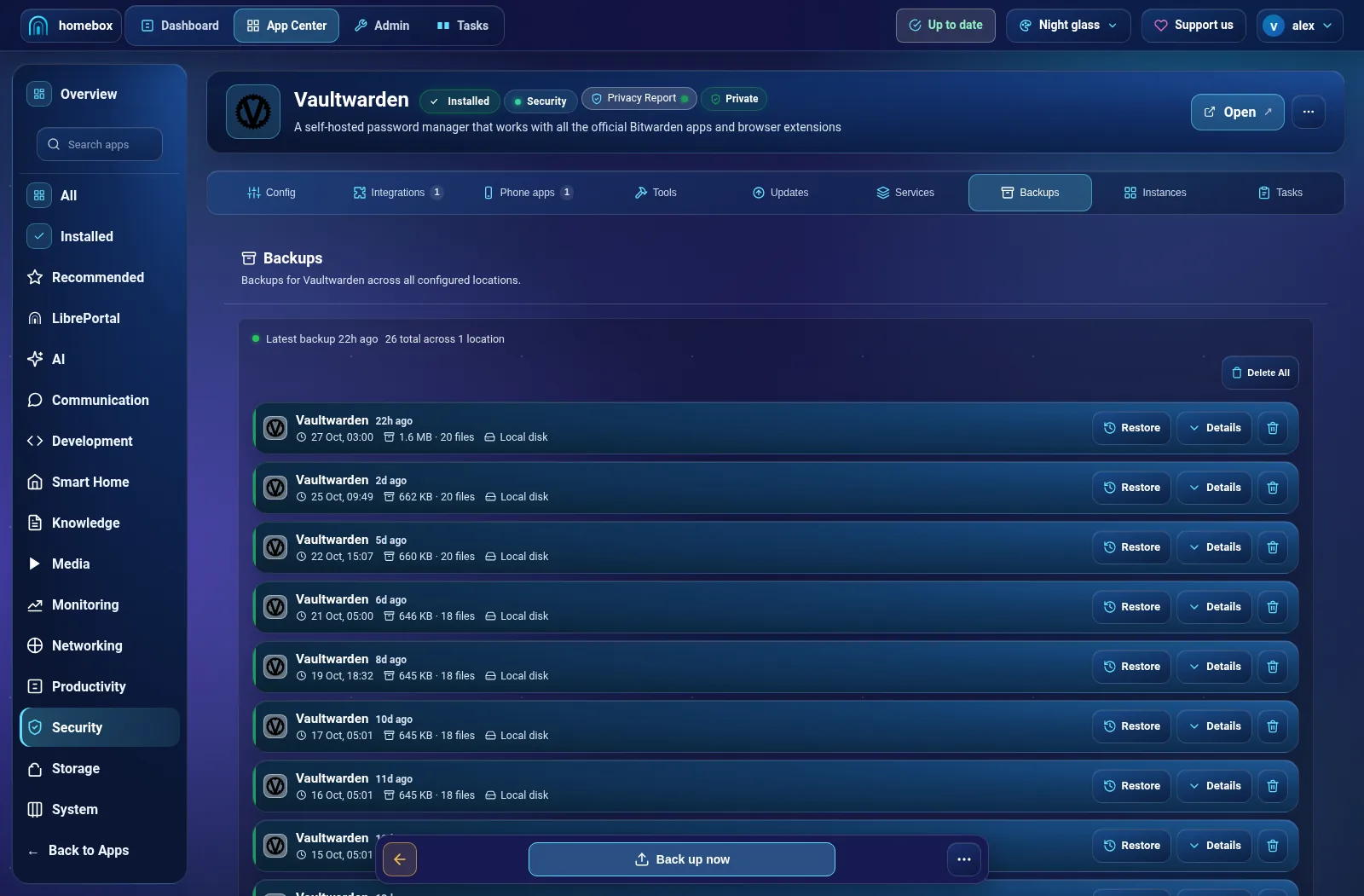
Before you do something risky to an app, take a snapshot first. Open the app, go to its Backups tab, and press Backup now.
To back up everything at once, use Backup all apps on the Backups tab of the backup centre, or from the command line:
Advanced Do this from the command line
sudo -u libreportal libreportal backup all
New to the command line? How to run LibrePortal commands →
Getting an app back#
Say an update went wrong, or you deleted something inside an app and want yesterday's version.
- Open the app and go to its Backups tab.
- Find the snapshot you want. Each one shows when it was taken, where it's stored, and its size.
- Press Restore on that row, read the confirmation, and press Restore again.
LibrePortal checks the snapshot is really there and readable before it touches the app, then stops the app, clears its folder, puts the files and the database back, and checks each one went back whole before it starts the app again. If any part can't be restored, it stops and says "Restore of app FAILED", rather than starting the app on an empty folder and reporting success. You can watch each step on the Tasks page.
Restoring replaces what's there now
Everything in the app that changed after that snapshot is lost when you restore it. If you're not sure, press Backup now first. Then you can always come back to how things are right now.
Moving to a new server#
The same backups can rebuild a whole server: after a dead disk, or when you move to a bigger machine. For this to work, the backups need to be somewhere the new machine can reach, like a USB disk you can plug into it or an SFTP or cloud location, and you need that location's password.
- Install LibrePortal on the new machine as normal.
- Sign in, and at What are we doing? in the setup wizard, choose Restore from backup.
- Backup. Say where the backup lives. For a disk plugged into this machine, LibrePortal looks for backups by itself, on the usual backups folder and on each drive, and fills in the folder when it finds one. Then enter the Backup Password and press Read.
- Contents. LibrePortal shows what's in the backup: your settings, and each app with its newest snapshot. Where there's more than one snapshot, you can pick an older one.
- Rebuild. It lists what it's about to do, in order: settings first, then each app. Apps that no longer exist in LibrePortal, or won't fit on this machine, are skipped and listed. Press the button and it rebuilds the server.
Why it finds the backup before asking for the password
Choosing the wrong folder is the most common mistake: the disk rather than the folder on it, or the folder above the right one. LibrePortal can tell a real backup from any other folder without the password, so it finds it for you first, and the only thing you have to get right is the password.
Backups before every update#
Whenever LibrePortal updates an app, automatically or because you pressed Update, it takes a snapshot first, to every enabled location, and checks it. If the update fails, it restores that snapshot and puts the previous version back. If the snapshot can't be taken, the update doesn't happen at all.
That means an app with no working backup location won't update. Keep at least one location enabled. Updates has more.
Exports aren't backups#
An app's Export button makes a single .lpapp file you can import on another LibrePortal. It's handy for moving one app between servers, but it isn't a backup: it has no history, isn't encrypted, and isn't made on a schedule.
When a backup fails#
A failed backup shows on the dashboard, and the previous snapshots are untouched. If you've set up notifications, LibrePortal also sends you a message: by default it sends one for every failure and nothing else.
A backup fails honestly. If an app's database can't be copied cleanly, the whole backup for that app fails and no snapshot is kept, rather than storing one with an empty or half-written database that would look fine until the day you needed it. Each database copy is checked as it's made, and again when the snapshot is read back.
A snapshot that was written but couldn't be read back when it was checked is marked Last backup could not be read back. Treat that one seriously: check the location's disk or connection, then take a fresh backup with Backup now.
You can also ask LibrePortal to read back a sample of what's stored and check it's intact:
Advanced Do this from the command line
sudo -u libreportal libreportal backup verify
New to the command line? How to run LibrePortal commands →
From the command line#
Everything above works from a terminal on the server too.
| Command | What it does |
|---|---|
backup all |
Back up every installed app, then Configs. |
backup app create <app> |
Back up one app now. |
backup app list <app> |
List an app's snapshots. |
backup system |
Back up Configs only. |
backup location list |
Show every location and whether it's enabled. |
backup location stats |
How much each location holds. |
backup verify |
Read back a sample of the stored data and check it's intact. |
restore app list <app> |
List the snapshots you can restore. |
restore app start <app> [snapshot] |
Restore an app, from the newest snapshot unless you name one. |
Run each one as sudo -u libreportal libreportal <command>.
Off-site backups through LibrePortal Connect
You may see LibrePortal Connect listed as a backup destination, greyed out. LibrePortal is ready for it, but the service it would send to doesn't exist yet. Until it does, use SFTP or cloud storage for your off-site copy.