Updates
LibrePortal keeps two things up to date, itself and your apps, and handles them separately. Here's what updates on its own, what waits for you and why, and how an app gets put back when an update goes wrong.
On this page
- Updating LibrePortal
- What an update touches
- From the command line
- When a release needs the installer
- Improvements
- Your apps
- How LibrePortal notices a new version
- When automatic updates happen
- What happens during an app update
- Rolling an app back by hand
- Moving up to a newer version
- How each app updates
- From the command line
There are two kinds of update, and it helps to keep them apart in your head. LibrePortal itself is the WebUI and the machinery behind it; it updates when you say so. Your apps are the things you installed from the App Center; most of them update themselves early each morning, and a few wait for you on purpose.
Updating LibrePortal#
LibrePortal looks for a new release every few hours. When there is one, the button at the right of the top bar changes from Up to date to Update, with a small pulsing dot. The same news is on Admin → Dashboard, in the Updates card.
Press Update in the top bar to open the LibrePortal Updates panel. It shows the version you have, the newest one, and whether the download checked out (Integrity). Press Update now to install it, or Check for updates to look again right away.
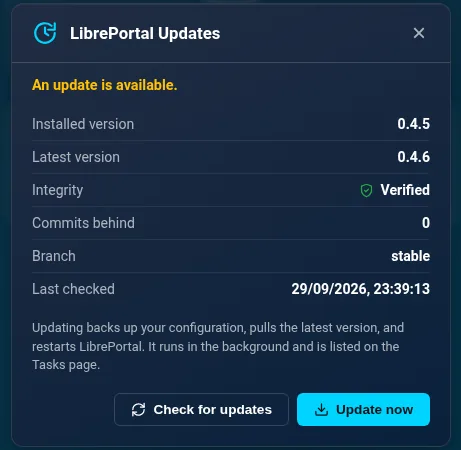
The update runs as a task in the background. A banner says LibrePortal is updating and will restart itself part-way through; when it's done, the page reloads itself onto the new version. You can watch every step on the Tasks page.
What an update touches#
Only LibrePortal's own program files are replaced. Your apps keep running, and your settings, your WebUI login, your apps' data and your backups are all left exactly where they are. The new version is unpacked next to the old one and only swapped in once it's complete, so an update that fails part-way leaves the old version working.
Updating LibrePortal doesn't take a backup first. If you'd like one, run sudo -u libreportal libreportal backup all before you update.
Every release is checked before it's used, just as it was when you installed: the download has to match its published checksum and carry LibrePortal's signature, or it isn't installed.
From the command line#
On the server:
Advanced Do this from the command line
sudo -u libreportal libreportal update check
sudo -u libreportal libreportal update apply
New to the command line? How to run LibrePortal commands →
update check looks for a new release without installing anything. update apply installs it, with no questions asked.
Over SSH, use update apply
libreportal update on its own checks for a release and installs it. With the Auto Apply Updates setting on (CFG_GIT_AUTO_UPDATES=true, the default) it installs straight away; with it off, it stops and asks "Do you want to update LibrePortal now? (y/n)". A script, or an SSH command with nobody at the keyboard, can't answer that, and the update doesn't happen. update apply never asks, so it's the one to use anywhere but a terminal you're sitting at. If you're running it over SSH, wrap it in timeout so a stuck connection can't leave it hanging:
Advanced Do this from the command line
ssh you@server 'timeout 900 sudo -u libreportal libreportal update apply'
New to the command line? How to run LibrePortal commands →
When a release needs the installer#
Most of LibrePortal runs as the ordinary libreportal user, which is how the WebUI can update it. A small part runs as root: the firewall helper, the storage helper and a few others. The WebUI can't replace those, deliberately, so a release that changes them has to be installed as root.
When that happens, the update panel says so: "System components need updating, and that has to be done as root on the server. Your password, settings and apps are kept." Press Show the command and run it on the server. It's the same one-line installer you first used, and on a machine that already has LibrePortal it upgrades in place rather than reinstalling.
Why the WebUI can't do it
If the web page could rewrite the parts of LibrePortal that run as root, anyone who got into the web page could become root on your server. Keeping those parts out of its reach costs you an SSH session every so often, and that's a fair trade.
Improvements#
Between releases, the LibrePortal team can publish small fixes, called Improvements. They're on App Center → Overview → Improvements.
Each one is signed, checked against the same key as a release, and can be undone: every Improvement has an Apply button, and once applied, a Revert button. Security fixes and fixes for things that are broken apply themselves (a snapshot is taken first); the rest wait for you to press Apply. Everything that's applied is listed, so you can always see what's been changed.
Your apps#
Each app has an Updates setting on the General tab of its Config page, with two choices:
- Automatic (recommended): new versions install on their own, in the morning.
- Manual — I'll press Update: nothing happens until you press Update yourself.
Most apps start on Automatic. A handful start on Manual for a reason, which is explained below.
How LibrePortal notices a new version#
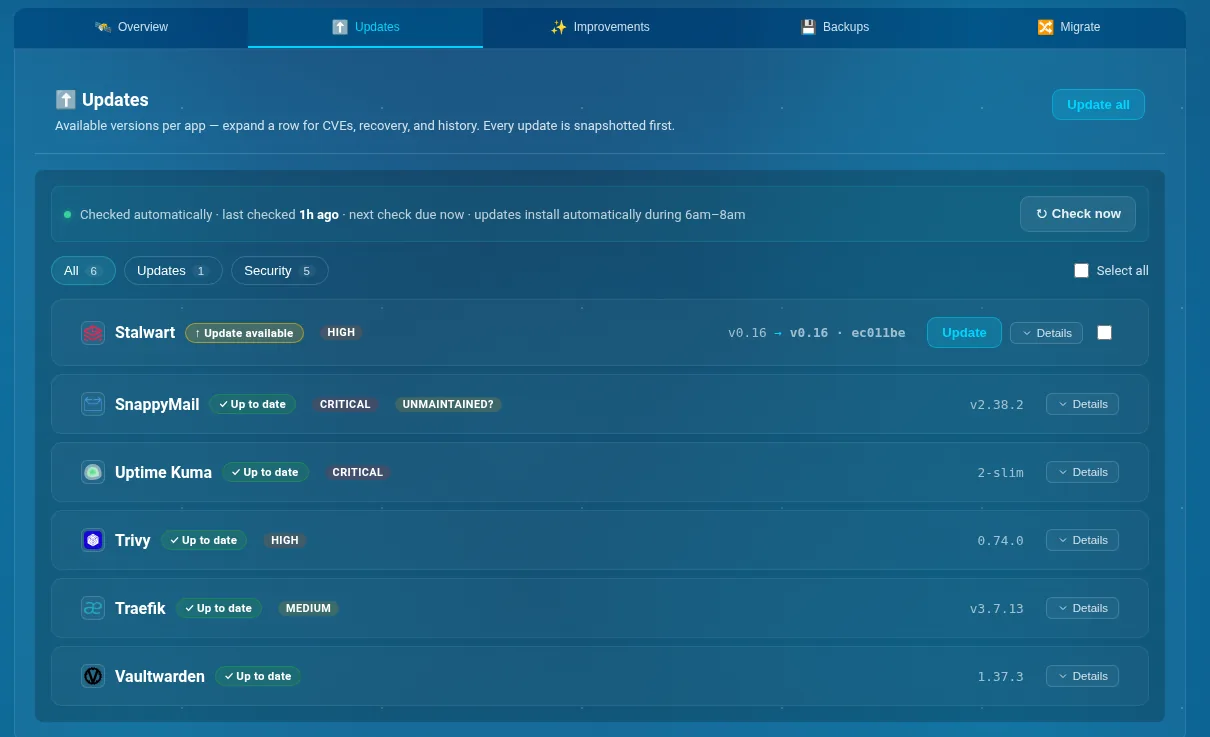
About every half an hour, LibrePortal checks each app's image against the registry it came from, without downloading anything. If the published image has changed, the app has an update waiting. The check also runs the app's image past Trivy, if you have it installed, so the same page shows known vulnerabilities.
All of this is on App Center → Overview → Updates: one row per app, with filters for Updates and Security, and Update all at the top. Each app's own Updates tab shows the same for just that app, with its history.
When automatic updates happen#
Automatic updates only install between 06:00 and 08:00, server time. That's straight after the nightly backups at 05:00, when you're least likely to be using anything. Checks carry on all day; only the installing waits for the window. The page says so: "updates install automatically during 6am–8am".
To hold back every app at once, switch off Automatic App Updates on Admin → Config → WebUI, in the Updater section (CFG_UPDATER_AUTO=false). To hold back one, set that app to Manual.
What happens during an app update#
The same steps run whether the update was automatic or you pressed Update:
- A snapshot first. LibrePortal backs the app up, to every enabled backup location, and checks the snapshot. If it can't, the update is abandoned before anything changes.
- The new version is downloaded. If only the download fails (the registry didn't answer, or it hit a download limit), nothing is restored and nothing is restarted: the app carries on exactly as it was, the task says why, and the update stays waiting for the next check.
- It's started, and checked. LibrePortal waits up to ten minutes for every one of the app's containers to come up and stay up, without restarting, and asks each page the app serves to answer over HTTPS. Apps with their own checker (Nextcloud's
occ status, say) are asked whether they're really working too. - Kept, or put back. If everything checks out, the update stays. If a container failed to start, or stopped and didn't come back, or a page wouldn't answer, LibrePortal restores the snapshot and writes the exact build each part was running back into the app before anything starts, databases included. A service that dies on the new version fails in about fifteen seconds now, not at the ten-minute deadline.
An update that fails automatically is never tried again automatically. It waits on the Updates page for you to retry it when you're ready, so a broken release can't knock your app over every morning.
A few apps still report nothing LibrePortal can check: no health check, no page to open, no checker of their own. For those it keeps the new version running and says so, rather than pretending. Have a look at the app, and roll it back if it's wrong.
Failures can reach your phone
With notifications set up, a failed update sends you a message naming the app and saying whether it was put back or stopped before changing anything. By default LibrePortal sends a message for every failure and nothing else.
Rolling an app back by hand#
If an update went through but you don't like the result, press Roll back in the Recovery section of the app's Updates tab, or on the server:
Advanced Do this from the command line
sudo -u libreportal libreportal updater rollback uptimekuma
New to the command line? How to run LibrePortal commands →
That restores the snapshot taken just before the most recent update. Anything that changed inside the app since then is lost, so do it soon rather than a week later.
Moving up to a newer version#
A rebuild of the version an app is on is one thing; moving it to a whole new version, like 33 to 34, is another, because a new version can change the app's database or how it works. LibrePortal handles both, and does the second one carefully.
An app's Updates tab shows Newer version when one exists, with an Upgrade button, and the release notes beside it. Pressing Upgrade moves the app up one version at a time (33, then 34, then 35), takes a snapshot and checks the app at every step, and stops at the first sign of trouble. You can go all the way to the newest, or stop at a version you name.
Most apps also climb on their own, which is new in this release. If an app is on Automatic, LibrePortal moves it up one version a day, in the same early-morning window, one careful step at a time:
- Only one step a day, even if several versions have piled up, so the app is never more than one version away from a state that worked.
- A snapshot first, checked, and for apps that migrate their database, read back in full before the step runs. If the backup can't be made, the step doesn't happen.
- Every part of the app checked afterwards. A step that fails is rolled back to the exact version and data it started from, and isn't tried again until a newer version comes out.
- Never from a shaky start. If the last change to an app ended unconfirmed, or a part of it is down, it waits rather than build on top of a problem.
A database's version never moves on its own
The riskiest kind of upgrade is one that moves the database itself to a new major version, because the old and new databases keep their files in different, incompatible ways. So LibrePortal never does that automatically. If a new version of an app would move its database (PostgreSQL 15 to 16, say), the app moves up and the database is held exactly where it is, and the update says so. When you're ready to move the database too, libreportal updater dbupgrade <app> does it deliberately: a checked backup, a full dump, the new version loaded and every row counted back, and the old database folder kept aside in case. Run it on the server, and read Backups first.
This automatic climbing is Automatic Version Steps on Admin → Config → WebUI, in the Updater section (CFG_UPDATER_LADDER_AUTO), on to start with. Switch it off and version moves wait for the Upgrade button; rebuilds of the current version still happen on their own.
How each app updates#
Not every app should update the same way, so each one declares how it does, and you can see it on the app's Updates tab. There are four kinds:
| Kind | What's automatic | Apps like |
|---|---|---|
| Rolling | New builds, and new versions, step by step. | AdGuard, Navidrome, Vikunja, Stirling-PDF |
| Stepped | New builds, and the next version one step a day. A few step within their current major only, where a new major rewrites the app's settings. | Audiobookshelf, Kavita, CryptPad, Traefik |
| Database-migrating | The same, but every change waits for a backup that's been read back first, because the app changes its database as it starts. | Nextcloud, Immich, Jellyfin, Gitea, Vaultwarden |
| Manual | Nothing. Update and Upgrade still work by hand; Update all leaves them out. | LibrePortal Connect, Mastodon, CrowdSec |
The last column is only examples; the app's own tab shows its kind and the reason. A handful of apps start on Manual in their settings even though they could climb, so that a database migration happens while you're awake and have read the release notes, rather than at six in the morning: among them Funkwhale, Forgejo, Gitea, Headscale, Immich, PeerTube and Mobilizon. Their tab says what's safe once you switch them to Automatic.
You can switch any app between Automatic and Manual with the Updates setting on its Config tab. Your choice always wins: a declared kind can only make an app more cautious, never less. If you set a database-migrating app to Automatic, you're accepting that it may step up a version in the early morning without you, each step backed up and checked first.
From the command line#
| Command | What it does |
|---|---|
update check |
Look for a new LibrePortal release. |
update apply |
Install it, without asking. |
updater check |
Refresh every app's version and vulnerability data now. |
updater apply <app> |
Update one app (snapshot first, rolled back if it fails). |
updater apply-all a,b |
Update several apps, each with its own snapshot. Without a list, every app set to automatic, Manual ones left out. |
updater upgrade <app> |
Move an app to a newer version, one step at a time. Add --dry-run to see the plan, or a version to stop short of the newest. |
updater step <app> |
Take the app's next automatic version step now, or say which rule holds it back. |
updater strategy [app] |
How each app updates (rolling, stepped, database-migrating or manual) and why. |
updater dbupgrade <app> |
Move an app's database to the next major version by hand, backed up and row-counted. Add --dry-run for the plan. |
updater rollback <app> |
Put back the snapshot taken before the last update. |
artifact apply <id> / artifact revert <id> |
Apply or undo an Improvement. |
Run each one as sudo -u libreportal libreportal <command>.
