The LibrePortal app
One app for your Linux computer and your Android phone. It looks after your servers over SSH, keeps everything in your Vaultwarden vault and runs your VPNs itself. A Preview.
The LibrePortal app is one app for a Linux computer and an Android phone. It is where you look after your servers: add them, see that they are well, get told when something goes down, and open them. It also runs your VPNs for you, so you never set one up by hand.
It works with a server that runs LibrePortal, and with a plain Linux server that does not. A plain one is called a Basic server, and most of the app still works on it.
This is a Preview
The app is version 0.x and still changing. There is no public download page and it is not in any app store yet. For now it is built and tested by the LibrePortal project, and a Preview is handed out on request. This page says what it does today, and marks what is coming next.
What it does#
- Your servers in one list. A coloured dot shows whether each one is well, down, or waiting for its disk password.
- Health and alerts. It tells you when an app stops, a certificate is about to run out or a backup is late. See Health, security and alerts.
- Security at a glance. Blocked addresses, failed logins, new SSH keys and new open ports, in four small tiles.
- Unlock after a restart. An encrypted server waiting for its disk password can be opened with one tap.
- Your own VPNs. Each server's private network, and a VPN company if you use one, switched on and off inside the app. See Networks and keys.
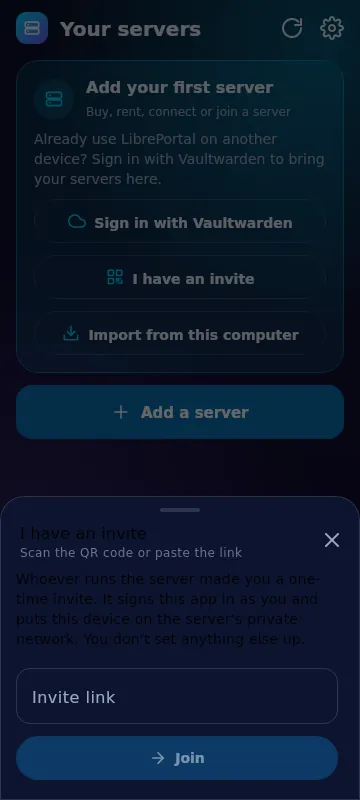
- People and invites. Add a person to your server and invite their phone with a QR code. See People and invites.
Signing in with your vault#
The app keeps everything it knows about your servers in your Vaultwarden vault, in a folder called LibrePortal. That is the whole idea: one place, and one password.
- Install the app on your computer or phone.
- Press Sign in with Vaultwarden. Give it your Vaultwarden address, your email and your master password. If you use two-step sign-in, it asks for the code too.
- Your servers appear. The app then gives this device its own SSH key and its own VPN connection on each server, by itself. You type nothing else.
Why the vault
If everything lives in one vault, a new phone or a new computer needs one password and nothing more. You never copy a key between devices, and you never set a VPN up twice. A device's private keys stay on that device. The vault is what lets the app give a new device its own.
The app also keeps an encrypted copy on each device, opened with the same master password. If Vaultwarden is down, the app still works, and the changes you make wait and go up when it is back. Nothing is overwritten quietly. If you changed something in two places, the app asks which to keep.
With no Vaultwarden yet, the app keeps things in that local copy, and moves them into Vaultwarden by itself once you connect it. The app only asks you for a vault when something has to be saved, such as a disk password.
Automatic, Check only or Manual#
Most things the app looks after have one small switch with three choices:
- Automatic. The app does it for you, and tells you.
- Check only. The app tells you and gives you a button.
- Manual. The app tells you and shows you exactly what to do yourself.
It is always checked, whichever you pick. Something you set up yourself is found and left as it is.
For the curious#
What is saved in the vault?
Each server is an item, without anything secret in its entry. The secrets sit beside it: disk unlock passwords, each device's keys for that server, VPN keys, saved VPN configs, and the logins for hosting and DNS companies. A list of your devices, domains and costs is kept as one more item. The window size and zoom stay on the device.
What is on the computer and what is on the phone?
The computer app is a Linux package (a .deb). A small helper installed with it runs the VPNs, so the system's own VPN settings are never touched. The phone app is the same code built for Android, and it becomes the phone's one VPN. Windows and macOS are not supported yet.