A tour of the WebUI
Where everything lives in LibrePortal's web page: the Dashboard, the App Center, each app's page, Admin and Tasks, on a computer and on a phone.
On this page
The WebUI has four places, always in the bar across the top: Dashboard, App Center, Admin and Tasks. Once you know what's in each, you'll find anything.
The top bar#
On the left are the four places. On the right:
- The logo. Click it for a This server card: the server's name, its LibrePortal version, whether an update is waiting, and a quick health summary.
- Update (or Up to date): LibrePortal's own version. When it says Update, with a pulsing dot, a new release is waiting; click it to see what and to install it. See Updates.
- Network and System appear only when something needs your attention, like two apps wanting the same port, or an app that keeps crashing. Click one to see what's wrong.
- The theme menu, showing the name of your current theme. Pick another, or Customise… to make your own. See Themes and appearance.
- Support us, with ways to report a problem, suggest a change or help the project.
- Logout.
Dashboard#
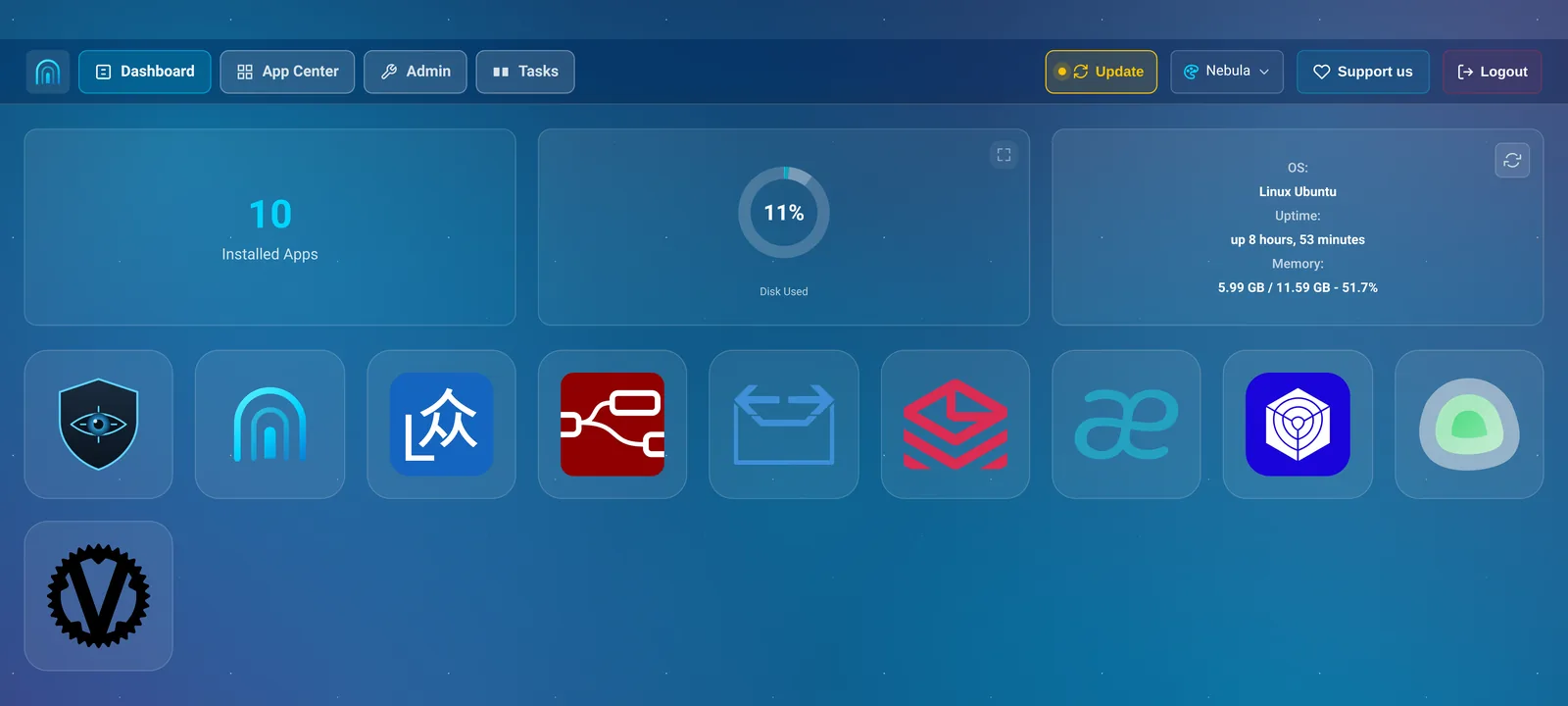
The page you land on. Across the top: how many apps are installed, how full the disk is (click Disk Used for a breakdown by app), and the machine's operating system, uptime and memory. Underneath is a tile for each installed app; hover over one, or tap it on a phone, for buttons that open the app or go to its page.
Banners appear here too when there's something to know, like a problem LibrePortal has noticed.
App Center#
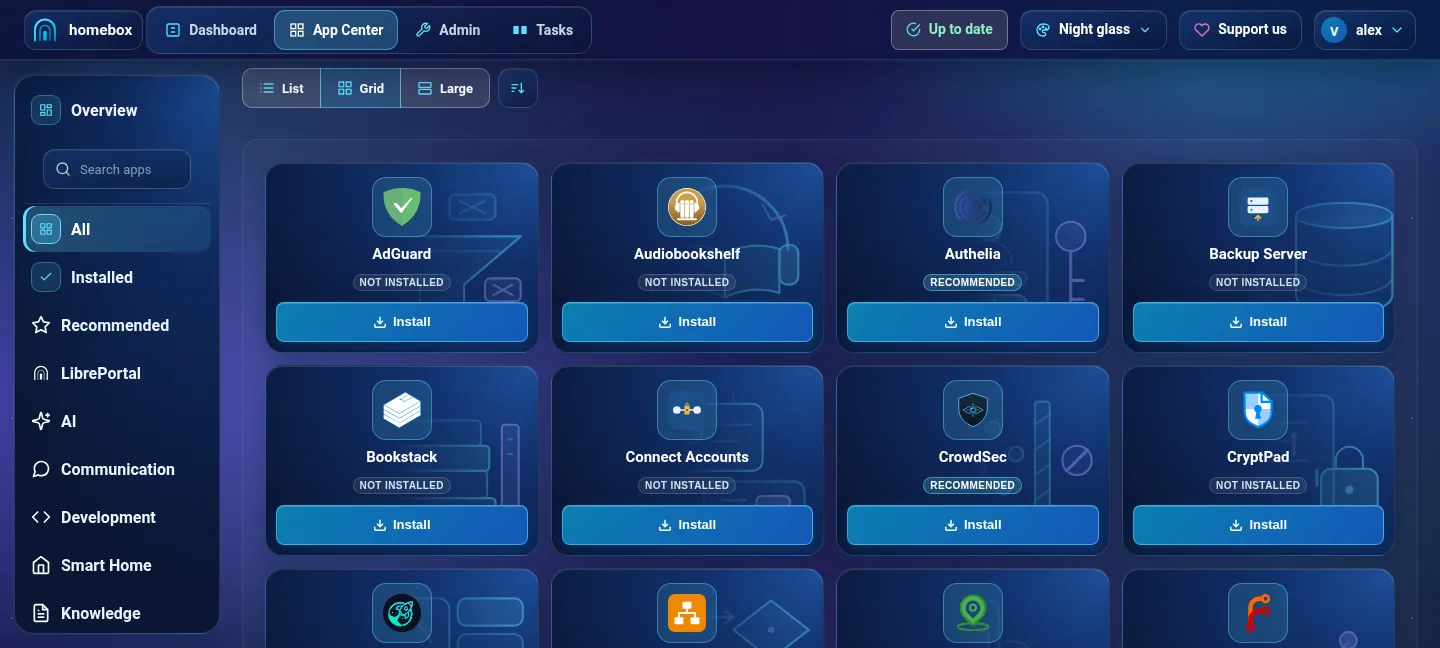
Every app you can install. The sidebar on the left has a Search apps… box, then All, Installed, Recommended, and a category for each kind of app: Communication, Development, Knowledge, Media, Monitoring and so on.
Each card shows whether the app is installed and, if it is, whether it's Public or Private. Press Install to install it or Manage to open its page. Installing apps walks you through it.
Overview#
At the top of the App Center's sidebar, Overview is about all your apps together, in five tabs:
- Overview: a summary of the whole server.
- Updates: every app's version, which have updates waiting, and known vulnerabilities, with Update all. See Updates.
- Improvements: small signed fixes to LibrePortal between releases.
- Backups: the backup centre, with the schedule, locations and every snapshot. See Backups and restore.
- Migrate: moving apps between LibrePortal servers.
An app's page#
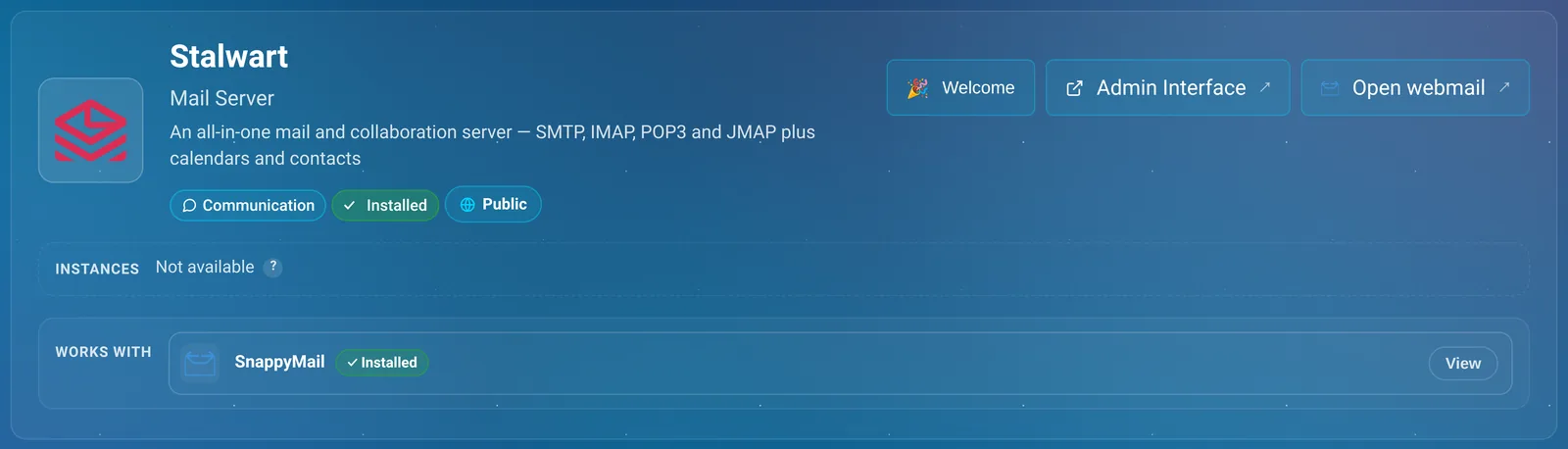
Every app has a page of its own, and every page is laid out the same way, so once you know one you know them all.
At the top are the app's name, what it's for, and buttons to open it. Welcome shows its Login Details again. Under that are the Instances row, for apps that can run more than one copy, and Works with, the other apps it connects to (see Apps that work together).
Then come the tabs:
| Tab | What's on it |
|---|---|
| Config | The app's settings, its address and ports, and who can reach it. |
| Services | The app's running parts, with Restart and their logs. Installed apps only. |
| Tools | Buttons for jobs like adding users or resetting a password. Only for apps that have them. |
| Backups | Its snapshots, with Backup now and Restore. Installed apps only. |
| Updates | Its version, updates waiting for it, known vulnerabilities and Roll back. |
| Tasks | Everything LibrePortal has done to this app, with the full output. |
App pages and settings goes through each tab properly.
Admin#
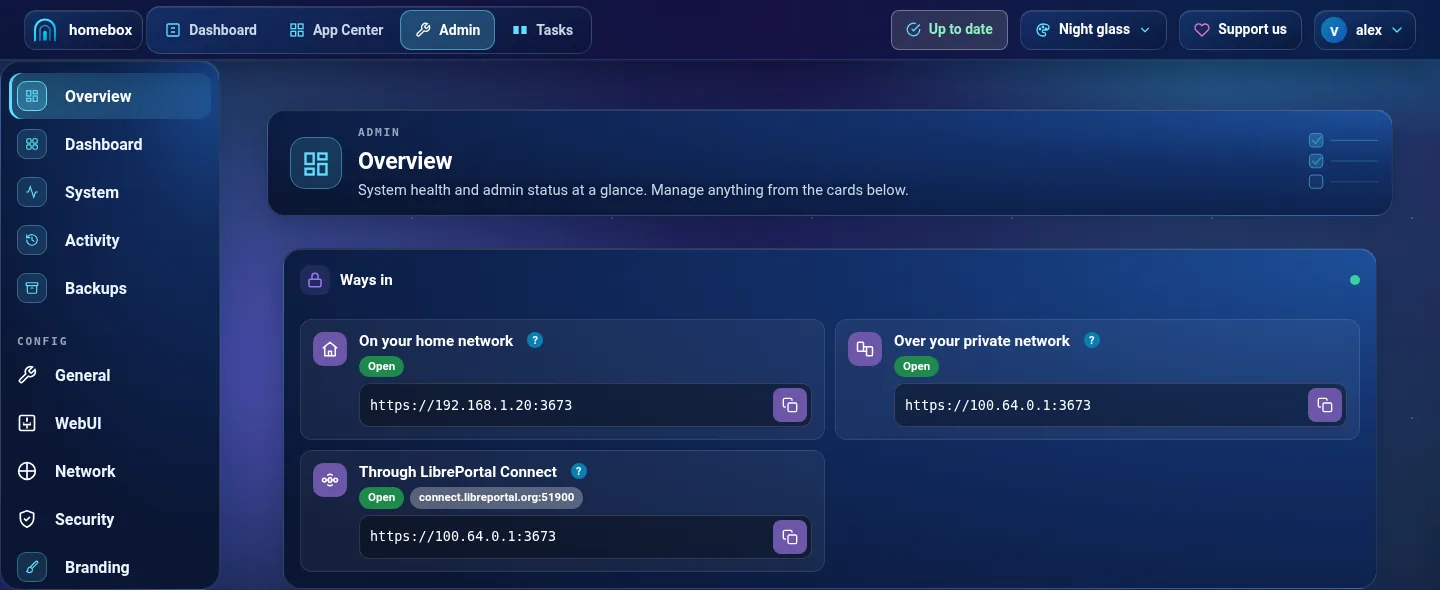
Admin is about the server itself rather than any one app. Its sidebar has three groups.
At the top:
- Dashboard: the server's health at a glance, in four cards: Updates, Backups, SSH & Security and System, each with a button to the page that deals with it.
- System: live figures for processor, memory and disk, the health checks, trends over time, and how much each app is using. Storage, inside it, shows disk space by app and lets you reclaim space from old images.
Config, LibrePortal's own settings, in four pages. Each is a form with Save Configuration at the bottom:
- General: the basics, mail settings for the whole server, where new apps are stored, swap, and the app catalogues.
- WebUI: the WebUI's login, its logs, and how apps are updated.
- Network: your domains, the firewall, DNS, ports and HTTPS.
- Security: logins, SSH hardening, and your trusted places.
Tools, the pages for access and connections:
- Connect: reach this server from away from home through a Connect relay.
- Access: your trusted places, and who can reach the admin page, SSH and new apps. See Who can reach what.
- VPN: LibrePortal's own private network, and the devices on it. See The LibrePortal VPN.
- SSH Access: who can log in to the server's command line, and their keys.
Backup settings live with the backups, in Admin → Backups.
Tasks#
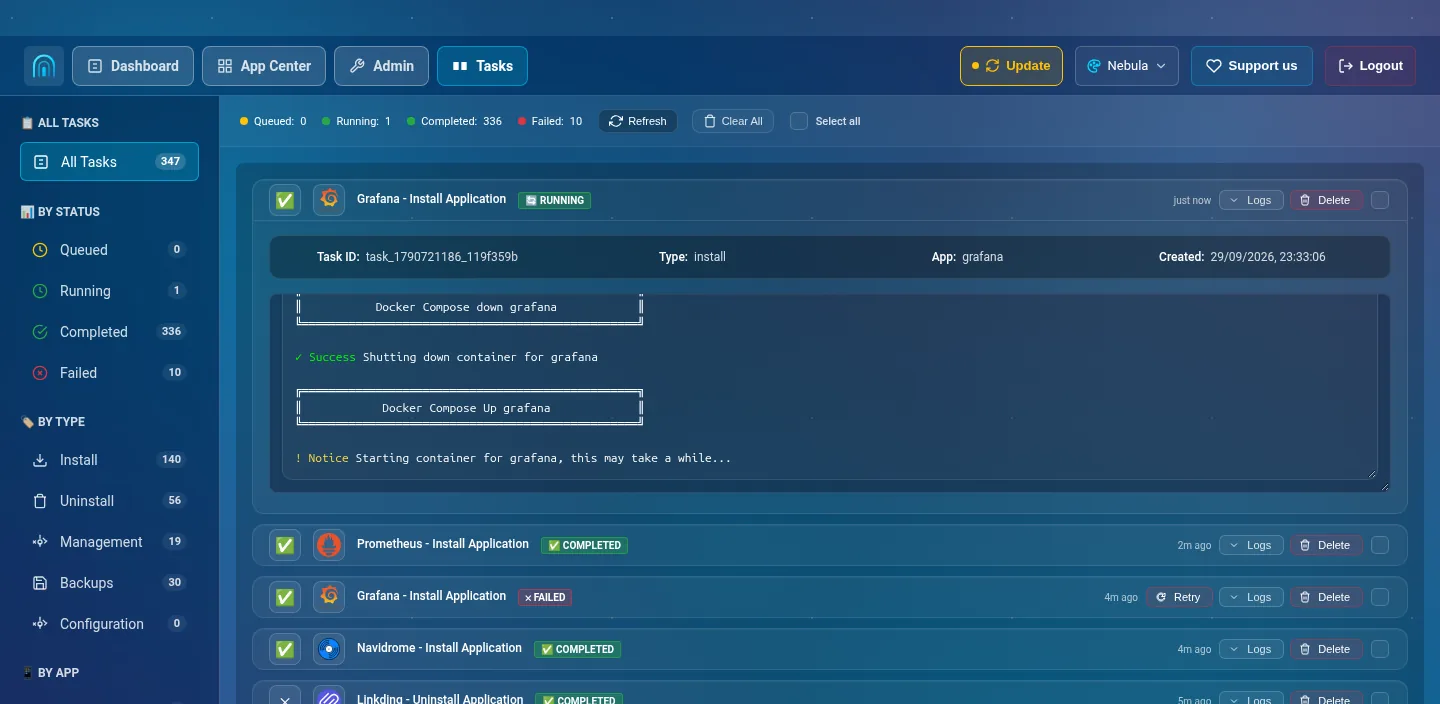
Everything LibrePortal does, from installing an app to taking a backup, runs as a task. The Tasks page lists them, newest first, with a count of how many are queued, running, completed and failed.
The sidebar filters them By Status, By Type (Install, Uninstall, Management, Backups, Configuration) and By App. Press Logs on any task to see exactly what it did; a running task's output scrolls past live. A failed one has Retry.
When something goes wrong, this is the first place to look. The last few lines of a failed task usually say why in plain words.
You don't have to stay on a page while its task runs. Tasks carry on without the browser, and a small message pops up in the corner when one finishes. If it failed, the message says why, and View task takes you to the log.
Tools, backups, restores, exports and updates all start this way: quick ones run in the background and report in a corner message, long ones open the Tasks tab and stream their log, and nothing starts silently. While a task works on a page, that page is locked, and it unlocks only when the task it was waiting for has finished.
On a phone#
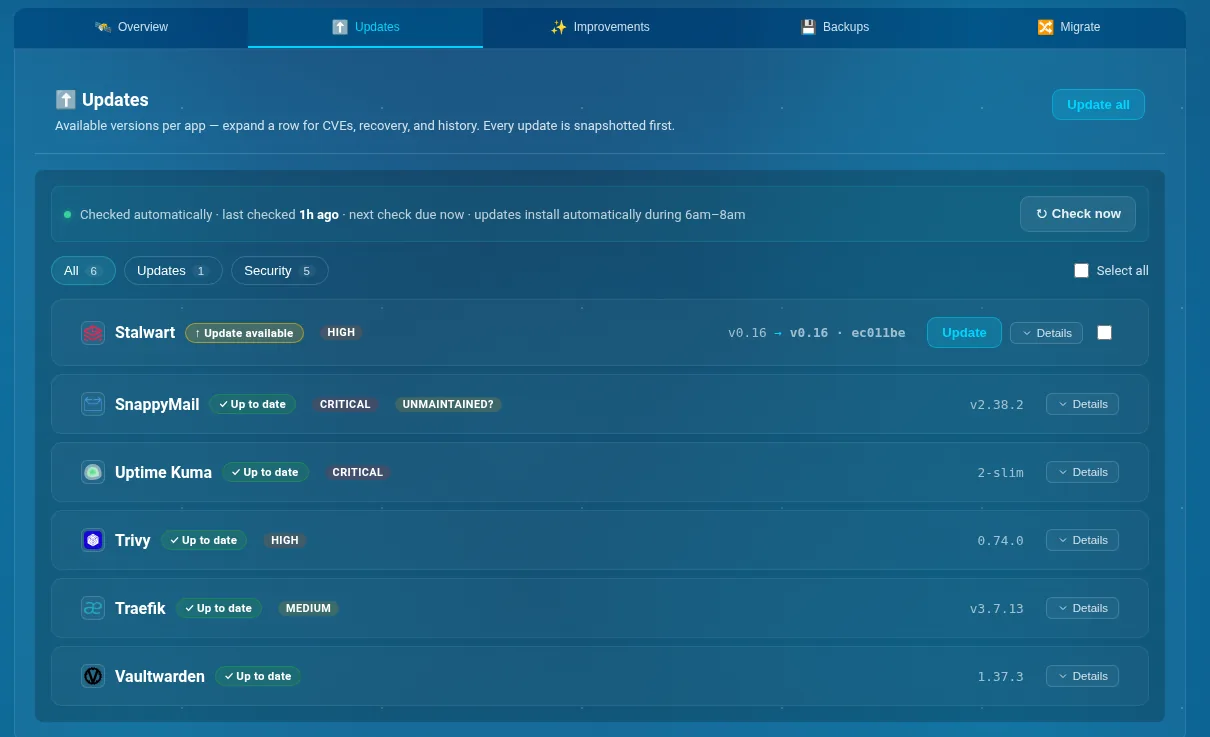
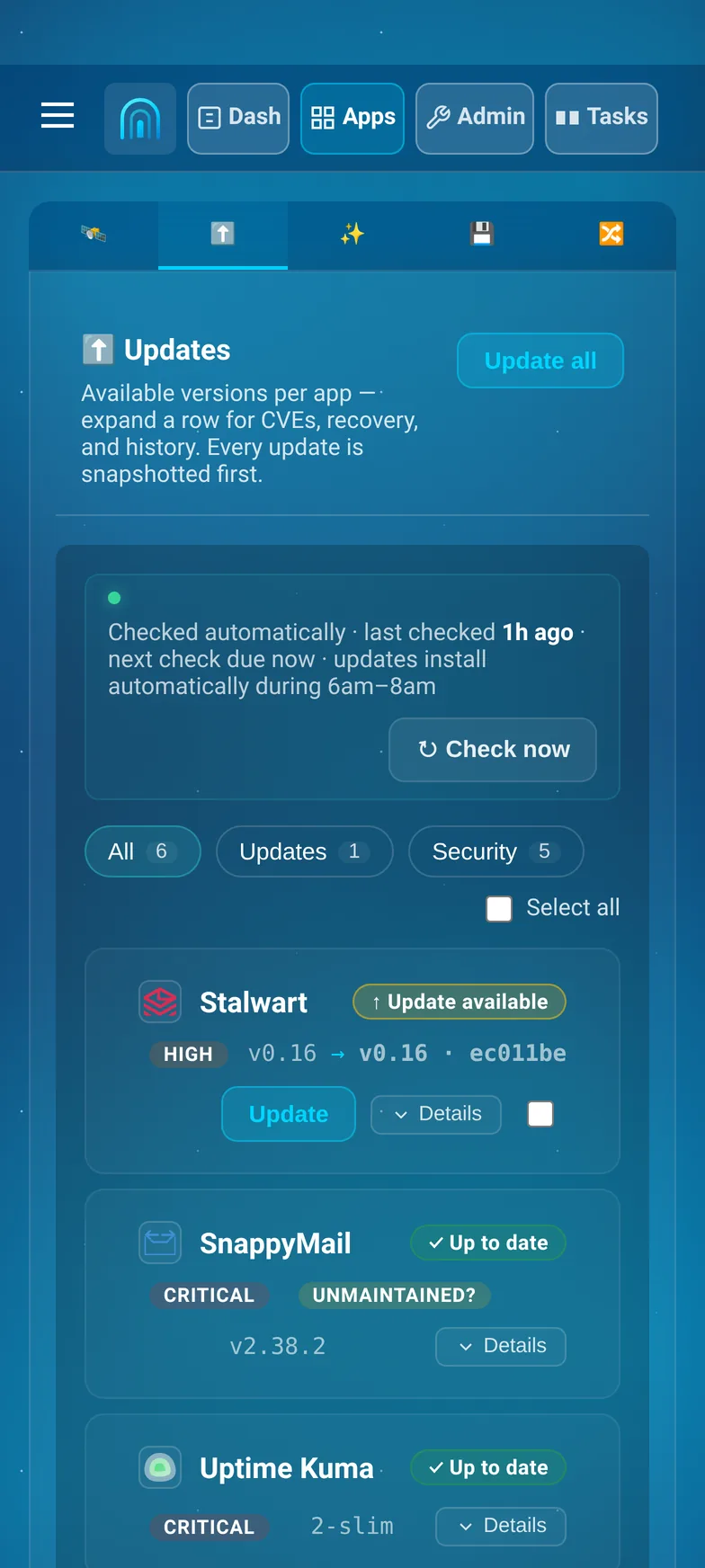
Everything works on a phone. The four places stay in the top bar, with shorter names (Dash, Apps, Admin, Tasks). Each top-bar icon has a short label under it, so you don't have to guess what an icon does. The menu button on the left opens a drawer with the theme menu, Support us, Logout, a link to libreportal.org, and the current page's sidebar, like the App Center's categories. An app page's tabs shrink to icons.
Since 0.9.14 the top bars stay put while only the page content scrolls. An app's page gets a slim pinned bar showing its services and status, and a bottom action bar with Back, Update configuration and a More menu, always within thumb reach. The drawer is slimmer too: just account, theme, support and sign out.
Beginner and Advanced#
Some pages have an Advanced switch that shows more technical detail, such as each container's limits and health check on the Services tab. Switching it on doesn't change anything on the server; it just shows more. See Themes and appearance.