Fill logins in other apps
Let LibreVault fill your usernames and passwords in other apps and on websites on your Android phone, the way Bitwarden's app does. How to turn it on, how it works when LibreVault is locked, and what it never fills.
On this page
On your Android phone, LibreVault can fill your logins in other apps and on websites. Tap a login box and LibreVault offers the login you saved for that app or site. Tap it, and the username and password go in.
This is called an autofill service. Android lets you choose one app to do it. It is the same thing the Bitwarden app does with a Vaultwarden server: the server only keeps the passwords, and the phone app fills them in.
Phone only, from LibreVault 0.1.1
This is for Android 8 and newer. Update LibreVault from the LibrePortal app, or download it from libreportal.org/download. On a computer, the LibrePortal app's own browser signs in to websites by itself; see Using LibreVault every day.
Turn it on#
- Open LibreVault and unlock it.
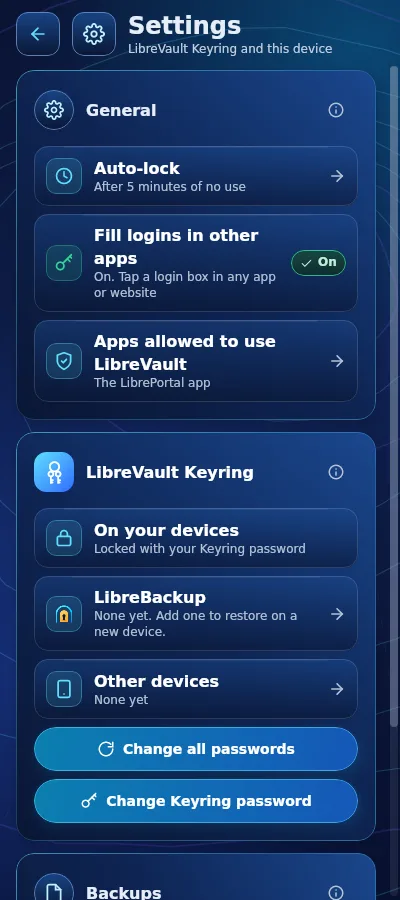
- Press the gear for Settings. In the General card, press Fill logins in other apps.
- Android opens its own page for choosing the autofill service. Choose LibreVault and confirm.
- Go back to LibreVault. The row now says On, in green.
- If you use Chrome: open Chrome's Settings, then Autofill services, and choose Autofill using another service. Restart Chrome when it asks.
Using it#
- Tap a login box in an app or on a website. LibreVault shows the logins saved for it, under the box. With some keyboards, such as Gboard, they show above the keyboard instead.
- Tap a login to fill it. Nothing is filled until you tap.
- One-time codes: on a page that asks for a six-digit code, LibreVault offers the current code of a login that has an authenticator key saved.
- Locked? LibreVault shows one row, Unlock LibreVault. Tap it, type your Keyring password, and you are taken straight back with your logins offered.
Which logins it offers#
LibreVault only offers a login where it belongs:
- On a website, a login whose Website is that site.
www.ovh.comandmanager.ovh.comboth match a login saved forovh.com. A look-alike address such asovh.com.example.netdoes not. - In an app, only a login saved for that very app. Such logins have a website that starts with
androidapp://, followed by the app's name, as Bitwarden saves them. - Never on a plain
http://website. Only securehttps://pages get your passwords.
What it never fills#
To keep your passwords where they belong, LibreVault leaves these alone:
- sign-up forms, and any form with New password or Confirm password;
- change-password forms, which have two password boxes;
- newsletter and mailing-list boxes;
- recovery and backup code boxes;
- LibreVault's own screens.
It does not save new logins you type into other apps yet. Add them in LibreVault with Add an item.