Health, security and alerts
What the LibrePortal app watches on each server, the alerts it sends, security at a glance, blocked addresses, and unlocking a server after a restart.
On this page
The app checks each server for you, every couple of minutes while it is open and about every quarter of an hour in the background on a phone. On a server that runs LibrePortal it needs LibrePortal 0.10.58 or newer for the pages on this page. An older one says Needs LibrePortal 0.10.58 and falls back to a simple "is it answering" check. A server without LibrePortal gets the same pages from standard Linux tools. See Basic server.
Health#
Each server has a Health page. It shows one row for every key service (CrowdSec, Traefik, Authelia, Vaultwarden, mail, the WebUI and the background jobs) and for every app. Then it shows the server's disk, memory, the certificate that runs out soonest, the last backup and the updates waiting. A green dot is well, amber needs a look and red is down. A blue dot is only information, such as an update waiting.
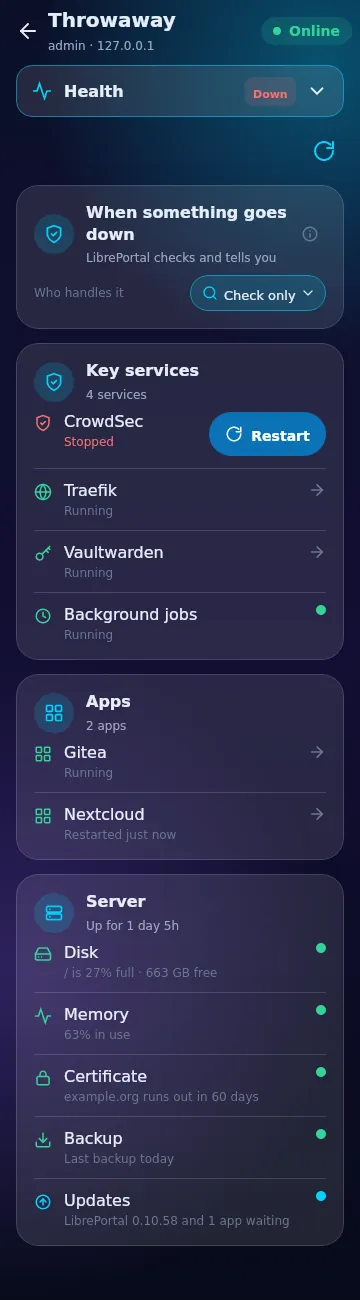
Tap an app to open its quick actions:
- Restart. It is away for a moment, so the app asks first.
- Update. Offered when an update is waiting. LibrePortal takes a snapshot first and goes back to it if the new version does not start.
- Back up now. It also says when the last backup was.
- Logs. The app reads the app's logs and tells you in plain words what it found, such as "It ran out of memory" or "The disk is full". Show the lines shows the raw text. Nothing is stored.
The page also draws the last 30 days as one bar a day, so you can see how often the server was answering. It is what this device saw, so days when the device was off are not counted.
Alerts#
When something goes down, the app tells you. On a computer it is a notification with a button. On Android it is a notification with an action button. The button restarts the app, or CrowdSec.
The app also warns you once when a certificate has 14, 7 and 1 days left, and when a backup is late (older than three days, missing or failed).
The card When something goes down decides what happens:
- Automatic. The app restarts it for you, and tells you. If the restart does not work, the notice has a Restart button.
- Check only. The notice has a Restart button. This is the pick in the picture.
- Manual. The notice shows the command to run yourself.
Alerts can be paused from one button, for an hour, until 08:00 or until you turn them back on. One calm summary comes each Monday at 08:00: how much of the week each server was up, what went down, new keys and ports, updates waiting and whether backups are fresh. You can switch it off under Settings, Notifications.
On Android you also get a home-screen widget with every server and a coloured dot, and two quick-settings tiles: VPN to switch your networks on and off, and Servers, which shows at a glance whether all is well.
When one or more servers have updates waiting, Update all servers appears at the top of the list. It updates LibrePortal and its apps on each server, one after the other. If one server fails, the rest still go.
Security at a glance#
On a server's Overview, four small tiles show the last 24 hours.
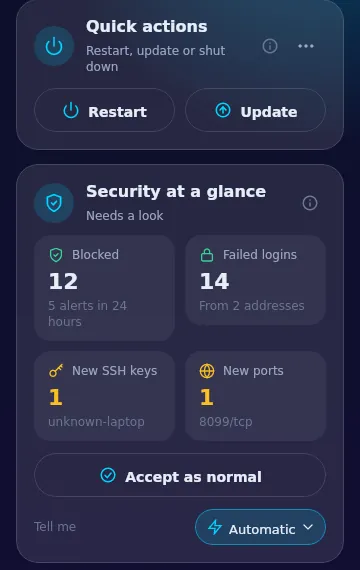
| Tile | What it counts |
|---|---|
| Blocked | The addresses CrowdSec is blocking now. |
| Failed logins | Failed SSH sign-ins, and from how many addresses. A lot of these is everyday noise on a server on the internet. |
| New SSH keys | Keys that can log in and were not there the last time you said all was normal. |
| New ports | Open ports that are new since then. |
The first time the app looks at a server, it saves what it sees as normal. After that, a new key or port stays on the card until you press Accept as normal. Looking never moves it. The Tell me switch decides whether you also get a notice: Automatic tells you once about each new key or port.
Blocked addresses#
Tap Blocked to see who is blocked. Each row has the address, a reason in plain words (such as "Repeated failed SSH logins"), when it started and when it ends, and whether it is this server's own block or the community list.
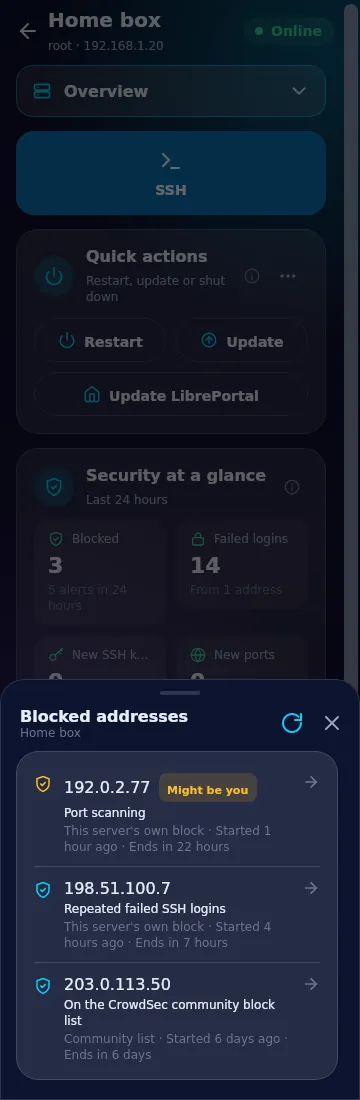
A block that matches this device's own address, or one of your devices on the private network, is marked Might be you and comes first. Tap a row to see two choices:
- Unblock. The address is let back in. CrowdSec may block it again if it misbehaves.
- Don't block it again. It is let back in and added to a never-block list, so neither you nor CrowdSec will block it again.
Both ask first, and the result is written in the account log. This needs LibrePortal 0.10.59.
Block an address by hand#
Blocking an address yourself needs LibrePortal 0.10.60. The app cannot do it yet; that is coming next. For now you do it in the web panel, on the Addresses page, or on the server with libreportal security block.
Unlock after a restart#
An encrypted server that restarts waits for its disk password before it starts. The app sees this and shows a violet dot. What happens next is set by the After a restart card on the server's Health page:
- Check only (the default). The notice has an Unlock now button. It sends the disk password saved in your vault, with one tap.
- Automatic. The app unlocks it the moment it asks, and tells you.
- Manual. The app tells you and you type the password.
Why Check only is the default
A server that starts up somewhere it should not be, such as one that was stolen or moved, must never open by itself. You can choose Automatic, but it is a deliberate choice.
A wrong saved password is said plainly, and the box stays open so you can type the right one. A server whose identity is new or changed is never trusted by a button. The app shows you its fingerprint and you decide. The password goes straight to the server, is read from the vault for that one call and is never logged.
If the server has a Wake-on-LAN address saved under Edit, a Wake tile appears while it is off. It only works from a device on the same network, and the server must have it switched on in its BIOS.
Next: Networks and keys.