Set up LibreVault
Install LibreVault, choose your one Keyring password, let it find your servers and make a recovery key. Most of it happens by itself.
On this page
Setting up takes a few minutes, and almost all of it happens by itself. You make one decision: the password that opens everything.
Before you start#
Add your servers to the LibrePortal app first. LibreVault finds them through it, so you never type an address. If you have no server yet, read Start here.
The steps#
On a computer
- Install LibreVault from libreportal.org/download. Open the file you downloaded and follow the installer.
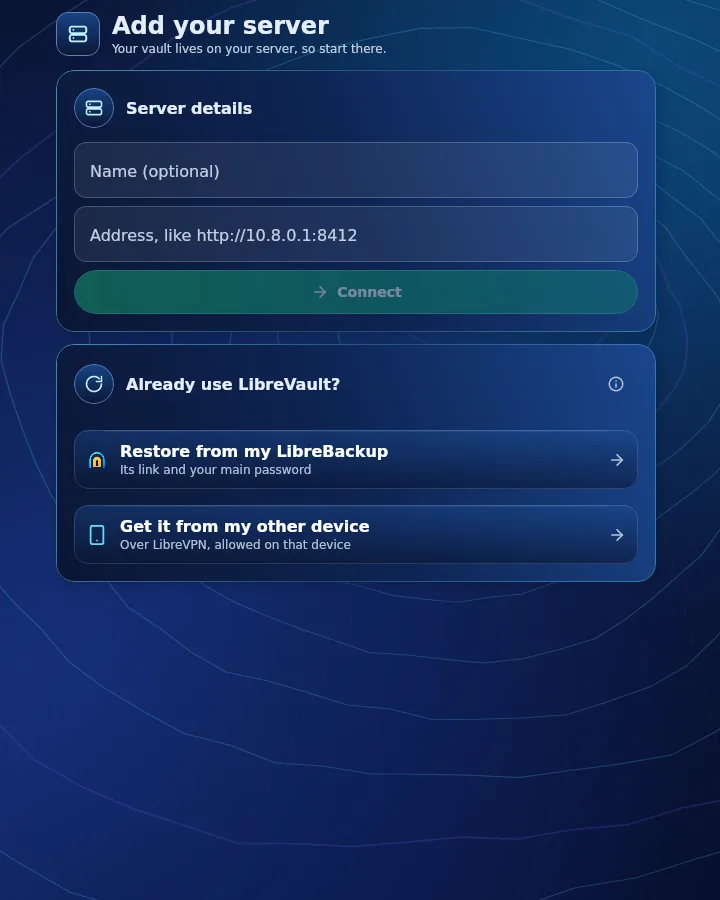
- Open it. The first screen is Add your server. If the LibrePortal app is installed on this computer and has servers, they are listed first, one click each. Typing an address by hand is a quiet link at the bottom, for servers the app does not know.
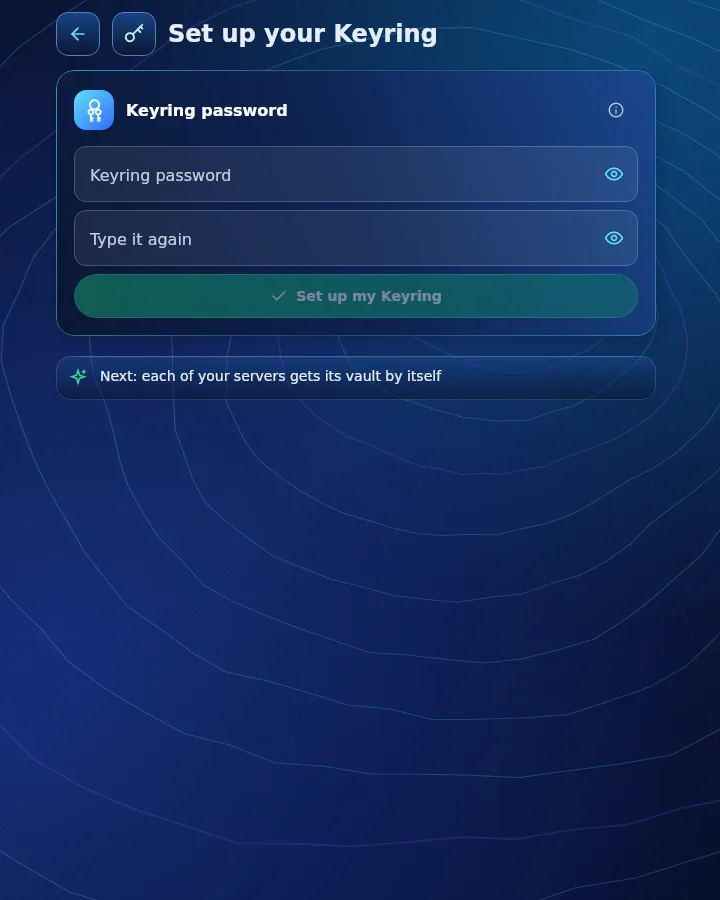
- Choose your Keyring password. Pick Make a strong one for me and press Copy, or Choose my own. A password you choose needs at least 16 characters, or 12 with capitals, digits or symbols. Write it down somewhere safe at home for now.
- LibreVault makes your vaults. For each server it makes a vault with a strong generated password, and keeps that password in the Keyring. You are not asked to type any of them.
- Make your recovery key. A calm orange strip on the home page says Finish setting up. Click Make it. See Keeping it safe.
On a phone
- Install LibreVault from libreportal.org/download in your phone's browser. Your browser asks once whether it may install an app: say yes for this download, then tap the file to install it.
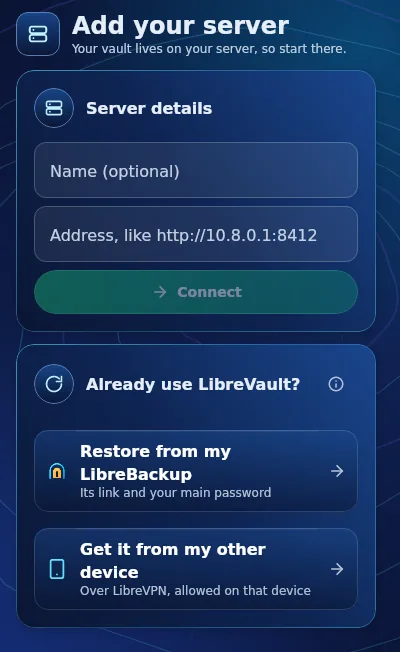
- Open it. The first screen is Add your server. If the LibrePortal app is on this phone and has servers, they are listed first, one tap each. Typing an address by hand is a quiet link at the bottom, for servers the app does not know.
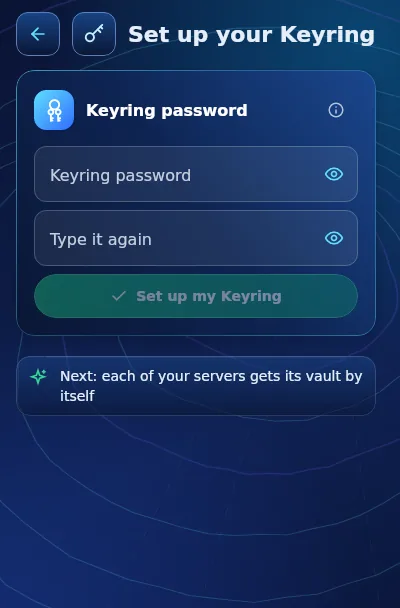
- Choose your Keyring password. Tap Make a strong one for me and then Copy, or Choose my own. A password you choose needs at least 16 characters, or 12 with capitals, digits or symbols. Write it down somewhere safe at home for now.
- LibreVault makes your vaults. For each server it makes a vault with a strong generated password, and keeps that password in the Keyring. You are not asked to type any of them.
- Make your recovery key. A calm orange strip on the home page says Finish setting up. Tap Make it. See Keeping it safe.
Why one password, and why it is yours alone
Your vault is locked with a key made from your Keyring password on your own device. That key never leaves it. So nobody can read your vault, not the people who run the server and not us. It also means nobody can reset the password for you. That is what the recovery key is for.
Allow the LibrePortal app#
The first time the LibrePortal app needs a password, for example to unlock a server's disk, LibreVault may show a question: Allow the LibrePortal app to ask for your passwords? Press Allow. LibreVault checks that it really is the genuine LibrePortal app, run by you, and it never asks before it is set up.
On the server side#
When LibreVault finds a server that does not have a vault yet, the LibreVault app is installed on that server for you, and your vault is made there. A second vault is never made quietly.
If you already use another vault#
- Already use LibreVault on another device? On the first screen choose Get it from my other device, or Restore from my LibreBackup if you kept a copy there.
- Already use Vaultwarden? The server has a tool that moves your logins across. See Moving from Vaultwarden.