Hide your mail server with LibrePost
Put a small relay on a public server so your mail server at home can stay hidden. How to install LibrePost, pair it with Stalwart, publish the DNS records, and what happens to your mail.
On this page
A mail server that takes mail from the whole internet has to be reachable by the whole internet. That is awkward at home. Many providers block port 25. Your home address changes. And every spammer on earth knocks on the door of anything that answers on port 25.
LibrePost is a small post office that sits in front of your mail server. It lives on a LibrePortal server with a public address (a cheap VPS is plenty). The world talks to LibrePost. LibrePost talks to your mail server through an encrypted tunnel that your mail server opens itself. Your home server needs no open port, and its address is never shown to anyone.
Prefer to run it on a machine that does not use LibrePortal? See LibrePost on any server.
It is optional. If your mail server already has a public address and your provider lets port 25 through, you do not need it.
It suits you if your mail server runs at home, if your provider blocks port 25, or if you simply want the server hidden. It is not a service for other people: you run it, on your own server, for your own domains.
What you need#
- Stalwart installed on the server that holds your mailboxes (your "home" server). That is the one that stays hidden.
- A second LibrePortal server with a public address for LibrePost. It does not have to be a big one. It needs a domain set in Network → Domains, because LibrePost takes the name
post.<your domain>. - Your domain's DNS, where you can add records.
- Port 25 open at the provider of the LibrePost server, both ways. Many providers block it until you ask. LibrePost cannot work around that.
Why two servers
The point is that the public face and the private mailboxes are not the same machine. Anything an attacker learns about the public one tells them nothing about where your mail is kept. If you only have one server, you do not gain anything from LibrePost.
Start at the end of your Stalwart install#
When Stalwart finishes installing, its welcome window ends with a short section about LibrePost. It says what it is for, who it is for, and the three steps below.
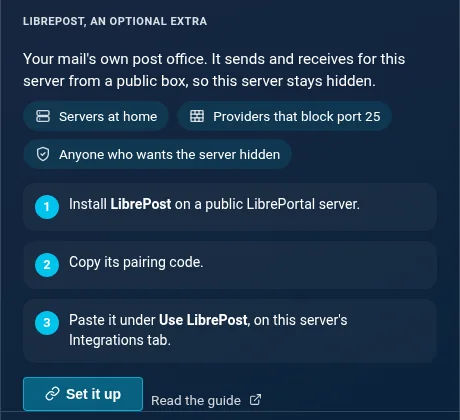
Nothing is changed by looking at it. You can do this the day you install Stalwart or months later. The same section stays on Stalwart's Integrations tab, under Use LibrePost.
Step 1: install LibrePost on the public server#
On the public server, open the App Center and install LibrePost. The install asks one question:
- Junk mail: how firmly spam is turned away while the sender is still connected. Normal is right for most people. Firm also refuses mail from senders with no SPF or DKIM, which can catch the odd real message. Gentle only refuses the worst.
Mail the relay refuses is bounced back to its sender straight away, so nobody loses a message without knowing.
When it finishes, LibrePost has set its mail server up as a relay. It accepts mail for no domain yet, so it cannot be used by anyone until your home server pairs with it.
Step 2: copy the pairing code#
Open LibrePost's page. Under Your relay it says it is waiting for your home server, and shows a pairing code that is hidden. Press Show, or Copy to put it on your clipboard.
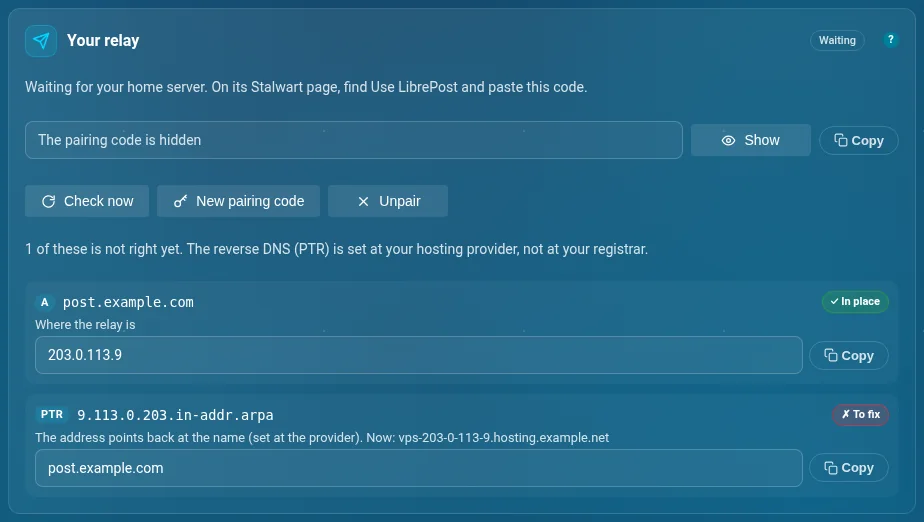
The code is long, about 400 characters. That is deliberate. It carries the keys for the tunnel and two long random passwords, so it is a secret in the same way a WireGuard config is. Paste it straight into Stalwart. Do not post it anywhere. It works for 24 hours, and until your home server uses it. After that the relay empties it, and a code nobody used takes its unused end of the tunnel with it.
Step 3: paste it into Stalwart#
On your home server, open Stalwart's page and go to Integrations. Under Use LibrePost, paste the code and press Connect.
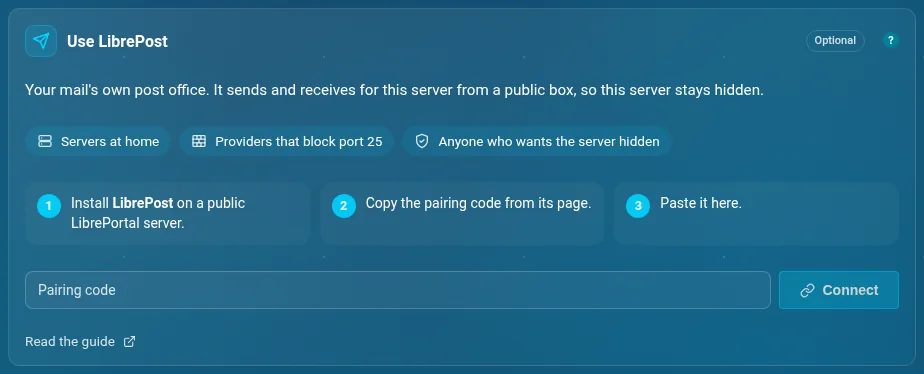
You will see the steps as they happen, in plain words:
- Checking this mail server.
- Building the tunnel to your relay, and waiting for it to answer.
- Telling the relay which domains are yours.
- Setting Stalwart up to receive from the relay.
- Sending outgoing mail through the relay.
- Restarting Stalwart once. A new door is only opened when it starts.
- Checking mail can come back through the tunnel.
- Closing port 25 to the world on this server.
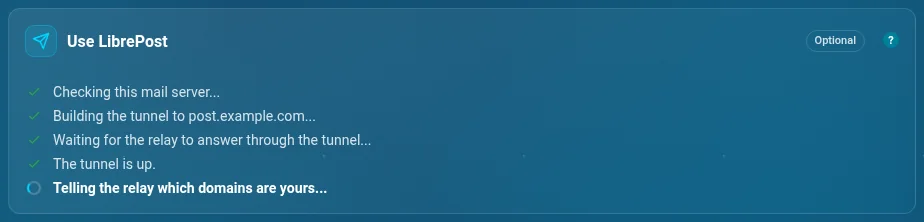
When it ends the card says Connected, with the name of your relay.
It restarts Stalwart once
Stalwart opens a new listener only when it starts, so pairing restarts it for a few seconds, and closing port 25 reinstalls the app, which keeps all your mail and mailboxes. Do it at a quiet moment.
Step 4: publish the DNS records#
Both pages now list the records your domains need, each with a live check: a tick when it is in place, a cross when it is not.
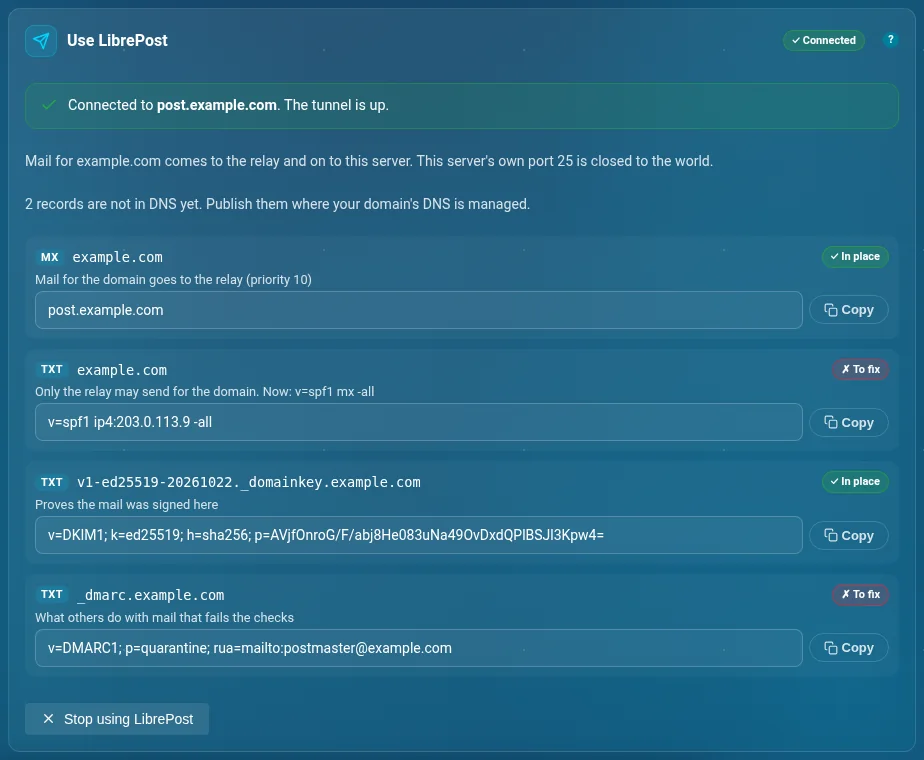
| Record | What it says |
|---|---|
| MX for each domain | Mail for the domain goes to the relay. |
| A for the relay's name | Where the relay is. |
| SPF for each domain | Only the relay may send for the domain. It replaces any SPF you had. |
| DKIM for each domain | Proves mail was signed by your home server. Stalwart's own page lists it, and it does not change. |
| DMARC for each domain | What others do with mail that fails the checks. It starts at quarantine. |
| PTR (reverse DNS) for the relay's address | The address points back at the relay's name. |
MX, A, SPF and DMARC you add where your domain's DNS is managed (the DKIM record is already there). The PTR is different: it is set at your hosting provider, usually in their control panel under reverse DNS, and it has to say the relay's name exactly (for example post.example.com). Mail servers distrust a sender whose address does not point back at its name.
LibrePortal never changes your DNS. DNS can take a while to spread, so press Check now on LibrePost's page after a few minutes. It also checks by itself every fifteen minutes.
What happens to your mail#
Mail coming in. The sender looks up your domain's MX and finds the relay. The relay accepts the message only if the domain is one of yours. It turns spam away while the sender is still connected. What is left goes through the tunnel to your home server, and the relay deletes its copy.
Mail going out. Your mail app sends to Stalwart as usual. Stalwart signs the message with your domain's key, then hands it to the relay through the tunnel. The relay delivers it. The keys never leave your home server, and nobody who receives your mail sees your home address.
While your home server is away. The relay keeps the mail and tries again, after a minute, then two, five, ten and fifteen, and after that every half hour. It keeps trying for five days. Nothing bounces early, and it arrives within half an hour of your home server coming back. After five days the sender gets a failure notice.
Why the relay does not just forward everything
It is never an open relay. It accepts mail only for the domains your home server told it about, and only your home server can send through it, as one of those domains. A stranger cannot use it to send spam.
What the relay can see#
Be clear about this. Mail passes through the relay's memory and, if your home server is away, its queue. It has to read a message to judge whether it is spam. So the person who runs the public server can read mail in flight. That is you, so it is only a question of how far you trust that machine and its host.
What the relay does not have: your mailboxes, your stored mail, your DKIM keys or anything else on your home server. Once a message is delivered the relay keeps nothing. If you also want what is stored at home to be unreadable to a thief, see Encrypt your stored mail.
One limit to know. The relay cannot ask your home server whether a mailbox exists before it says yes. Mail for a name that does not exist at your domain is accepted, and your home server then refuses it, so a bounce goes back to the sender. Spam is turned away before that point, so the bounces mostly go to real people, but it is how a mail server with a catch-all behaves.
Looking after it#
- A tick on the tunnel. LibrePost's page says Connected when your home server has answered in the last few minutes, and Away when it has not. Away does not lose mail.
- Check now looks at the tunnel, the queue and the DNS again.
- Adding or removing a domain on Stalwart tells the relay by itself. You can also run
sudo -u libreportal libreportal librepost sync. - A new pairing code (in Tools, Make a New Pairing Code) cuts the current home server off until it uses the new one. Use it if a code has leaked.
- Updates are manual for both apps. Stalwart changes how it is set up between releases, so a new version is taken by hand after it has been tried.
Stopping#
On Stalwart's page, press Stop using LibrePost. Stalwart goes back to delivering mail directly, with the settings it had before. Port 25 opens again as its mail mode says. Everything pairing changed is put back from the copy it kept.
Then point your MX and SPF records back at your home server, and unpair on the relay (Tools, Unpair) if you do not mean to use it again. Until you move the MX, mail for your domains still goes to the relay, which refuses it once it is unpaired. If you uninstall LibrePost from the public server without stopping first, press Stop using LibrePost on Stalwart as well, or Stalwart keeps trying to send through a relay that is gone.
If it does not work#
| What you see | What it usually is |
|---|---|
| Pairing says the relay did not answer | The relay's tunnel port is a UDP port that LibrePortal chose at random. Open it at the relay's provider and in its cloud firewall, then press Connect again. The port number is on LibrePost's Config tab, in its ports. |
| The code is refused | It was not copied completely, or it ran out. Make a new one from LibrePost's page. |
| Mail to you is slow to arrive or never does | Check the MX and A records show a tick. Then ask your provider whether port 25 is open inbound. |
| Your mail goes to spam at the other end | Check SPF, DKIM, DMARC and PTR all show a tick, and that the relay's address is not on a blocklist. |
| The relay shows Away | Your home server is off or the tunnel is blocked. Mail waits, and arrives when it is back. |