Networks and keys
The VPNs the LibrePortal app runs for you, how it refreshes your VPN and SSH keys without cutting you off, and what to do when a device is lost or stolen.
On this page
Networks#
Every VPN you use is set up and run by the app itself. It does not touch your computer's or phone's own VPN settings. One page, Networks, lists them all and each has a switch.
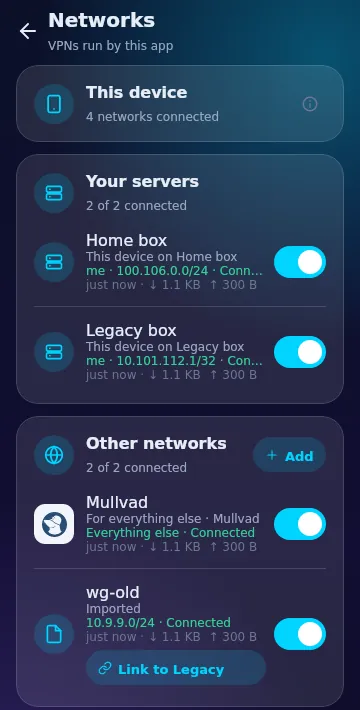
- Your servers. Each server's private network. It carries the server's name, and the line under it says "This device on" and that server. Tap one to open the server.
- Other networks. A VPN company you use for everything else (Mullvad, for example), and any other WireGuard config. You can import a config from a file, and a config can be linked to a server.
Several run at the same time. On a computer that just works. On Android only one VPN may run at once, so the app is that one VPN, and it sends each address down the right network. Your servers always go through their own networks. Your local network stays local, so a printer at home keeps working with a full-tunnel VPN on.
DNS follows your choice for each network: off, names only (your server's own local names) or everything.
Each network can be set to Automatic (it comes up whenever the app runs), Check only or Manual. On a computer, a small helper installed with the app does the work and asks for permission once. This is for Linux. Windows and macOS are not supported yet.
Why the app runs them, not the system
Your server's private network and a VPN company use different keys, and a phone allows only one VPN. By running them itself, the app can carry both at once and route each address the right way. It also means a new device gets a connection without you importing a file.
Refreshing your keys#
Keys should not last for ever. The app can swap a device's key for a new one, and the rule is always the same: the new key replaces the old one once it works. You are never cut off.
You will find Refresh key beside each device, with a line such as "VPN key: refreshed 12 days ago". You choose when a key is due: after 30, 60, 90 or 180 days (90 is the default). Automatic refreshes at night, between 01:00 and 06:00, Check only says "Due for a refresh", and Manual leaves it to you.
The VPN key#
The app makes the new key on the device. Only the public half goes to the server, and the private half never leaves the device. The server swaps to the new key at once, and puts the old one back if the new one does not connect within a minute. If you use several servers, the app does them one at a time, and stops at the first one that fails. That server and the ones after it keep the old key. The connection may pause for about a second. It tells you before and after.
This needs LibrePortal 0.10.59 on the server.
The SSH key#
On the SSH keys page, Your devices' SSH keys shows how old each device's key is. When you press Refresh key:
- The app makes a new key on this device.
- It adds the new key next to the old one on every server and checks that the new key alone can log in.
- If any server refuses it, nothing is switched and the old key still works everywhere.
- Only when every server accepts it does the app switch over. Then it removes the old key from each server.
The old key goes in the key history as "Replaced (key refresh)". Terminals you already have open keep running. A phone keeps its key in the phone's secure storage and does not replace it here.
Another device's key#
You cannot make a key for another device from here. Press Ask to refresh and the row says "Waiting for" that device. It does the refresh itself the next time its app runs, and you are told when it is done.
Every refresh notice is also kept in the bell list.
Lost or stolen device#
If a phone or laptop is lost, take it off every server at once. In Settings, Servers and keys, open Your devices. Press Revoke beside the device. (You cannot revoke the device you are using.)
The app first shows a preview, server by server: the SSH key that will be removed and the VPN device that will be removed. You confirm, and then it shows a result for each server.
- A server never removes the last key that can still log in. That row says so, and nothing is sent for it.
- A server that does not answer, or that is waiting for its disk password, is marked Didn't answer. Press Try again later.
- The removal is written in the key history as Device removed, and the device leaves your list once no server still holds it.
Also change what the device could open
Revoking stops the device from logging in and from using your private network. If the device was signed in to apps, sign it out in those apps as well, and change a password the device had saved.
This needs LibrePortal 0.10.58 on the server. An older server still has its SSH key taken off, and says the VPN device needs the newer version.
Next: People and invites.