Keeping LibreVault safe
The recovery key, locked backup files, exporting for another password manager, spare copies on your LibreBackup, and moving your logins between Vaultwarden and LibreVault.
On this page
Passwords are the one thing you must never lose and never leak. This page covers every way LibreVault protects them, and how to get them back.
The recovery key#
If you forget the Keyring password, nobody can reset it, not even us. The recovery key is your way back in. You make it once, right after setting up.
- On the home page, press Make it on the orange Finish setting up strip, or open Settings and choose Recovery key.
- The page shows your key once, as groups of letters and digits like
ABCD-EFGH-IJKL-MNOP. Press Print, Save as QR image or Save as file. - Keep it somewhere safe, away from this computer. A printout in a drawer or a safe is ideal.
- Tick I have kept it somewhere safe and press Done.
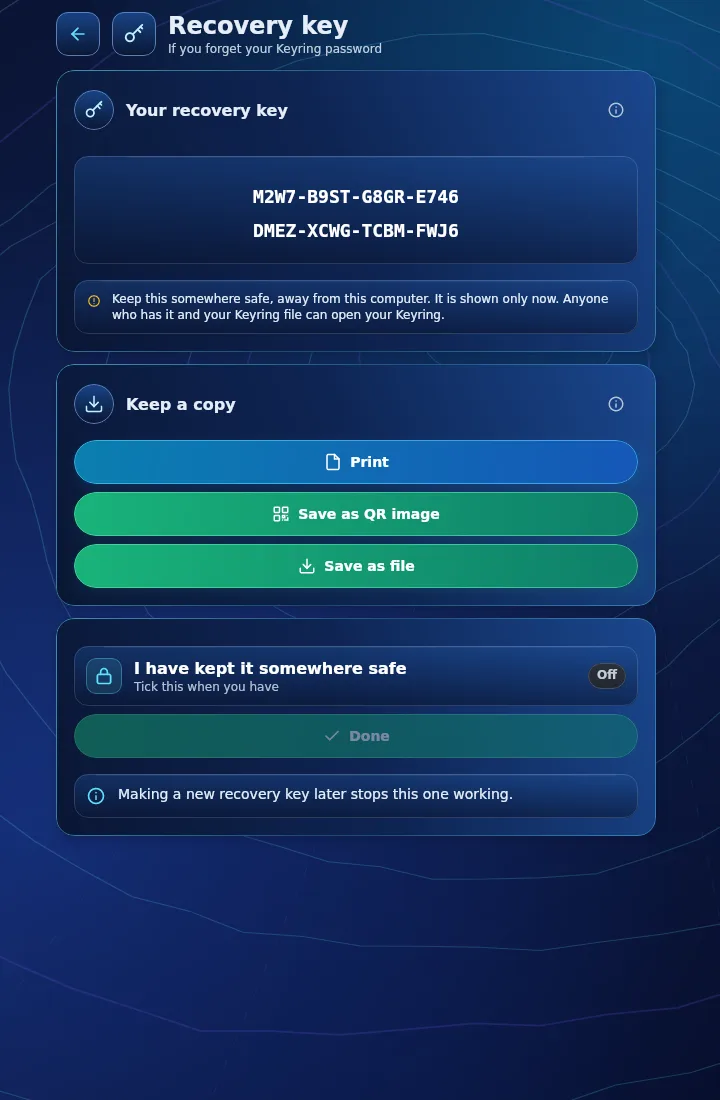
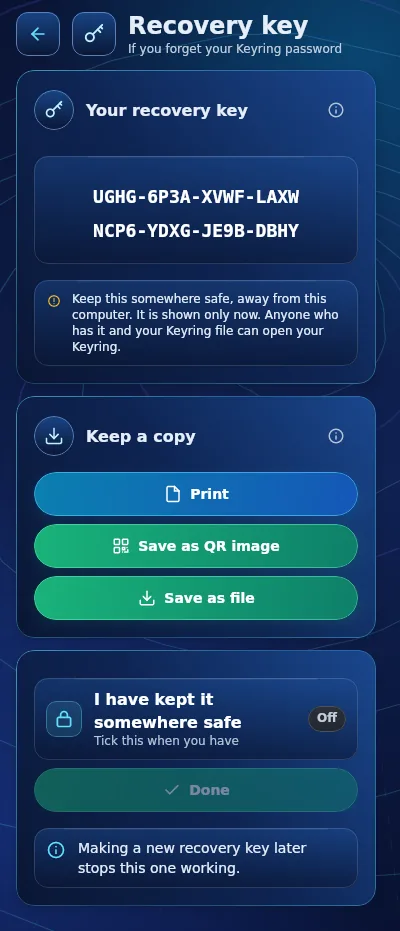
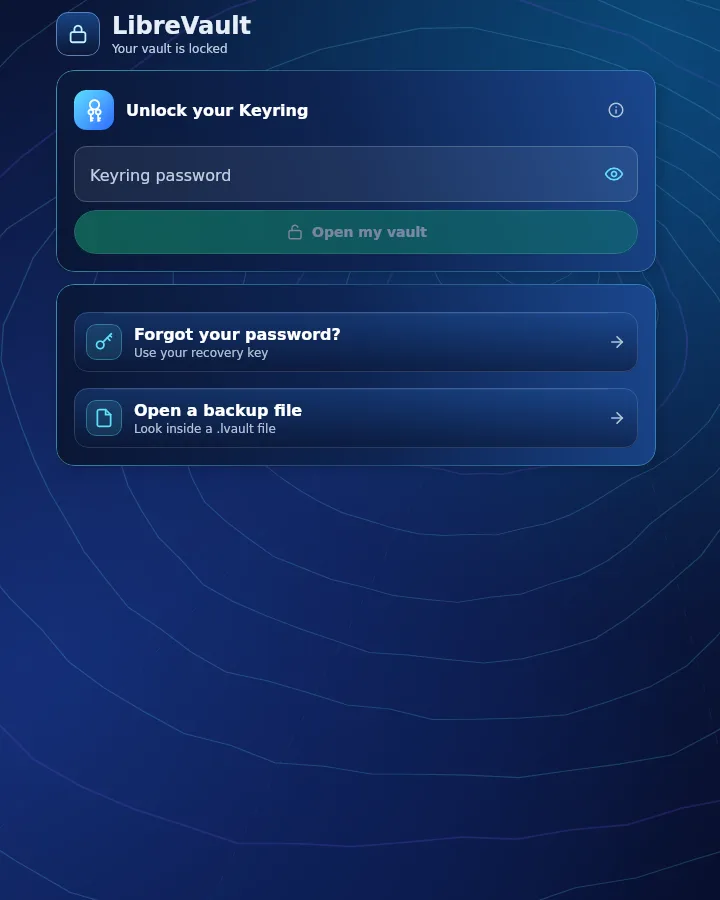
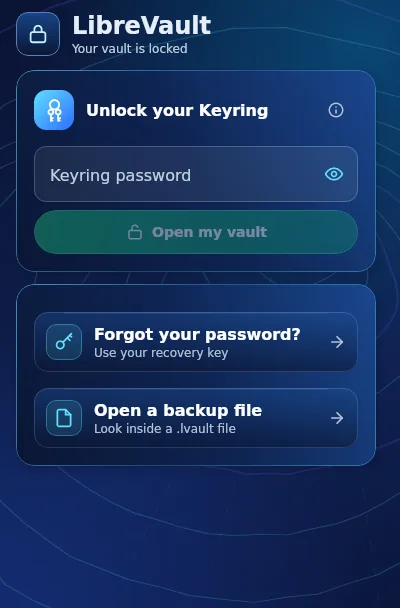
If you forget the Keyring password, press Forgot your password? Use your recovery key on the lock screen. Type the key and choose a new password twice. Making a new recovery key later stops the old one from working.
Backup files#
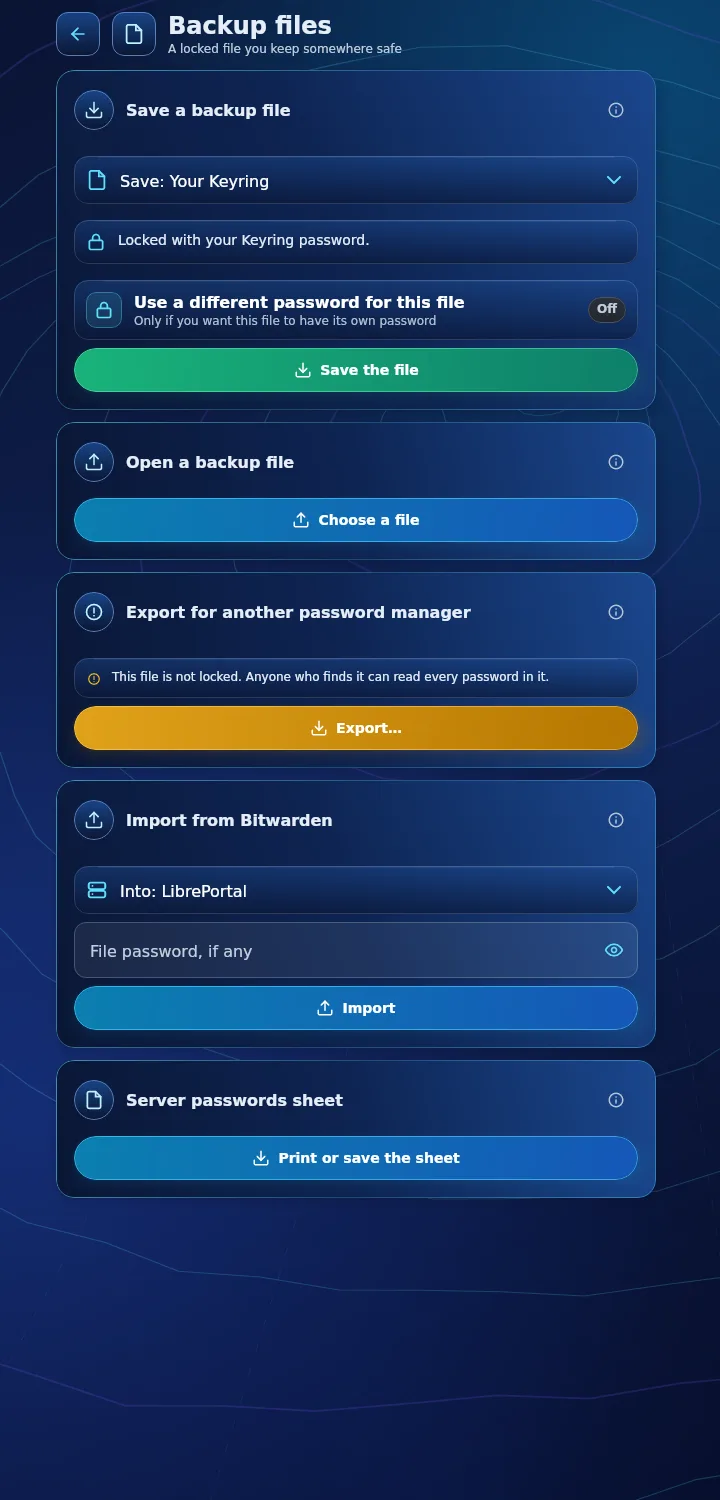
A backup file ends in .lvault. It is locked, so it is safe to keep on a USB stick or in your email. One kind of file can hold your Keyring, one server's vault, all of them, or both.
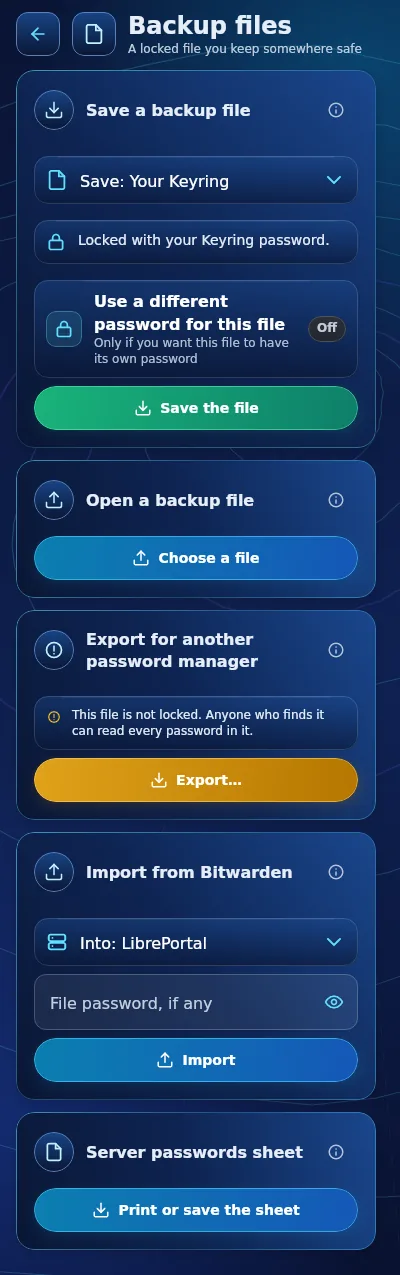
- Save a backup file. Choose what to save, and press Save the file. By default it is locked with your Keyring password. Switch on Use a different password for this file if you want it to have its own.
- Open a backup file. Double-click a
.lvaultfile, or press Open a backup file. LibreVault shows what is inside and lets you copy one item. It works even while the Keyring is locked, because the file has its own password. - Put it back in LibreVault. Brings the contents back and merges them with what you have. Nothing you already have is lost.
Export for another password manager#
Press Export to leave LibreVault with everything. It writes a file that other password managers can read.
That file is not locked
An export shows every password in plain text, so anyone who finds the file can read them all. LibreVault asks you to confirm first. Move the file where you need it, then delete it.
You can also Import from Bitwarden with a file exported from there. Each item comes in with its folder; LibreVault makes any folder your vault does not have yet. Importing the same file again never adds an item twice.
Spare copies on your LibreBackup#
If you have a LibreBackup, LibreVault offers Keep a copy. The LibreBackup then keeps a read-only, encrypted copy of each server's vault and refreshes it every few minutes. LibreBackup cannot read it.
If a server goes down, LibreVault signs in to the copy instead, shows a line saying so, and your passwords, including the disk password of the server that is down, are still there. Changes you make while on the copy wait, and go to the server when it is back. A server's page says things like Spare copy kept on your backup server.
The Keyring itself can also be kept as one locked copy on your LibreBackup, so a new device can get it back. See the Keyring copy in Settings.
Moving from Vaultwarden#
If you already run Vaultwarden, you can bring everything into LibreVault, or go back.
- Move a Vaultwarden In is a tool on the LibreVault app's Tools tab. It takes a backup of Vaultwarden first, copies the accounts and passwords across, checks they arrived, and puts things back if anything goes wrong. Your old app is stopped, and its data is kept.
- Move Back to Vaultwarden does the same in the other direction.
Neither deletes anything on either side. Use them from the app's page in the WebUI: see Tools and add-ons.
Inviting other people#
Each person you invite to your server gets their own LibreVault account made by themselves, with no email and no sign-up link. Nobody can read another person's vault. If you invite someone to use a Bitwarden app against your server, turn Allow Sign-ups on for a short while, then off again.
