Apps that work together
Some apps know about each other: Uptime Kuma watches the rest, SnappyMail finds your mail server, Mastodon and Funkwhale can follow each other. The Works with list shows which, and whether they're connected.
On this page
Apps on the same server are more useful when they know about each other. A monitor that already watches every app you install. A webmail page that finds your mail server by itself. Two fediverse apps that can follow each other. LibrePortal knows which of its apps go together, connects the ones it can, and tells you plainly about the rest.
Where you see it#
Once an app is installed, its page shows Works with under its title: one row for each app it can work with, a sentence saying what the pair does, and a status.
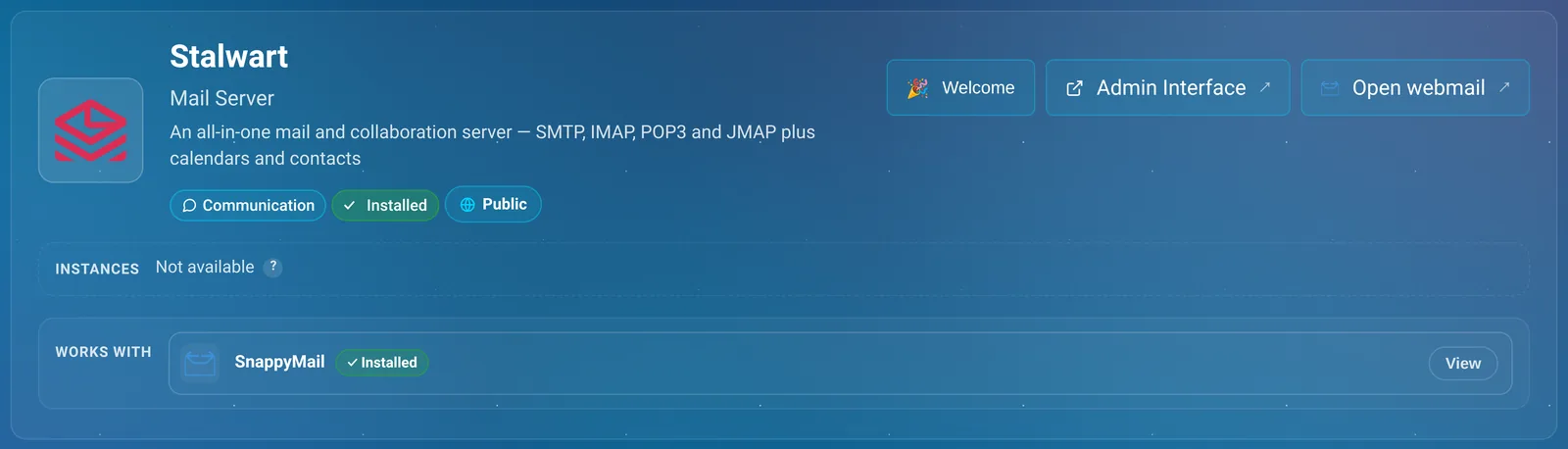
A row about every app on the server, like Uptime Kuma's, is titled All your apps.
The App Center shows the same thing in one line on each app's card, like "Works with Uptime Kuma (installed), ntfy and 2 more", so you can see what goes with an app before you install it. Each app's page in this guide lists them too, under "Works with".
The three kinds#
Set up by itself. When both apps are installed, LibrePortal connects them without being asked. You don't do anything; the row says Connected. Some can be switched off in the app's settings, for when you'd rather do it yourself.
Nothing to set up, if the conditions are right. Some pairs just work once both exist, but only when something else is true. Fediverse apps can follow each other, but only with a domain. LibrePortal doesn't connect these (following is your decision), but it tells you whether they can work here, and has a Check button to prove it.
Not installed yet. A partner you don't have, with an Install button that opens its install dialog.
The status#
| You see | It means |
|---|---|
| Connected | Working. Once it's been checked, it says when instead: Checked 5 min ago. |
| Installed | The partner is there. For a companion, that's all it needs. |
| Problem found | The last check failed. The row says why. |
| Not connected | Both apps are there, but they aren't connected yet. |
| Waiting | The partner is installed but stopped. It picks up again when the partner starts. |
| Needs a domain | This pair can't work until you add a domain. |
| Can't work yet | Something else this pair needs is missing; the row says what. |
| Not checked | Nobody has checked yet. Press Check. |
| Not installed | The partner isn't on this server. Press Install if you want it. |
Check runs a real test, not just a look at the settings. For the fediverse, that means proving each server can reach the other, both ways. It runs as a task, so the details are on the Tasks page afterwards.
Walk-through: Uptime Kuma watches everything#
Uptime Kuma is the clearest example of an app that sets itself up.
- Install Uptime Kuma. As soon as it's running, LibrePortal adds a monitor in it for every installed app that has a port to check.
- Look at its Works with row. "All your apps: Watches your apps and shows when one goes down", marked Connected.
- Install another app, say Linkding. Uptime Kuma gets a monitor for Linkding straight away. Linkding's own page now lists Uptime Kuma under Works with.
- Uninstall it again. The monitor goes with it.
You never open Uptime Kuma's settings to do any of this. If you don't want a particular app watched, untick it with Uptime Kuma's Manage Monitors tool. To stop new apps being added automatically, switch off Monitor New Apps Automatically on its Config tab. Uptime Kuma's page has the details.
Walk-through: two fediverse apps#
Mastodon, Friendica, Funkwhale, WriteFreely, Owncast, PeerTube and Mobilizon all speak the fediverse's language. Mastodon, Friendica and Funkwhale can follow each other, on your server and anywhere else. The others are there to be followed: a WriteFreely blog, an Owncast stream, a PeerTube channel or a Mobilizon group is something you follow from Mastodon or Friendica, and their rows say it that way round. Say you run Mastodon and Funkwhale, and want to follow your Funkwhale podcast from your Mastodon account.
- Look at Funkwhale's Works with row for Mastodon. "Can follow each other, and anyone else on the fediverse."
- Without a domain, it says Needs a domain. Fediverse servers find each other by name, so both apps need a proper address on a domain. There's no way round that, which is why the row says so rather than pretending. Set up your domain and Traefik, ideally before installing apps like Funkwhale whose address can't change later.
- With a domain, press Check. LibrePortal tests that the two servers can really reach each other, both ways, the way any other fediverse server would. The row becomes Connected, with when it was checked, or Problem found with the reason.
- Follow. The row has links like Follow … from Mastodon ↗ that open the follow page in the other app. Press Follow there yourself.
LibrePortal never follows or posts for you
It checks that two apps can talk, and gives you the link. Who follows whom, and what gets posted, is always your decision, made in the app.
What connects to what#
Set up by themselves. When both apps are installed, LibrePortal connects these for you. Most are also offered together under Also install when you install the first, so you can add the pair in one go; see Installing apps.
- Uptime Kuma watches every app you install.
- SnappyMail signs people in to the mailboxes on your Stalwart mail server.
- Prometheus collects measurements from the apps that publish them, and Grafana gets Prometheus as its data source, with dashboards.
- OnlyOffice becomes the editor for documents in Nextcloud, once Nextcloud's Office extra is on.
- Unbound becomes the upstream resolver for AdGuard or Pi-hole, so no outside resolver sees your lookups.
- LibreTranslate powers Mastodon's Translate button: installing it fills in Mastodon's translation settings and a key, and removing it empties them again.
- ntfy carries LibrePortal's own alerts to your phone, and Uptime Kuma gets a ready-made notification through it for the monitors LibrePortal made. See Notifications.
Work together when the conditions are right:
- The fediverse apps, as above.
- LibreTranslate could also answer translation searches in SearXNG, but SearXNG has no setting for it in LibrePortal yet.
- Node-RED can send messages through ntfy from your flows: a flow sends a notification with an ordinary http request node, method POST, to
http://ntfy-service:80/<your topic>, with the message as the payload.
From the command line#
Advanced Do this from the command line
sudo -u libreportal libreportal app integrations
sudo -u libreportal libreportal app integrations funkwhale
sudo -u libreportal libreportal app integrations funkwhale check
New to the command line? How to run LibrePortal commands →
The first shows which apps work together on this server and whether they're connected; the second, just one app's. check tests them again, the same as the Check button.

