Installing apps
Finding an app in the App Center, what the install dialog checks and asks, where your new app's login is, apps that come with a companion, and how to remove an app cleanly.
On this page
Installing an app takes a minute of your time and a few minutes of the server's. You choose it, answer a question or two, and LibrePortal does the rest: it downloads the app, gives it a port and an address, makes its admin account, sets up its backups and starts it.
Finding an app#
Open the App Center from the top bar. Browse the categories on the left, or type in Search apps…. Recommended is a good place to start if you're not sure what you want.
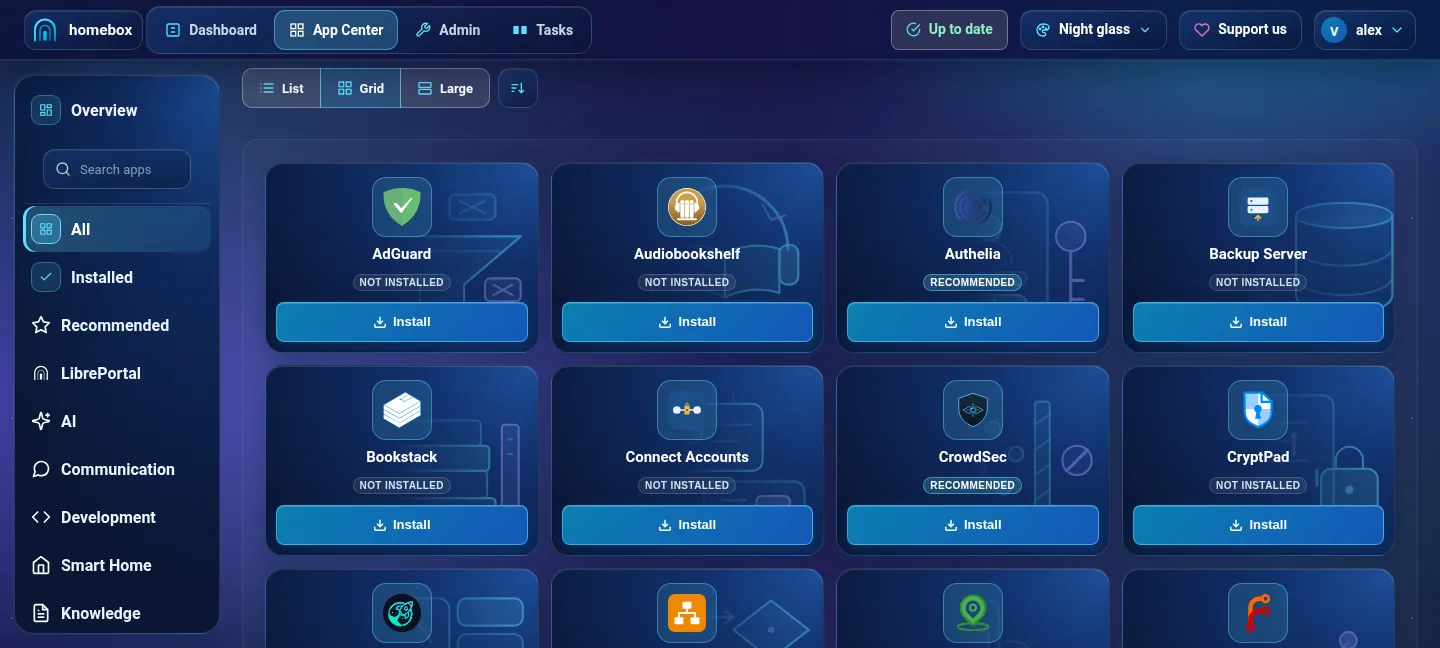
Click a card to open the app's page. Its Config tab shows the settings you can choose before installing; most have sensible defaults and you can leave them alone. Every app also has a page in this guide, under Apps, which says what it's good for and anything to decide first.
Read the app's page here first
A few apps have one choice that can't be changed afterwards. Funkwhale builds everything around the address it was installed with, for example. The app's page in this guide says so under "Before you install".
The install dialog#
Press Install App at the bottom of the app's Config tab. Before anything is downloaded, a dialog checks the app can actually work here and shows you what it's about to do. It has two or three steps.
Requirements#
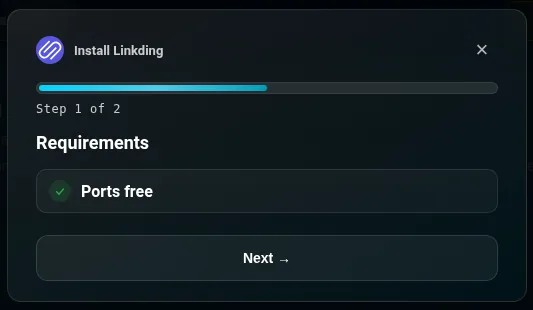
Each thing the app needs, marked:
- ✓ when it's there,
- ✗ when it's missing. That stops you here, because the app wouldn't work.
- ! when it's recommended but you can go on without it.
Things you'll see here include A domain, for apps that can't work without one; HTTPS, for apps a browser only allows on a secure page; a companion app the app needs, like Stalwart installed for the webmail app SnappyMail; and Ports free, or the port that's in use and what's using it.
If you have a domain, the app's web address is checked too. Two apps can't share one address: the part of LibrePortal that sends each address to the right app would only ever answer with one of them. So if Immich already answers on photos.example.com and the app you're installing wants the same address, you'll see Address photos.example.com marked ✗, with "Used by Immich. Pick another subdomain". Its Fix link opens the app's Network tab, where you can give it a different subdomain. The same check runs when you change a subdomain or a domain on an app that's already installed: the change is refused and the old address kept, with a free one suggested. Without a domain there are no such addresses, so there's nothing to check.
When the address is free the list says so: Address free, with the address next to it, like photos.example.com. The WebUI's own hostname counts as taken too, so an app can't be given the address the control panel is on. Under it is a softer line, Points to this server, which is not a requirement and never stops an install. It comes from the last domain check on the Domains page. If that check found the name pointing somewhere else, you'll see Not pointing here yet; if nothing has checked it yet, the line is grey and says it is checked while installing.
A missing requirement has a Fix link that takes you to where you sort it out. If the app has something worth knowing before you install, it's shown here as Good to know.
The app's own questions#
A few apps need an answer before they can be set up: an admin email address for Friendica, the server name for Matrix (which can't be changed later), the languages to download for LibreTranslate. Most apps have no questions, and skip this step.
Extras#
A few apps offer optional add-ons at install, as a step called Extras: a list of switches, all off to start with. Nextcloud is the first, with Talk, Calendar, Office and more. See Choosing extras below.
Confirm#
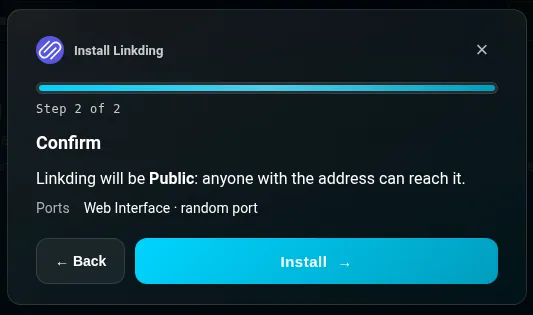
A summary of what's about to happen:
- Who can reach it. "Linkding will be Private: only your trusted places and devices can reach it", or Public: anyone with the address. A few apps have to be public to work at all (a mail server has to accept mail from outsiders) and say so.
- Its address, if it gets one on your domain.
- Its ports. "random port" means LibrePortal will pick a free one.
- Extras, the ones you switched on, if the app has any.
- Also install, when the app has a companion that goes with it. More on that below.
The Public or Private choice comes from Who can reach …? on the app's Network tab, which starts on whatever you chose for new apps in the setup wizard. To change it, press ← Back, close the dialog, change it on the Network tab and press Install App again. Who can reach what explains the difference.
Press Install. The work runs as a task, and you can follow it on the app's Tasks tab or the Tasks page. You don't have to wait; it carries on if you go elsewhere, and a message pops up when it's done.
Signing in to your new app#
Apps with an admin account get one made for them during the install, with a long random password. No app starts with a default password like admin/admin, and none is left for the first visitor to claim. Security says more about that rule.
When the install finishes, LibrePortal shows a welcome card with a button to open the app, and its Login Details: the username and the password, with Show and a copy button.
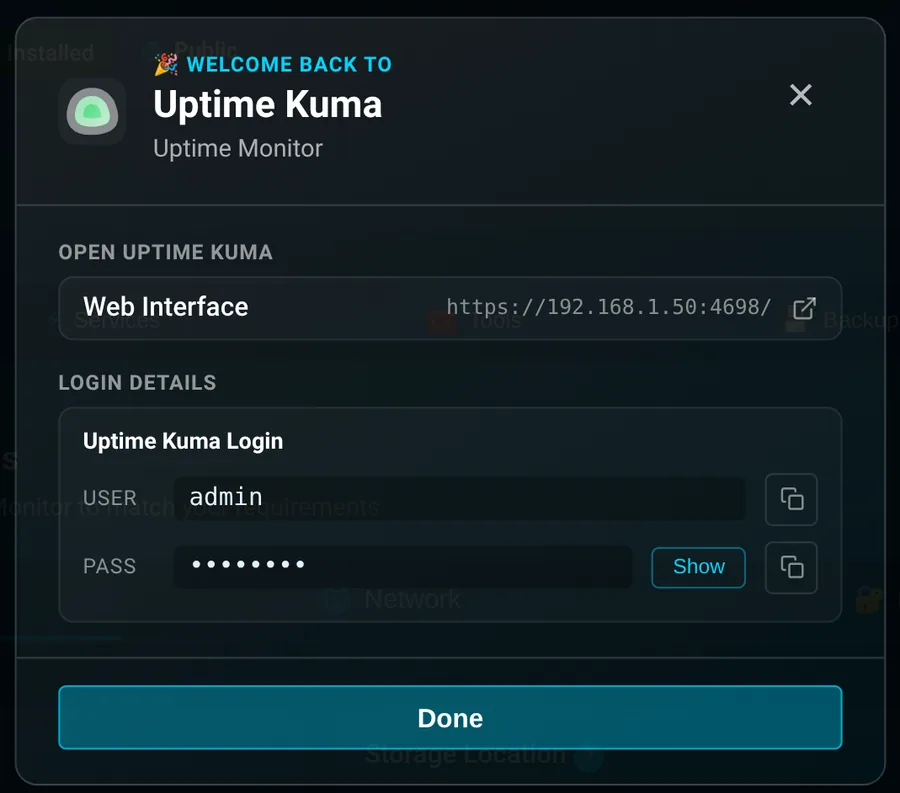
Put them in your password manager. If you close the card too soon, press Welcome at the top of the app's page to bring it back.
Each app's page in this guide says what account it makes and what it's called. Funkwhale's is lpadmin, for example, because Funkwhale doesn't allow admin.
Until the admin account exists#
Most apps can be handed their admin account before they start. Some can't: when they first start, they show a setup page, and whoever opens it first becomes the admin. Jellyfin, Immich, Uptime Kuma and several others work like this. Nextcloud is normally handed its admin, but if its first start goes wrong it falls back to that same setup page, so it's treated the same way.
So LibrePortal keeps these apps reachable from the server only while it sets them up. For those few moments nothing on your network can reach them, not even through a domain or a local name. The install makes the admin account, checks that the new login really works, and only then opens the app on its usual ports and addresses. You'll see it in the install's log: first "starts reachable from this server only, until its admin account is set up", then "has its admin account and is open on its usual addresses".
If the install couldn't finish the account
Now and then an app doesn't answer in time, or the check fails. The install says so ("its admin account could not be confirmed, so it is only reachable from this server for now") and leaves it that way, so nobody else can claim it. The simplest fix is to uninstall it and install it again. Restarting the app opens it up, so only do that once you know its login works.
The same check runs whenever one of these apps is installed over itself, which includes pressing Update Configuration. If you've changed the admin password inside the app, rather than with its Tools tab, the password on the Login Details card no longer works, the check fails, and the app stays reachable from the server only. Nothing is lost: restart it to open it up again, and use the Tools tab to change passwords from then on.
The apps held this way are AdGuard, Audiobookshelf, BookStack, Friendica, Immich, Jellyfin, Kavita, Mattermost, Navidrome, Nextcloud, Trilium and Uptime Kuma. Each one's page says what account it makes.
Changing an app's admin password
If the app has a Set Admin Password or Reset User Password tool on its Tools tab, use that rather than the app's own settings. It changes the password in the app and in LibrePortal together, so the Login Details stay right. See Tools and add-ons.
Apps that come with a companion#
Some apps work best with another app beside them. When you install one of those, the Confirm step offers the partner under Also install, with a switch to include it.
For example, Stalwart is a mail server; it holds the mailboxes but has no page for reading mail. SnappyMail is webmail, a page for reading it. Install Stalwart and the Confirm step offers "SnappyMail · Webmail". Leave it on, and SnappyMail installs straight after Stalwart and connects to it by itself. If Stalwart's install fails, SnappyMail isn't installed either.
Each companion installs with its own default settings, exactly as if you'd installed it on its own. Once both are installed, Stalwart's page gets an Open webmail button, and each lists the other under Works with. If you left the switch off, you don't need to reinstall anything later: Stalwart's Works with section has an Install button for SnappyMail. See Apps that work together.
It isn't only Stalwart. The same Also install offer appears for the other apps that connect themselves to a partner: Nextcloud offers OnlyOffice for editing documents, Prometheus offers Grafana for its dashboards, AdGuard and Pi-hole offer Unbound to look names up themselves, Mastodon offers LibreTranslate for its Translate button, and Uptime Kuma offers ntfy for alerts. In every case LibrePortal connects the two once both are there, whichever you installed first, so ticking the box just saves you a second trip to the App Center.
Choosing extras#
Some apps are a platform with their own store of add-ons. Nextcloud has hundreds of them. Rather than leaving you to find that store afterwards, LibrePortal offers a short list it has tested, right in the install, as Extras. For Nextcloud that's Talk, Calendar, Contacts, Tasks, Notes, Deck, Music, External storage and Office. Nextcloud's page says what each one gives you.
Each extra has a switch, a sentence saying what it's for, and sometimes a line about what doesn't work yet. Nothing is switched on unless you switch it on. An extra that needs another app is greyed out until that app is installed, with the reason beside it: Nextcloud's Office opens documents in OnlyOffice, so it says "Needs OnlyOffice installed".
Extras come from the app's own store, so the server needs internet while they're added. They're added at the very end of the install, once the app is running and its admin account is safely set up. If one fails (the store didn't answer, say), the install tells you which and why, and carries on. A failed extra never fails the install: the app is installed and working either way, and you can add the missing extra later.
Changing them later#
An app with extras shows them in a line under its header on its page, for example "Extras Talk · Calendar", or "None yet", with a Change button. That button opens Add or Remove Extras, which is also on the app's Tools tab. It shows the same list, ticked with what's on now. Tick or untick, press Apply, and LibrePortal adds what you ticked and removes only what you unticked.
Removing an extra switches it off; it doesn't delete anything. Your Deck boards or calendars stay in the app, and come back if you tick the extra again. An app installed before extras existed gets the same list on its Tools tab after an update, so you can add them without reinstalling.
The list records what's really on. If an extra failed, it isn't ticked. If you switched one of them on inside the app's own store, it shows as ticked, and it's left alone unless you untick it here.
Changing an app after it's installed#
Change its settings on the Config tab and press Update Configuration. See App pages and settings.
Removing an app#
Open the app's page and press Uninstall App at the bottom of the Config tab. LibrePortal asks you to confirm, because it can't be undone: "The container will be stopped and its data removed."
Two switches let you tidy up more:
- Delete docker image frees the disk space the app's download takes. If you reinstall later, it's downloaded again.
- Delete related tasks wipes the app's history from the Tasks page.
Uninstalling removes the app's containers, its data folder, its ports and its firewall rules. Settings you changed in the WebUI are remembered, so a reinstall starts from them.
Its backups are kept. Uninstalling never touches your backup locations, so every snapshot the app had is still there, and still listed in Admin → Backups with a Restore button. Restoring one reinstalls the app from that snapshot and puts its files and database back as they were. That makes it safe to uninstall something you might want back; take a Backup now first so the latest state is kept too.
From the command line#
Advanced Do this from the command line
sudo -u libreportal libreportal app list available
sudo -u libreportal libreportal app install uptimekuma
sudo -u libreportal libreportal app uninstall uptimekuma
New to the command line? How to run LibrePortal commands →
app install takes a few options:
| Option | What it does |
|---|---|
--access=private or --access=public |
Who can reach this app's web page, for this install only. Without it, the starting point you chose for new apps applies. |
--with=snappymail |
Install a companion straight after it, only if it succeeds. Several can be given, separated by commas. |
--storage=bigdisk |
Put the app's data on another storage location. |
--extras=talk,calendar |
Add these extras once the app is installed. |
app uninstall takes --delete-images and --delete-tasks, the same as the two switches in the WebUI.
To see or change an installed app's extras:
Advanced Do this from the command line
sudo -u libreportal libreportal app extras nextcloud
sudo -u libreportal libreportal app extras nextcloud add deck,notes
sudo -u libreportal libreportal app extras nextcloud remove music
New to the command line? How to run LibrePortal commands →
set instead of add or remove makes the list exactly what you give it.

