First login and setup
Signing in for the first time, and what each step of the setup wizard asks, with the choices that matter and the ones you can safely leave as they are.
On this page
Open the address the installer gave you, in a browser on any device on the same network. You'll see a sign-in page.
Signing in#
Use the WebUI username and password. If they weren't on the installer's card, print them on the server:
Advanced Do this from the command line
sudo -u libreportal libreportal webui login show
New to the command line? How to run LibrePortal commands →
Not the first password the installer printed
Near the start, the installer printed a line beginning Generated password for the 'libreportal' system user. That's the password of the libreportal account on the machine, not your WebUI login. The WebUI has its own random username and password, and webui login show is where they are.
The first time you sign in, a setup wizard takes over the screen. It asks a few questions, one step at a time, before anything is installed.
Nothing happens until the last button
You can go ← Back and change any answer. Nothing is installed or changed on the server until you press Launch Install → at the end. And everything the wizard sets can be changed later from the WebUI, so there's no answer you can't take back.
The steps#
The bar at the top says which step you're on ("Step 3 of 11"), and the ? next to each step's name explains it in a sentence. Here they are in order.
System check#
The same checks the installer ran: operating system, memory, disk, network and ports. If everything passes, press Next →. If something is marked as a problem, the wizard waits here; fix it and press Re-check, or, if you understand the problem, Continue anyway.
What are we doing?#
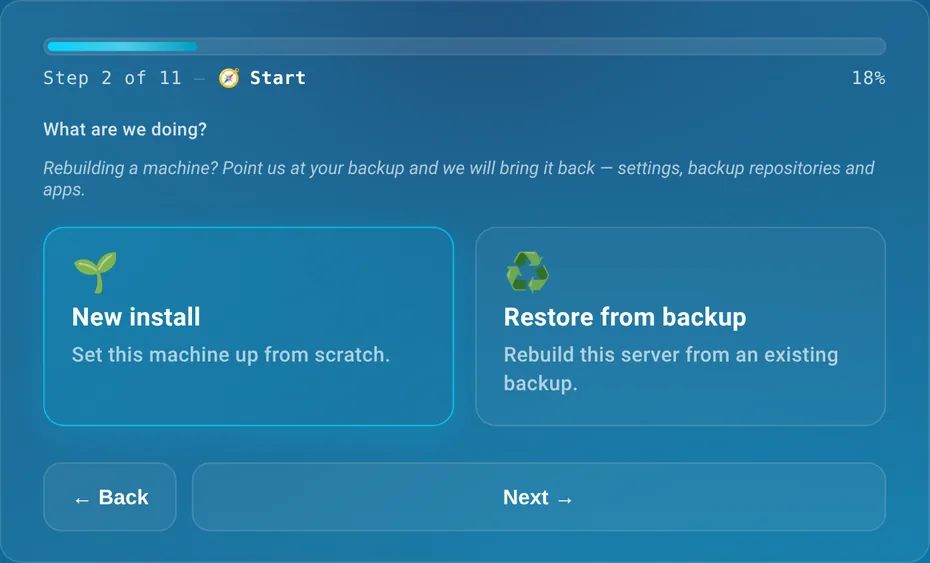
New install sets this machine up from scratch. That's almost always the one.
Restore from backup rebuilds a server from an existing LibrePortal backup: your settings, backup locations and apps. It has its own steps, described in Backups and restore.
Choose your experience#
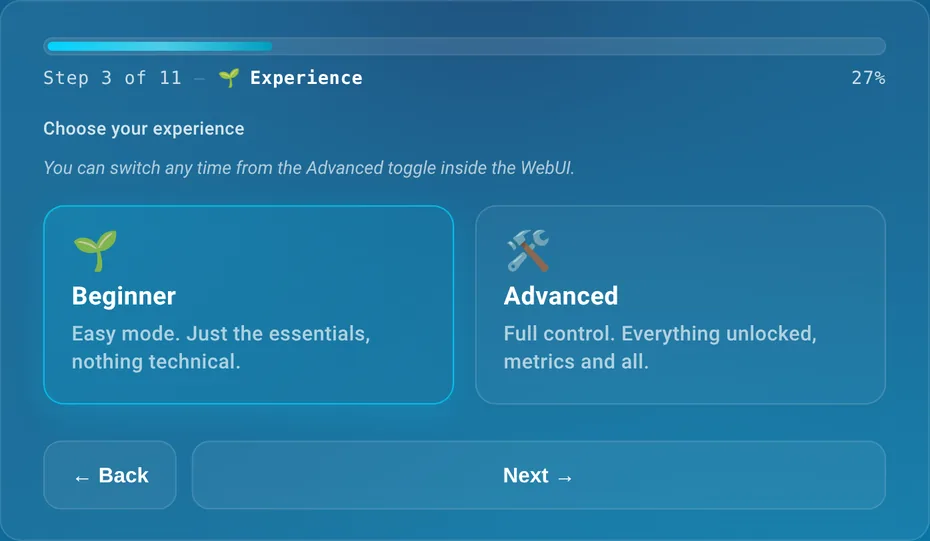
This decides how much detail the WebUI shows, not what LibrePortal can do.
- Beginner: "Easy mode. Just the essentials, nothing technical." You see what you need to install and run apps. The wizard skips the Metrics step.
- Advanced: "Full control. Everything unlocked, metrics and all." You also see containers' inner workings on each app's Services tab, two extra apps in the App Center (Headscale and wg-easy), and in this wizard, exact folder paths, swap and the Metrics step.
If you're not sure, choose Beginner. You can switch at any time with the Advanced switch in the WebUI; see Themes and appearance.
Identity#
A name for this install (one is made up for you; press Manifest for another), and your Timezone, which is guessed from your browser. Your apps are given this timezone, so the times they show match your clock.
Domains#
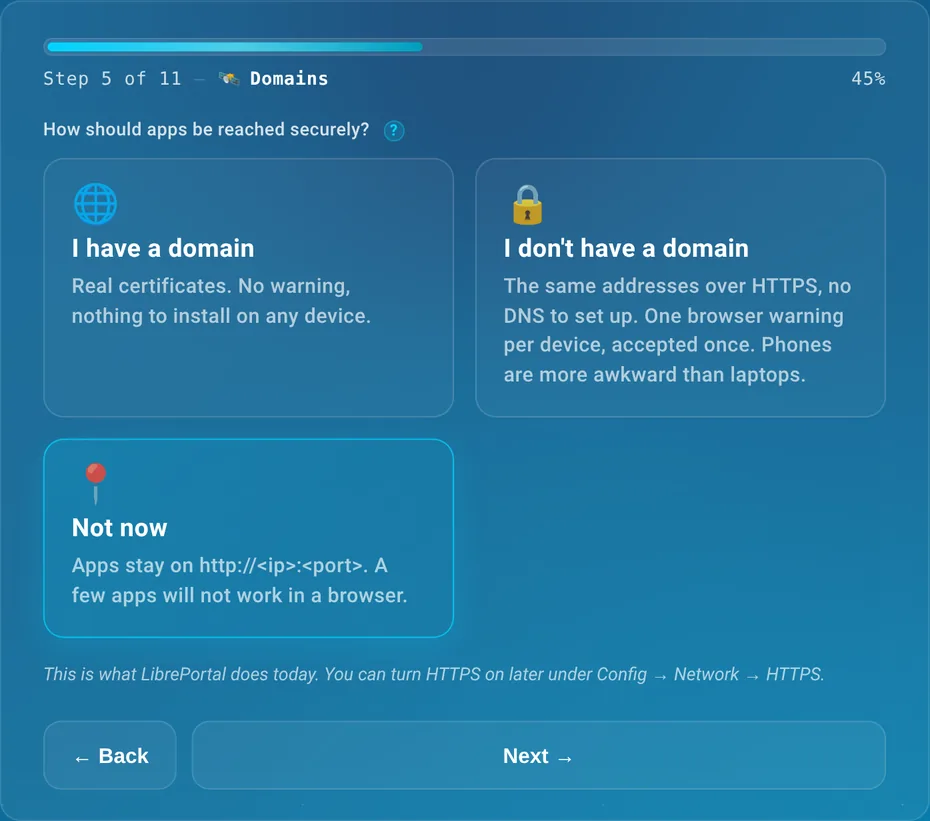
"How should apps be reached securely?"
- I have a domain: you own a name like
example.comand can point it at this server. Apps get real certificates and proper addresses likecloud.example.com, with no browser warnings. Add the domain in the list that appears. This is the one choice that needs something open to the internet: the certificates come from Let's Encrypt, which checks the domain on port 80, so the domain must point at this server and port 80 must reach it (forward it on your router if the server is at home). - I don't have a domain: the same addresses as now, but over HTTPS with certificates LibrePortal makes itself. Each device shows a warning once, which you accept. It's a little awkward on phones.
- Not now (the default): apps stay on plain
http://<address>:<port>. That's perfect for a home network, and you can add a domain any time.
Pick Not now unless you already have a domain ready. Domains and HTTPS explains the choice in full. Some apps, like the ones that talk to the fediverse, only work properly with a domain; their pages in this guide say so.
Storage#
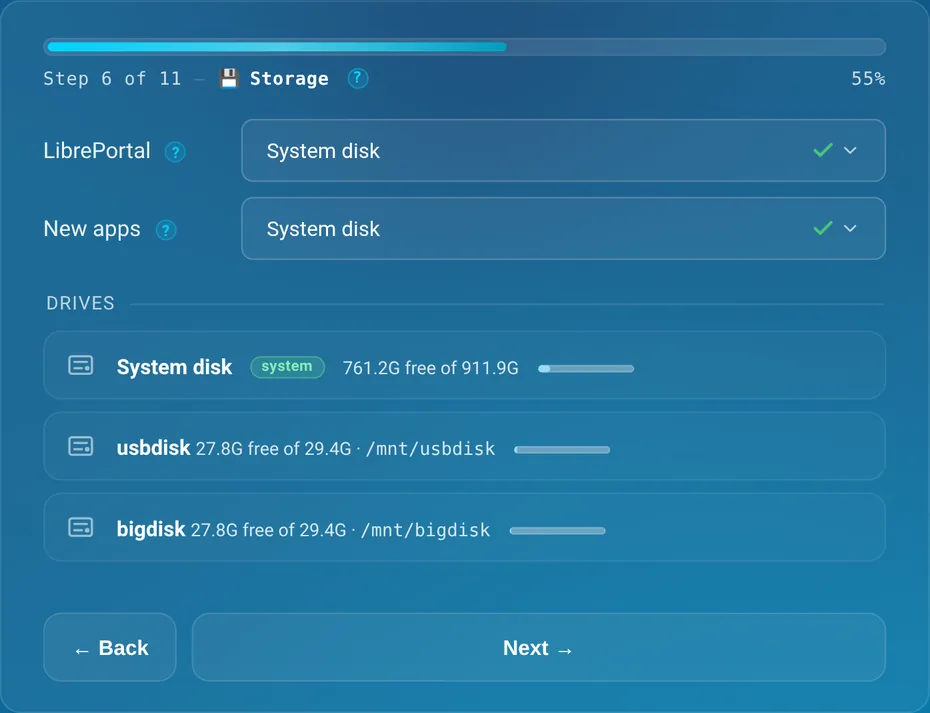
Where LibrePortal and your apps keep their data. With only one drive in the machine there's nothing to choose. With more, you can send New apps to a bigger disk. The Advanced view adds exact folder paths and the Swap setting. Disks and storage explains it all; if in doubt, leave both on System disk.
Backups#
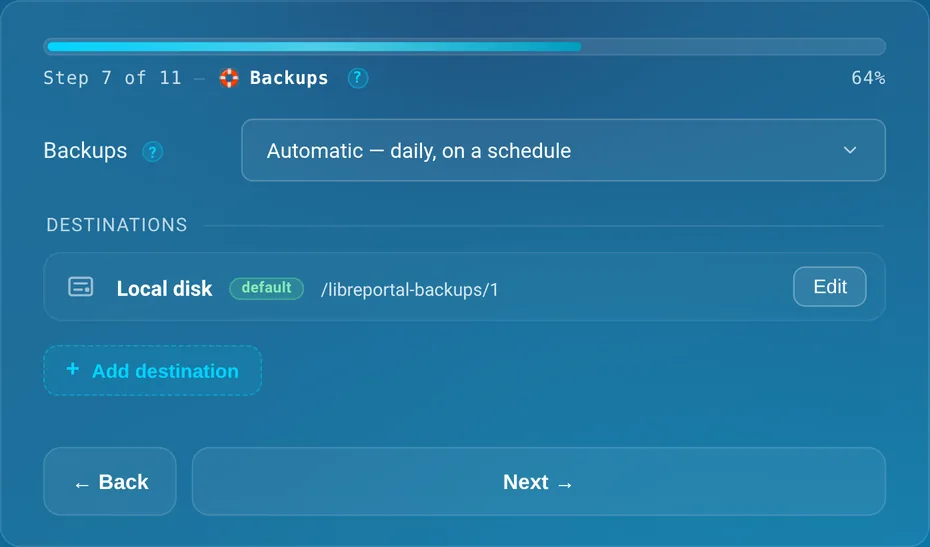
Automatic — daily, on a schedule backs up every app every night at 05:00. Manual — I'll start them myself leaves it to you. Keep Automatic.
Under Destinations is Local disk, the backups folder on this machine. You can add another here with + Add destination, like a USB disk or cloud storage, or do it later. Do it at some point: backups on the same disk don't survive the disk dying. Backups and restore explains why and how.
Import#
Start fresh, or Import apps from .lpapp files exported from another LibrePortal. If you're not moving from another LibrePortal, Start fresh.
Recommended#
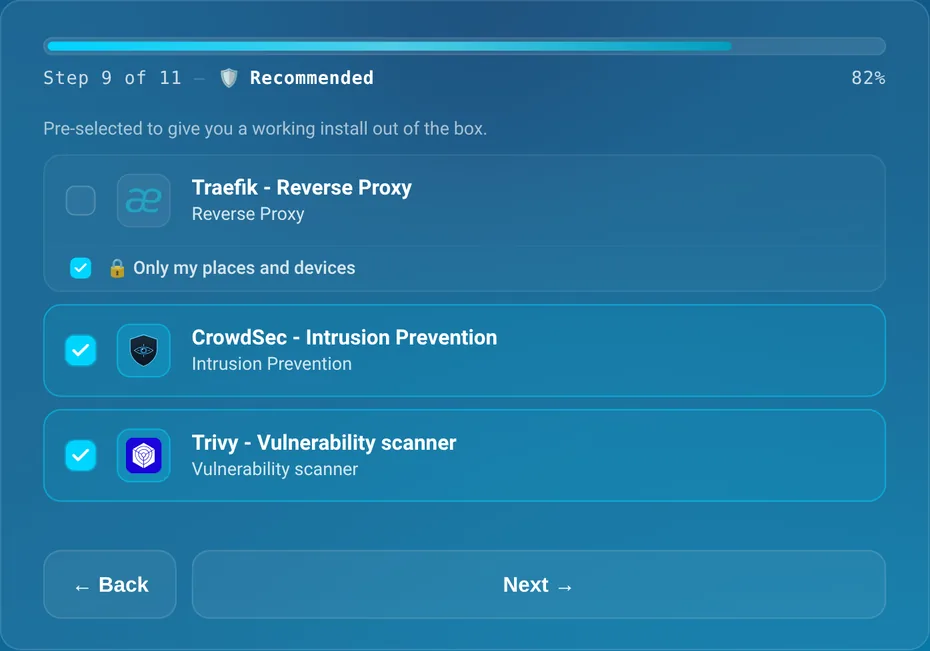
"Pre-selected to give you a working install out of the box."
- Traefik gives your apps proper addresses and HTTPS. It's only ticked if you chose a domain or HTTPS in the Domains step, because without either it has nothing to do.
- CrowdSec spots attackers trying to break in and blocks them at the firewall.
- Trivy checks your apps' images for known security holes, and the Updates page shows what it finds.
Leave them as they are. The Only my places and devices box under an app decides whether its web page is private; see the Security step below.
Metrics#
Only in Advanced. Prometheus collects measurements from your server and apps, and Grafana draws them as graphs. Both are unticked. Skip them unless you like graphs.
Security#
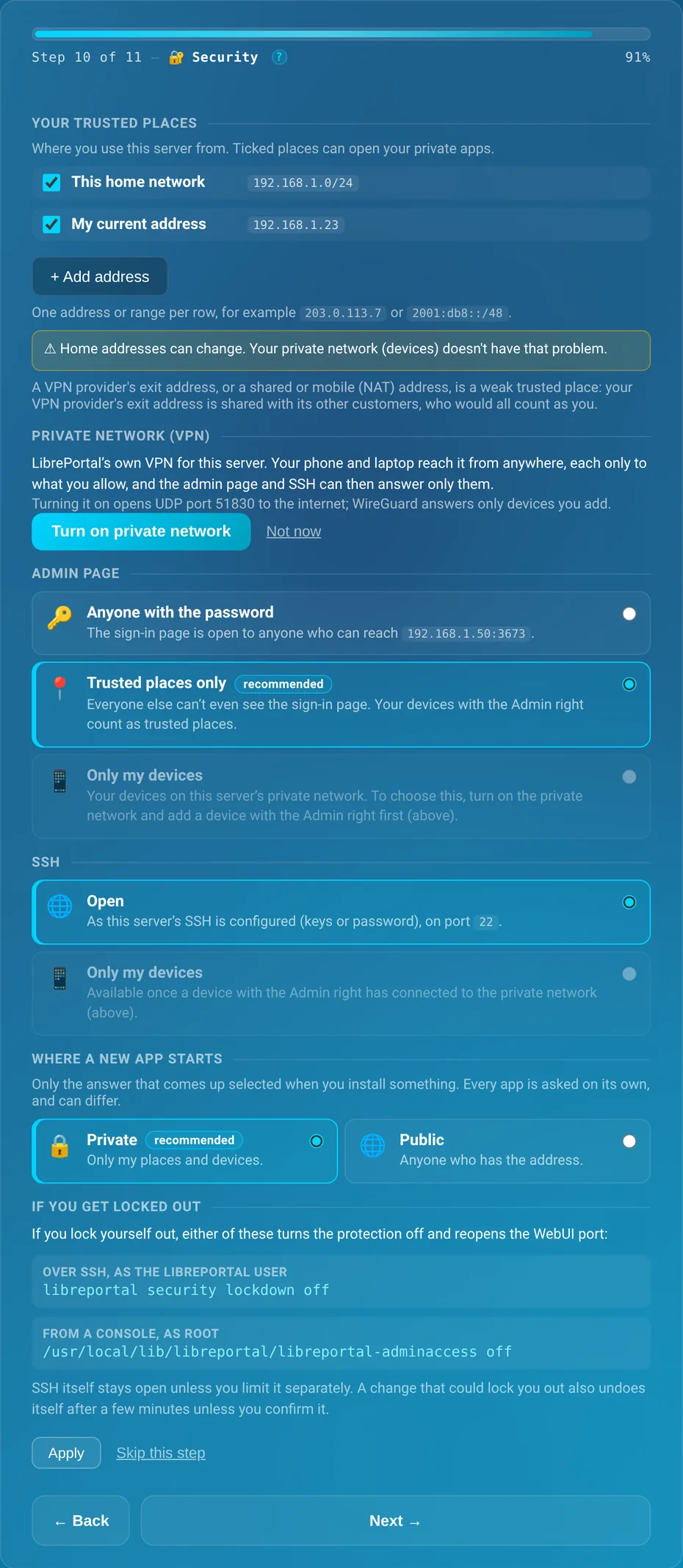
This step decides who can reach what. It's the one worth reading, but the choices already selected are the right ones for most people, and you can Skip this step and come back to it on Admin → Tools → Access.
Your trusted places are where you use the server from. LibrePortal fills in This home network and My current address for you. Private apps, and the admin page if you choose, answer only these.
Private network (VPN) is LibrePortal's own VPN, for reaching private apps from your phone when you're out. Turn on private network switches it on now; Not now leaves it for later. See The LibrePortal VPN.
Admin page decides who can even see the WebUI's sign-in page. There are three choices:
- Anyone with the password. Anyone who can reach the server can see the sign-in page, and the password is your only protection. Choose it only if the places you use the server from change all the time and you can't use the VPN.
- Trusted places only (recommended). Everyone else can't even see the sign-in page. Your VPN devices with the Admin right count as trusted places. This is the right choice almost always, at home and on a VPS alike.
- Only my devices. Only your own devices on the LibrePortal VPN, with the Admin right. It's the tightest choice, and the best one for a VPS on the public internet, once the VPN is working on your phone or laptop. It can't be chosen until an Admin device has connected.
SSH is the same idea for logging in to the server's command line. Open keeps SSH as it is. Only my devices limits it to your VPN devices, and asks you to confirm you have another way in (like your hosting company's web console) in case the VPN ever fails. Leave it on Open to start.
Where a new app starts is the answer that comes up selected when you install an app. Private (recommended): only your places and devices. Public: anyone who has the address. You're asked for every app anyway, so this is only the starting point.
If you get locked out shows the two commands that turn the protection off again, from SSH or from the machine's console. They're also in Troubleshooting. Any change that could lock you out also undoes itself after a few minutes unless you confirm it.
Press Apply to use your choices, or Skip this step.
Who can reach what explains all of this in more depth.
Appearance#
"Pick a look, or carry on." Choose one of the eight presets, or leave it on Nebula. You can change it any time from the theme menu; see Themes and appearance.
Launch Install#
Press Launch Install →. The wizard saves your choices, fades away, and takes you to the Tasks page, where you can watch LibrePortal install the apps you picked and apply your settings, one task at a time.
When the tasks have finished, you're ready to install your first app. If you're new to the WebUI, A tour of the WebUI shows you where everything is.