More than one copy of an app
Some apps can run several times side by side, each with its own data, address, backups and updates. Handy for a family Nextcloud and a work one, or a wiki per project.
On this page
Sometimes one copy of an app isn't the right shape. You might want a Nextcloud for the family and a separate one for work, so the two never share a login or a folder. Or a Bookstack wiki for each club you help run. LibrePortal calls each extra copy an instance.
Each instance is a whole, separate app: its own data folder, its own database, its own passwords, its own port or address, its own backups and its own update setting. The copies don't know about each other. Removing one leaves the others untouched.
Which apps can do it#
Only apps that have been checked to work as several copies. Every app's page in this guide says under "At a glance" whether it can run as Several copies, and each app's page in the WebUI has an Instances row under its title.
More than thirty apps can, including Nextcloud, Vaultwarden, Jellyfin, Navidrome, Forgejo, Bookstack, Linkding and ntfy.
Apps that can't show a short note in their Instances row instead:
- Not offered: the app isn't meant to run twice. That's the case for apps that are part of the server itself (Traefik, CrowdSec, AdGuard), for apps where one per server is the point (Uptime Kuma watching everything), and for apps that can't easily be separated, like Funkwhale.
- Not available: something about the app gets in the way, usually a port that has to be a fixed number, like a mail server's port 25. Two copies can't both have it.
Hover over the ? next to the note for the reason.
Making a copy#
Here's a worked example: a second Vaultwarden, for work.
- Open the app's page in the App Center. The first copy doesn't have to be installed, but it's usual.
- Press + Add in the Instances row.
- Give it a name, like
work. The box underneath shows what the copy will be called:vaultwarden_work. - Choose where it's served. With no domain set up, the copy is Private: it gets its own port on this server, reachable from your trusted places. If you have a domain, you can untick that and pick the domain and a Subdomain instead; the default is the app and name joined up, like
vaultwarden-work. A subdomain can only have lowercase letters, digits and hyphens, and the dialog won't create the copy until it does. Type@to put it on the bare domain. A small line under the box shows the address it will have as you type. - Press Create instance. The copy is installed like any other app, and you're taken to the Tasks page to watch.
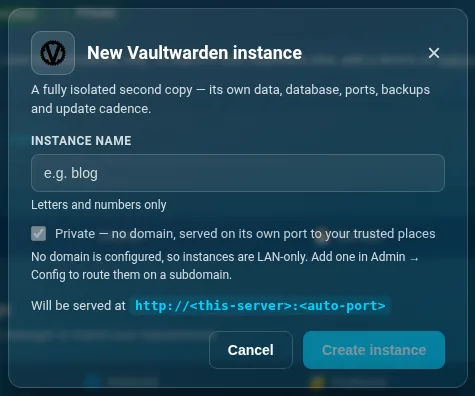
Names are kept to letters and numbers
The name becomes part of the copy's folder and settings, so LibrePortal keeps only lowercase letters and digits: "My Blog" becomes myblog, and "Family 2" becomes family2. The box under the name shows exactly what you'll get before you press anything.
When it's done, the copy has its own Login Details, just as a new install does. It really is a separate app, so the first copy's password won't work on it.
Moving between copies#
Copies don't get their own card in the App Center. The app's card gets a badge instead ("2 instances"), and on the app's page the Instances row has a pill for each copy: the first one under the app's own name, and the others under the name you gave them. Click one to switch; you stay on the same tab, so it's quick to compare the Config of two copies.
Each copy has the full set of tabs: its own Config, Services, Tools, Backups, Updates and Tasks.
Removing a copy#
Open the copy you want to remove (not the first one) and press Remove instance in the Instances row, then confirm.
That uninstalls the copy and deletes its data, its database and its settings. Snapshots already made of it stay in your backup locations, but with its settings gone there's no longer an app page to restore them from, so take anything you need out of the app first.
To check: check whether snapshots of a removed instance can be restored, and how
The first copy, the one under the app's own name, is removed like any other app, with Uninstall App on its Config tab.
From the command line#
Advanced Do this from the command line
sudo -u libreportal libreportal instance create nextcloud work
sudo -u libreportal libreportal instance list
sudo -u libreportal libreportal instance remove nextcloud_work
New to the command line? How to run LibrePortal commands →
instance create <app> <name> takes two optional extras after the name: the domain number to serve it on (1 for your first domain) and a subdomain. Add --local to make it private, on its own port, with no domain. instance list shows every copy, and instance list nextcloud just the copies of one app.
Everything else works on a copy by its full name, exactly as on any app: backup app create nextcloud_work, updater rollback nextcloud_work, and so on.


