Who can reach what
Public or private: for every app, and for the WebUI itself, you choose between anyone who can reach your server and only your own trusted places and devices.
On this page
Every app you install opens a door on your server. Some doors should be open to anyone: a public website, or a chat server your friends join from their own homes. Most shouldn't. Your password manager, your photos and your files only ever need to be reached by you and the people in your house.
LibrePortal lets you decide that door by door, with two words: Public and Private. This page explains what they mean, where your trusted places come from, and how to lock down the WebUI itself without locking yourself out.
Public and private#
Every app has one answer:
- Public means anyone who can reach your server can reach the app. On a home network behind a router, that's the people on your network (and anyone you've forwarded a port for). On a server with its own public address, like a VPS, it's the whole internet.
- Private means only your trusted places can reach it. Everybody else gets no answer at all, as if nothing were there.
It's the server's own firewall that does this, not the app. That matters: an app with a weak login page, or a bug nobody has found yet, is still safe from strangers when it's private, because their connection never reaches it.
Private unless it needs to be public
The best rule of thumb: make an app public only when people outside your trusted places need to use it. You can always reach your private apps from away from home through the LibrePortal VPN, so "I want it on my phone at work" isn't a reason to make it public.
Your trusted places#
A trusted place is somewhere you use your server from. There are three kinds, and you manage them all on Admin → Access (under Tools in the Admin sidebar), in Your trusted places.
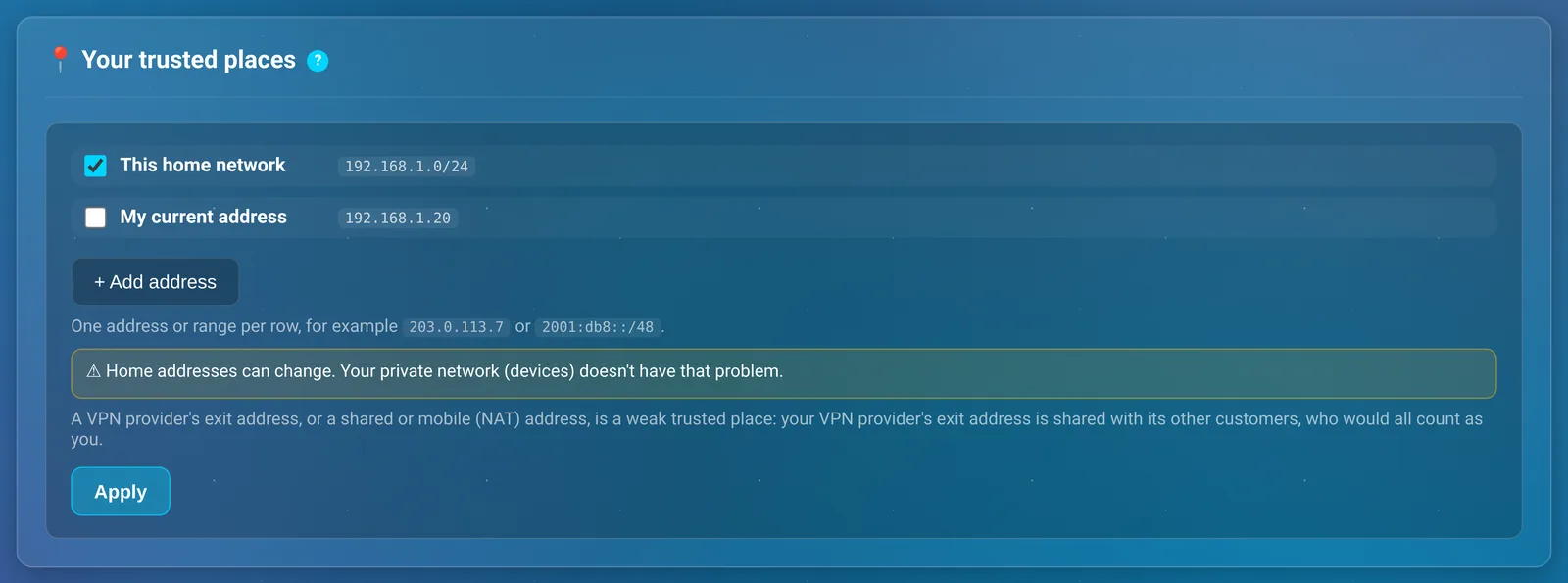
This home network. LibrePortal looks at the networks the server is plugged into and offers the private one it finds, something like 192.168.1.0/24. Tick it and every device at home counts. It checks again every time the settings are applied, so it follows a new router. A server with only a public address, like most VPSes, has no home network, and the option isn't shown.
Addresses you add. Press + Add address and enter an address or a range, such as your office's fixed address 203.0.113.7. You can add up to 64. My current address adds the address you're browsing from right now. If you're at home, there's also Find my internet address, which asks ip.libreportal.org what your home's public address is; it only does that when you press it.
Your devices on the VPN. Phones and laptops you've added to the LibrePortal VPN reach the apps you've given them, from anywhere. Devices with the Admin right also count as trusted places for the WebUI.
Press Apply when you've made your changes. Adding a place takes effect straight away.
Some addresses make poor trusted places
Most home internet addresses change now and then, and when yours does, your old address stops working and someone else might get it. A VPN service's exit address is worse: it's shared with all its other customers, who would all count as you. The same goes for mobile data. For anything away from home, use your own devices on the LibrePortal VPN instead; they don't have that problem.
Choosing for each app#
Open an app, go to its Config tab and choose Network. The section headed Who can reach…?, with the app's name, has the two answers.

It changes the page people open, the app's web interface. Apps with other ports (a mail server's SMTP port, say) list them underneath, each with its own Access: Disabled, Private (trusted places) or Public. Below that, Which of my devices can reach this app lets you pick VPN devices one by one; press Save devices when you're done.
A few apps can't be private, because the whole point of them is that outsiders reach them: Mastodon talking to other servers, or Jitsi Meet calls with people who aren't on your network. Their Network tab says Open to anyone instead of giving you the choice.
You also get the same choice when you install an app, and the confirmation before it installs says which one you picked.
Where a new app starts#
The answer that's already selected when you install an app comes from Where a new app starts on the Access page: Private (recommended) or Public. The setup wizard asks the same question in its Security step and suggests Private. If you skipped that step, new apps start Public, so it's worth a look.
Who can open the WebUI#
The WebUI has its own setting, in Admin page on the same Access page.
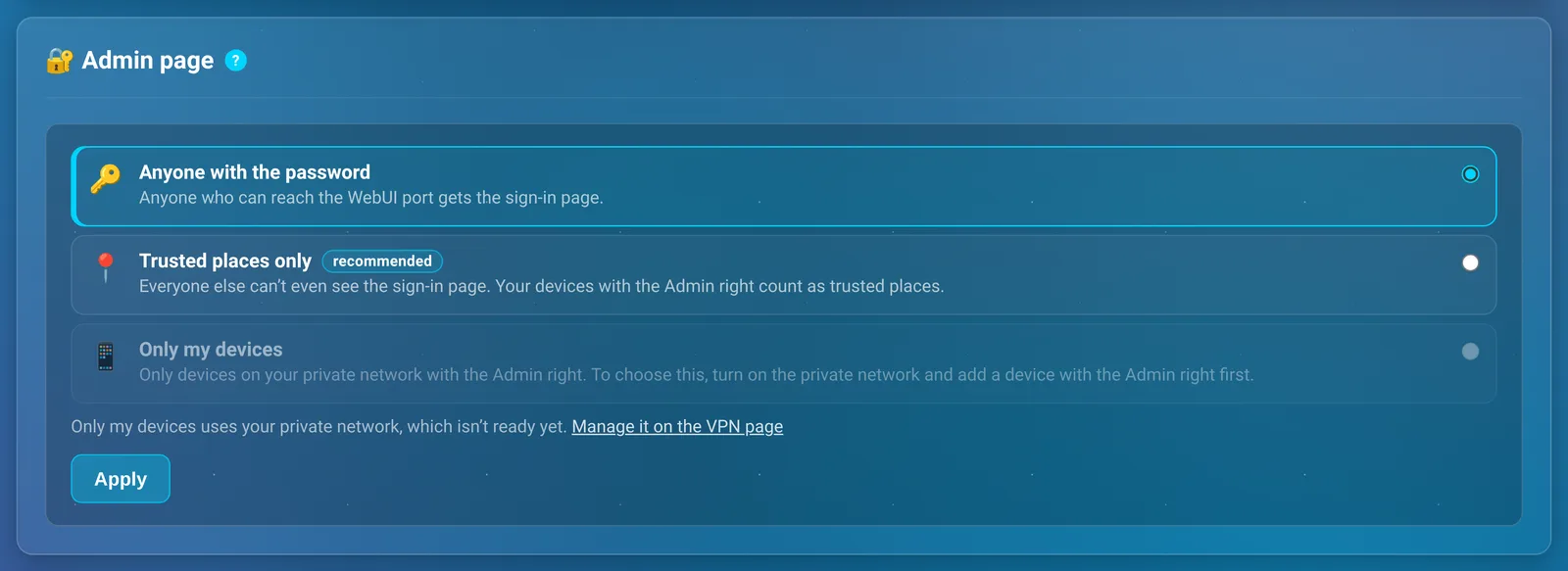
| Choice | Who gets the sign-in page |
|---|---|
| Anyone with the password | Anyone who can reach the WebUI's port. This is how a new install starts. |
| Trusted places only (recommended) | Only your trusted places, including VPN devices with the Admin right. Everyone else can't even see the sign-in page. |
| Only my devices | Only VPN devices with the Admin right. Tick Let my trusted places in too to add your trusted places as well. |
Trusted places only needs at least one trusted place. Only my devices needs the VPN switched on and a device with the Admin right that is actually connected at that moment, and you have to choose it from that device, through the VPN. If you're on the page some other way, LibrePortal offers to open it at the VPN address for you.
Why it asks you to prove it works first
LibrePortal only lets you choose a setting from a connection that will still work afterwards. Choosing "only my devices" from your laptop at home, when your phone is the only device on the VPN, would shut the door on the laptop you're using. Checking first means the door is never closed on the person closing it.
The ten-minute undo#
Getting access wrong can lock you out of your own server. So any change that closes access, like limiting the WebUI or SSH, or removing a trusted place while the WebUI is limited, undoes itself after 10 minutes unless you confirm it.
- Apply the change. A panel appears, Waiting for your confirmation, with a countdown.
- Check it works. Load the page again through the way in you've just allowed: from home, or through the VPN.
- Press Confirm. It only works from a connection that uses the new setting, which is the proof that you can still get in. Revert now undoes it straight away.
If you don't confirm, or if you can't because you really have locked yourself out, just wait: after 10 minutes everything goes back to how it was. A restart in the meantime reverts it too. What goes back is the admin page setting, the trusted places and the SSH setting; the VPN itself and your devices are left as they are. You can change the window to 5 or 30 minutes under Show Advanced Options, Timing and rule details, Confirm window.
Opening things up doesn't need a confirmation, because it can't lock anyone out. LibrePortal still asks you once before it opens the admin page to everyone.
SSH#
SSH is how you reach the server's command line. By default LibrePortal leaves it open (it's still protected by your password or key). The SSH section on the Access page lets you limit it:
- Open: anyone who can reach the server can try to log in.
- The same as the admin page: SSH follows whatever you chose for the WebUI.
- Only my devices: only VPN devices with the Admin right, through the VPN.
Limiting SSH asks you to tick I can reach this server's console (e.g. my provider's web console) if the VPN fails. Take that seriously: with SSH closed, a console is your only way in if the VPN ever stops working. SSH sessions that are already open aren't cut off when you apply the change.
Whether SSH accepts passwords at all is a separate setting, on Admin → SSH Access; see Security.
If you lock yourself out#
Waiting ten minutes fixes any change you haven't confirmed. If you confirmed something and now can't get in, turn the protection off from the server itself. Over SSH:
Advanced Do this from the command line
sudo -u libreportal libreportal security lockdown off
New to the command line? How to run LibrePortal commands →
Or, if SSH is closed too, from the machine's own console (or your provider's web console), as root:
/usr/local/lib/libreportal/libreportal-adminaccess off
Both reopen the WebUI to anyone with the password. Your trusted places and devices are kept, so you can set things up again.
From the command line#
| Command | What it does |
|---|---|
security status |
What's set, the firewall rules LibrePortal manages, and the VPN. |
security trusted |
List your trusted places. |
security trusted add <address> |
Add an address or range. remove and set work too. |
security lan on / off |
Count this home network as a trusted place, or not. |
security webui password / trusted |
Admin page: anyone with the password, or trusted places only. |
security apps private / public |
Where a new app starts. |
security app <app> private / public |
Change one app. |
security ssh open / same / devices |
Who can reach SSH. |
security confirm / revert |
Keep or undo a change that's waiting. |
security lockdown off |
Open the WebUI again. |
Run each one as sudo -u libreportal libreportal <command>. When you install from the command line, libreportal app install <app> --access=private picks the answer for that one app.

