Themes and appearance
Picking a ready-made look for the WebUI, building your own on the Appearance page, and moving it to another LibrePortal. Plus what the Advanced switch shows.
On this page
The WebUI starts in Ocean: a deep blue night sky, dark blue glass cards and lighter blue buttons, the same look as this guide and libreportal.org. If that's not for you, there are eleven other colours one click away, and a page where you can make your own.
Picking a theme#
The theme menu is in the top bar, next to Support us; it shows the name of the theme you're using. The themes are the same design in different colours, in three groups:
- Dark: Ocean (the standard look), Aurora (teal and green), Violet, Ember (warm orange), Rose and Graphite (dark grey with a blue accent).
- Black, nearly black backgrounds: Midnight (a deep blue tint), Onyx (charcoal with silver) and Obsidian (a violet tint).
- Light: Daylight (white to pale blue), Mint and Sand (warm cream). These have their own dark text, so everything stays easy to read.
Pick one and the whole WebUI changes straight away, the sign-in screen included. There's nothing to save. Themes from before 0.10.96 (Nebula, Dark Blue, Light and the older presets) are retired: if you were using one, LibrePortal moved you to Ocean. A theme you made yourself is kept.
The phone app can follow the same theme.

The choice belongs to your LibrePortal, not to your browser: open the WebUI on your phone, or at a different address, and it's already in the same theme. There's one WebUI account, so there's one theme.
Making your own#
At the bottom of the theme menu, Customise… opens the Appearance page. Every change shows up as you make it and is kept straight away; there's no Apply button. The panel on the right shows sample cards, buttons and text, so you can see the effect without leaving the page.
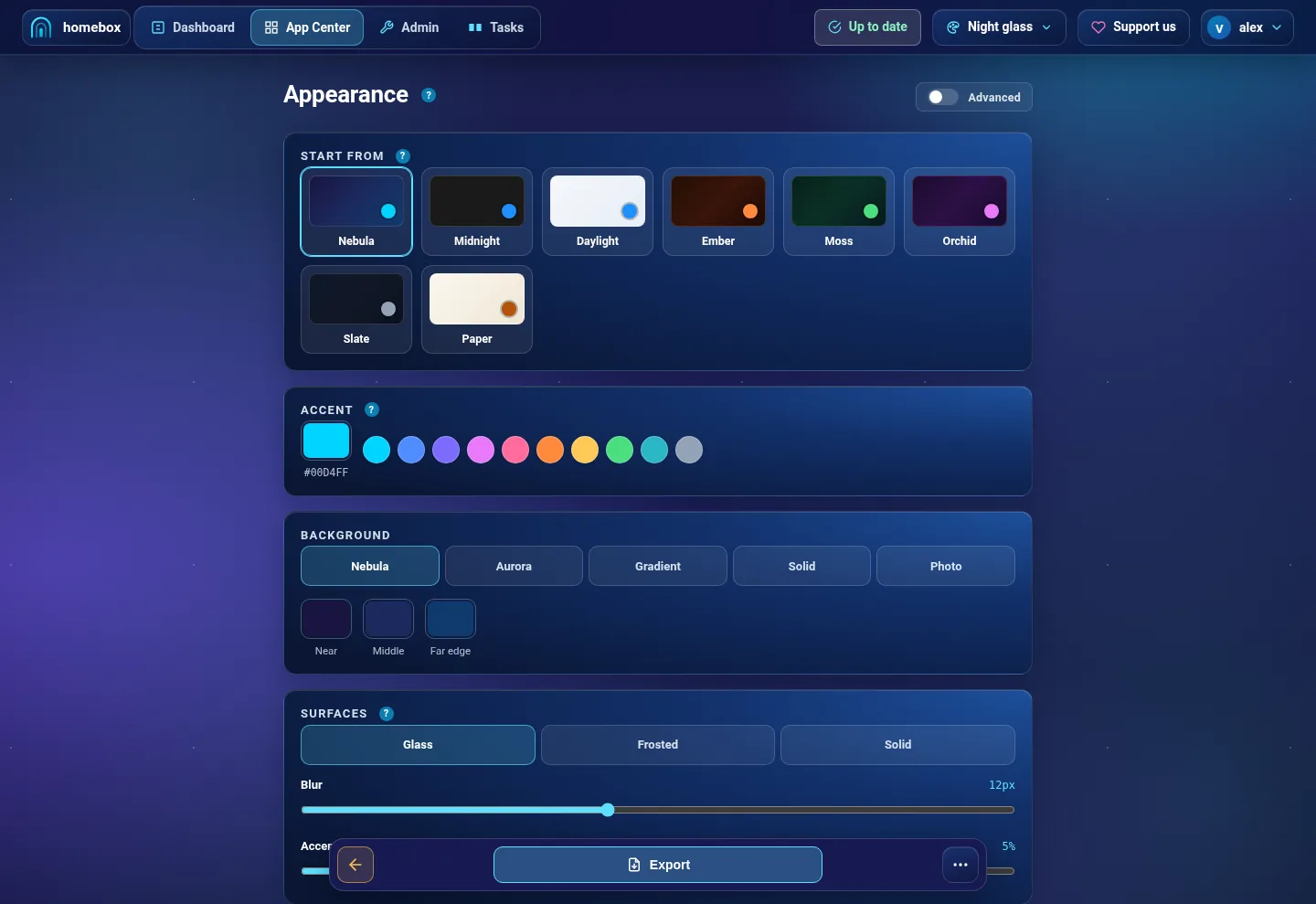
The page is in sections, from the big choices to the small ones:
Start from. The twelve themes as small preview cards, grouped Dark, Black and Light. A preset sets every control below it, so it's the place to begin. Nothing is locked afterwards.
Accent. The signature colour: buttons, links, the focus ring and the glow under a card. Pick any colour, or one of the ten suggestions. If the colour you choose is hard to read against the background, a warning appears with a Fix it button that nudges it until it's readable.
Background. The style behind everything: Nebula, Aurora, Gradient, Solid or Photo. The colour swatches underneath (Near, Middle, Far edge) set the colours the style blends between. Photo lets you Choose a picture of your own (PNG, JPEG, WebP or AVIF). It's shrunk to fit and saved with your theme, and the Veil slider darkens or lightens it so text stays readable on top.
Surfaces. How cards, the top bar and side panels sit on the background: Glass (see-through), Frosted or Solid. For Glass and Frosted, Blur sets how much the background is blurred behind them, and Accent in the glass tints them with your accent colour.
Text. How strongly secondary labels and borders stand out: Soft, Normal or High. Choose High if you find the quieter text hard to read.
Portal. The swirl behind the boot and sign-in screens. Pick a motion (Astral, Drift, Still, Cyclone, Filigree or Deep), then fine-tune Speed, Arms and Swirl. Portal colour follows your theme unless you set one; Follow the theme undoes that. Reset the portal puts all of it back.
Legibility only appears when Advanced is switched on at the top of the page. It checks every pair of colours in your theme against the usual readability rules (text needs a contrast of at least 4.5 to 1, outlines 3 to 1) and lists any that fail. Fix the ones that fail adjusts them for you.
If you get lost
Reset to Ocean, at the top of the page, puts everything back to the standard look, including removing any picture you added. It's always there, so experiment freely.
Taking a theme to another LibrePortal#
Themes move by copy and paste, not as files:
- On the Appearance page, press Export. Your theme is copied to the clipboard as a short piece of text.
- On the other LibrePortal, open the Appearance page, press Import, paste the text into the box and confirm.
The text carries your colours, surfaces and portal. A background photo doesn't travel that way, so choose it again on the other side.
Beginner and Advanced#
Separate from the theme, the WebUI has two levels of detail. You chose one in the setup wizard's Choose your experience step:
- Beginner: "Easy mode. Just the essentials, nothing technical."
- Advanced: "Full control. Everything unlocked, metrics and all."
Nothing is taken away from Beginner that you need to run your server. Advanced adds detail for people who want it:
- On an app's Services tab, each container's limits, mounts, networks and health check.
- The Legibility panel on the Appearance page.
- Two more apps in the App Center, Headscale and wg-easy, which are for people who already know they want them. Most people are better served by the built-in LibrePortal VPN.
Switch at any time with the Advanced switch on an app's Services tab or at the top of the Appearance page. Unlike the theme, this choice is remembered by each browser, so your phone can stay on Beginner while your laptop shows everything.
Other "advanced" switches
A few pages have their own switch for extra fields, which only affects that page: Show advanced fields in an app's port list, Show advanced settings on an app's Config tab, and Show Advanced Options on Admin → Tools → Access.

