
Uptime Kuma keeps an eye on your apps and tells you the moment one stops answering. On LibrePortal it starts watching everything you've installed without you lifting a finger.
On this page
- At a glance
- What it's good for
- Signing in
- Your apps are already being watched
- Choosing which apps it watches
- Getting told when something goes down
- Changing the admin password
- Good to know
- Addresses and ports
- Settings
- In its config file
- Tools
- Works with
- Privacy and security
- What leaves this server
- What LibrePortal turns off
- Sources
- Under the hood
At a glance#
- What it is
- Uptime Monitor Monitoring
- Where it opens
- Web Interface
On its own port at
http://your-server:port, oruptime.your-domainonce you have a domain - Updates
- Automatic A backup is taken first, and it rolls back if the update fails
- Backups
- Included Part of the daily backup when that's switched on
- Copies
- One per server
What it's good for#
When you run a handful of apps, you don't want to find out one of them is down because someone in the house complains. Uptime Kuma checks each app every minute, draws you a history of when it was up and how quickly it answered, and can message you when something goes wrong. It's also handy for things that aren't on your server at all, like your router's admin page or a website you care about.
Signing in#
A new Uptime Kuma asks whoever opens it first to create the admin account. So while it installs, LibrePortal keeps it reachable from the server only, makes the account itself, checks the new login works, and only then lets anyone else in.
The account is called admin. Its password is in the Login Details shown when the install finishes; press Welcome on the app's page to see it again. Open Uptime Kuma with the Web Interface button on its page.
If the install couldn't make the account
If something went wrong, the install says so and leaves Uptime Kuma reachable from the server only, so nobody else can claim it. The simplest fix is to uninstall it and install it again. Only restart it to open it up once you know the admin account exists.
Your apps are already being watched#
This is the part LibrePortal adds. As soon as Uptime Kuma is running, it gets a monitor for every app you've installed that has a port to check, and from then on:
- Installing an app adds a monitor for it, as long as Monitor New Apps Automatically is on (it is to start with). Uninstalling one removes it.
- Moving an app to a new port or address updates its monitor in place, so its history is kept.
- Uptime Kuma catches up on its own. If it was stopped while you installed things, it sorts itself out the next time it starts.
Updated from 0.4.6 or earlier?
Before 0.4.7, installing or uninstalling an app stopped the sync with an error, so new apps weren't added to Uptime Kuma at all. That's fixed in 0.4.7. After updating, run Sync Monitors once (see below) to add anything that was missed. If a sync ever fails now, Uptime Kuma's Works with row says Problem found and gives the reason, rather than showing it as connected.
Each monitor is named after the app and carries a blue LibrePortal tag, so you can tell them apart from your own. They check the app directly, container to container, rather than through your domain. That makes them a clean answer to "is the app itself up?", and it means they carry on working if your server's address changes.
Make them yours
You can rename a LibrePortal monitor, change how often it checks, or attach notifications to it inside Uptime Kuma. LibrePortal keeps those changes. The only thing it ever puts back is what the monitor points at, so it keeps following the app.
Choosing which apps it watches#
Everything is managed from Uptime Kuma's Tools tab in LibrePortal.
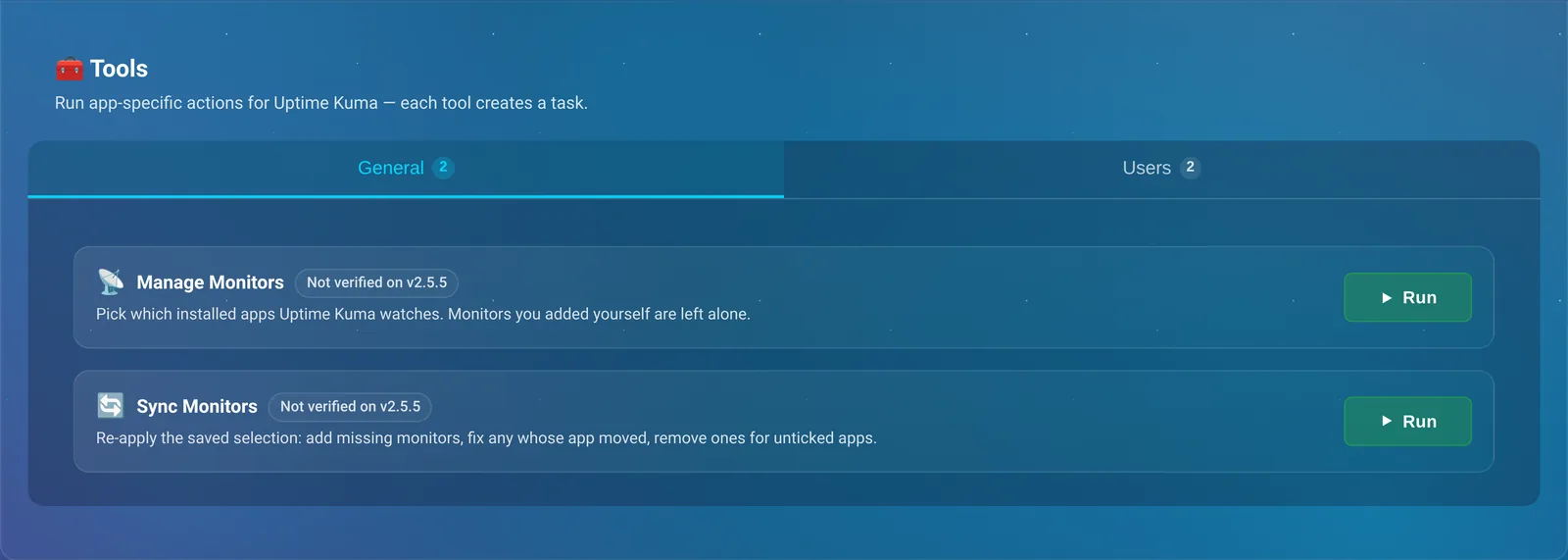
- Manage Monitors shows a tick list of your installed apps. Untick the ones you don't care about and run it. Apps without a port to check are greyed out.
- Sync Monitors puts everything back in line with that list: it adds monitors that are missing, fixes any whose app has moved, and removes ones for apps you've unticked. Run it if you've deleted a LibrePortal monitor by mistake.
Two settings on the Config tab go with them. Monitor New Apps Automatically decides whether apps you install from now on are added for you. Check Interval (seconds) is how often new monitors check, from every 20 seconds up to once a day; monitors that already exist keep whatever they have.
Your own monitors are left alone
Anything you add yourself in Uptime Kuma, without the LibrePortal tag, is never touched. If one of yours happens to watch the same app, LibrePortal says so in the task output and leaves it be.
Getting told when something goes down#
If you run ntfy on the same server, LibrePortal does this part for you. ntfy is offered beside Uptime Kuma under Also install, and whenever it's installed, Uptime Kuma gets a ready-made notification, LibrePortal → ntfy, attached to the monitors LibrePortal made, so an app going down pings the ntfy app on your phone with nothing to set up. Remove ntfy and the notification goes with it.
For any other way of being told, you add it yourself, because only you know where you want it: in Uptime Kuma, open Settings → Notifications, add a channel, and tick it on the monitors you care about. LibrePortal keeps it there.
Uptime Kuma can also publish a status page, a simple public page showing which of your services are up. That's all done inside Uptime Kuma, under Status Pages.
Changing the admin password#
Use the Set Admin Password tool rather than Uptime Kuma's own settings. It changes the password inside Uptime Kuma and in LibrePortal together, so the password LibrePortal shows you stays right, and so does the monitor sync, which signs in as admin to do its work. Leave the box empty to have a strong one made for you. Anyone signed in to Uptime Kuma is signed out when it changes.
If the two ever get out of step (say you changed the password inside Uptime Kuma), the sync notices, puts LibrePortal's password back, and tries again. You can do the same by hand with Repair Admin Login.
Leave two-factor off on the admin account
If you turn on two-factor sign-in for admin inside Uptime Kuma, LibrePortal can no longer sign in to keep your monitors up to date, and the sync stops with a message saying so. Keep the admin password strong instead, and keep Uptime Kuma private if only you need it (see Who can reach what).
Good to know#
- LibrePortal runs the slim edition of Uptime Kuma 2. It's much smaller, but it leaves out the built-in browser that Uptime Kuma's "real browser" monitor type needs, so that one type isn't available.
- Updates are automatic within version 2. A move to a future version 3 will be a deliberate step, because a major version can change the database.
- There's one Uptime Kuma per server. One status board watching everything is the point.
- It runs on your server's timezone from 0.4.7. Installs made with 0.4.6 or earlier run on UTC, because the setting never reached the app. Press Update Configuration on its Config tab, without changing anything, to fix that: it rewrites the app's compose file, which an update leaves alone, and keeps your monitors. It also checks the admin login as an install does, so if LibrePortal can't sign in as
admin(two-factor is on, say), Uptime Kuma comes back reachable from the server only. Restart it to open it up again.
Addresses and ports#
Uptime Kuma has one port. LibrePortal picks a free port number for each when you install, so yours will differ from anyone else's. The Config tab's Network section shows them, and the app's Open button uses the right one. "Anyone" means it's reachable from wherever your server is reachable; you can make it private later.
| What it is | Who can reach it | With a domain |
|---|---|---|
| Web Interface | Anyone | uptime.your-domain |
Settings#
These are Uptime Kuma's own settings on its Config tab. The settings every app shares, like backups, updates and where its data lives, are explained in App pages and settings.
| Setting | What it does | Starts as |
|---|---|---|
| Apps to Monitor | — | Empty |
| Monitor new apps | Add a monitor for each new app as it's installed. | On |
| Check Interval (seconds) | How often new monitors check their app. Monitors that already exist keep their own interval. | 60 |
In its config file#
A few more aren't on the Config tab yet. They live in the app's config file, described here so you know they exist. How to change them.
| Setting | What it does | Starts as |
|---|---|---|
NameCFG_UPTIMEKUMA_DISPLAY_NAME |
What this app is called on your dashboards. Leave empty to use its usual name | Empty |
Show on the LibrePortal DashboardCFG_UPTIMEKUMA_SHOW_ON_DASHBOARD |
Whether this app gets a shortcut on the front page of the LibrePortal WebUI, separate from any Dashy dashboard Choices: true, false |
false |
Update checkCFG_UPTIMEKUMA_UPDATE_CHECK |
Whether Uptime Kuma may ask its maker's website for newer versions every two days. Choices: true, false |
false |
Alerts To ntfyCFG_UPTIMEKUMA_NTFY |
Tell the ntfy app on this server when a watched app goes down Choices: true, false |
true |
Tools#
Uptime Kuma's Tools tab has 5 buttons for jobs you'd otherwise need a terminal for. Each one runs as a task, so you can watch it on the Tasks page and read what it did. More about Tools.
Watch every installed app that has a port to check, and send an alert to ntfy when one goes down. Safe to run again; monitors you made yourself are left alone.
Pick which installed apps Uptime Kuma watches. Monitors you added yourself are left alone.
Re-apply the saved selection: add missing monitors, fix any whose app moved, remove ones for unticked apps.
Uptime Kuma keeps its own copy of the admin password from when its account was made. If the two no longer match, this makes Uptime Kuma accept the password LibrePortal shows — and the monitor sync work again.
Change the Uptime Kuma admin password. It changes inside Uptime Kuma and in LibrePortal together, so the two cannot drift apart. Leave blank to generate one.
Works with#
These are the other apps Uptime Kuma knows how to work with. Once it's installed, its page shows the same list with whether each one is connected. How this works.
- Monitor sync: Watches your apps and shows when one goes down. LibrePortal sets this up by itself when both are installed.
Every app you install
- Alerts to ntfy: Tells you on your phone when an app goes down. LibrePortal sets this up by itself when both are installed.
- Grafana: Shows dashboards for the apps that have one. works with every app
- Home Assistant: Shows whether your apps are up, as sensors.
- Prometheus: Collects metrics from the apps that can export them. works with every app
Privacy and security#
All clear Uptime Kuma watches your services and keeps its data on your server. LibrePortal switches off its update check with the maker's website.
What leaves this server#
- Alerts go to the notification services you add
- Monitors reach whatever targets you add
What LibrePortal turns off#
- Update check against uptime.kuma.pet (switchable in Config)
Licence: MIT. Audited: 21 October 2026. See the privacy of every app and the Promise.
Sources#
Under the hood#
- It runs this image:
louislam/uptime-kuma:2.5.5-slim@sha256:9c56a772a7df53f444a404c579e87a27bd0c201375d00d6745a75bf8138f4342. - It can sit behind Authelia's sign-in once Authelia is installed.
- Its own project and documentation: github.com/louislam/uptime-kuma
Ports, settings, tools and connections on this page are read from LibrePortal v0.10.97's app catalogue each time the guide is built.
